Café · order to cup
A café counter is a 2.4 metre production line, and the receipt is a work order before it is a record. Seven stations, the width that decides each one, and the three builds that come out of them.
A café does not run a small restaurant till. It runs a 2.4 metre production line that happens to face the customer. Beans go in at one end, a cup comes out at the other, and every piece of hardware on that line is judged by one number: how many seconds it adds between the order and the cup.
That number is why the receipt printer matters more here than anywhere else in retail. In a supermarket the receipt is a record of a transaction. In a café it is a work order — a list of modifiers that somebody six feet away has to read while holding a milk jug. A printer that folds "oat milk, extra shot, no foam" across three narrow lines does not slow down the till. It slows down the bar.
We build the hardware on that line: all-in-one terminals, 80 mm and 58 mm receipt printers, cup-label printers, kitchen displays, menu boards, drawers, scanners, customer displays, kiosks and handhelds. We do not build espresso machines and we do not sell software. What follows is the counter arranged by station, with the specification that decides each one.
Why a café is different·Order entry·The ticket·Cup labels·The bar screen·Payment·Beyond the counter·Three builds·What we do not make
Why a café counter is not a small restaurant till
Four differences. Each one moves a different part of the hardware.
The order is short and the order is dense. A restaurant ticket is four covers and twelve items. A café ticket is one drink and seven decisions about that drink: size, milk, syrup, shots, temperature, ice, lid. The average value is low and the information per line is high. That inverts the usual retail logic — you are not optimising for items scanned per minute, you are optimising for characters printed per second and for how quickly a human can read them.
The queue is the constraint, and it is measured in seconds. A busy independent shop takes an order every 25 to 40 seconds at peak. At a 4.50 average ticket and roughly two thirds gross margin, one extra second per order during a two-hour morning peak costs about 180 cups a month in throughput. Printers and payment steps are the only two parts of the till where a second is easy to add by accident, and both are decided at purchase, not at configuration.
Production happens in front of the customer. There is no pass, no expo window, no runner. The barista reads the ticket, makes the drink and calls the name from the same three square metres. That means the ticket has to be readable at arm’s length in bad light, and it means the bar needs its own screen long before a restaurant kitchen does — not to route orders, but to stop the second barista from re-making a drink because the first ticket is under a cup.
The floor is wet. Steam, milk, sanitiser and a cloth every twenty minutes. Anything on the bar that is not sealed will fail, and it fails at the front panel, not at the electronics.
Those four differences produce five common shop shapes, and they buy different hardware:
| Shop shape | Counter | Peak orders / hour | What decides the build | Second screen |
|---|---|---|---|---|
| Espresso bar, 12–20 seats | 2.0–2.4 m | 60–90 | An all-in-one with the 80 mm printer inside the shell | Customer display, not a KDS |
| Bubble tea and juice, takeaway only | 1.5–1.8 m | 90–140 | A cup-label printer, because the cup is the ticket | Call-number screen at the pickup end |
| Bakery with a coffee bar | 2.5–3.0 m | 40–60 | Two printers: 80 mm at the till, label stock at the pastry case | Customer display |
| Small chain, four to ten stores | same in every store | — | One locked model plus Ethernet printing and device management | Menu board |
| Hotel lobby bar, counter service | 1.8 m | 20–40 | A handheld for table service, so the counter stays a counter | None |
The second row is the one that gets built wrong most often. A takeaway-only shop with 140 orders an hour does not need a bigger screen; it needs the ticket to be on the cup.
Everything below is written for a café, a tea shop and a bakery counter. The wider restaurant case — table service, coursing, kitchen routing, pizza with three stations — is on POS and kitchen hardware for restaurants, cafés and QSR. A single-counter shop with no bar can start from the small business configuration guide, and the full hardware set arranged by counter position rather than by shop type is on the POS system collection.
Station 1 — order entry, and the 25 cm the printer costs you
The first decision on a café counter is not screen size. It is whether the receipt printer lives inside the terminal or beside it, because that is the difference between a counter that fits a second grinder and one that does not.
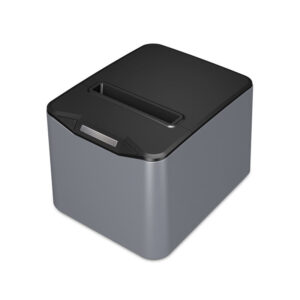
A standalone 80 mm printer is 186×145 mm on its feet at its smallest (the POS-8250), up to 190×145 mm on the 8220. Add the clearance you need to open the paper cover and to reach the cutter, and it occupies about 25 cm of counter depth that no longer holds anything else. On a 2.4 metre bar with two grinders, a syrup rail and a knock box, that 25 cm is the difference between a workable line and a line where the barista turns sideways to reach the cups.
An all-in-one with the mechanism inside the shell spends that 25 cm once and gives it back. The trade is serviceability: when the mechanism jams, the whole terminal goes to the bench rather than one printer being swapped out in thirty seconds. In a single-store shop that trade is usually worth it. In a four-store chain with a spare terminal in the back office, it usually is not.
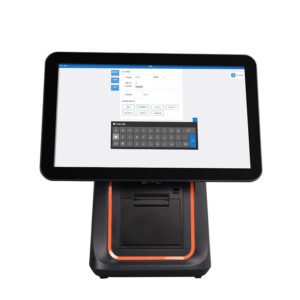
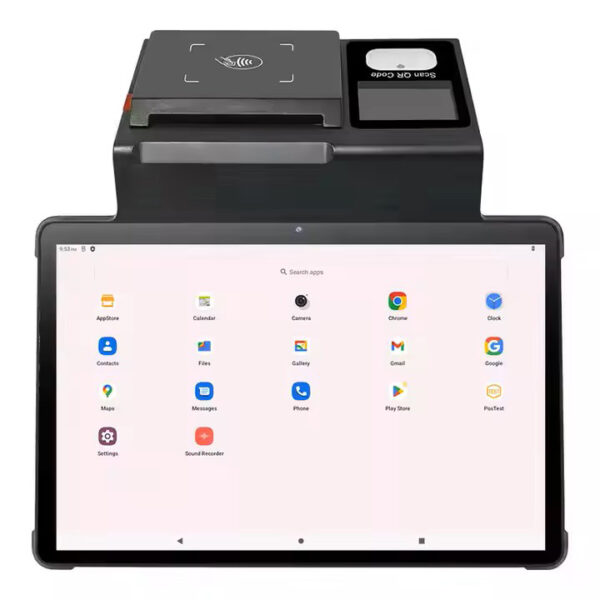
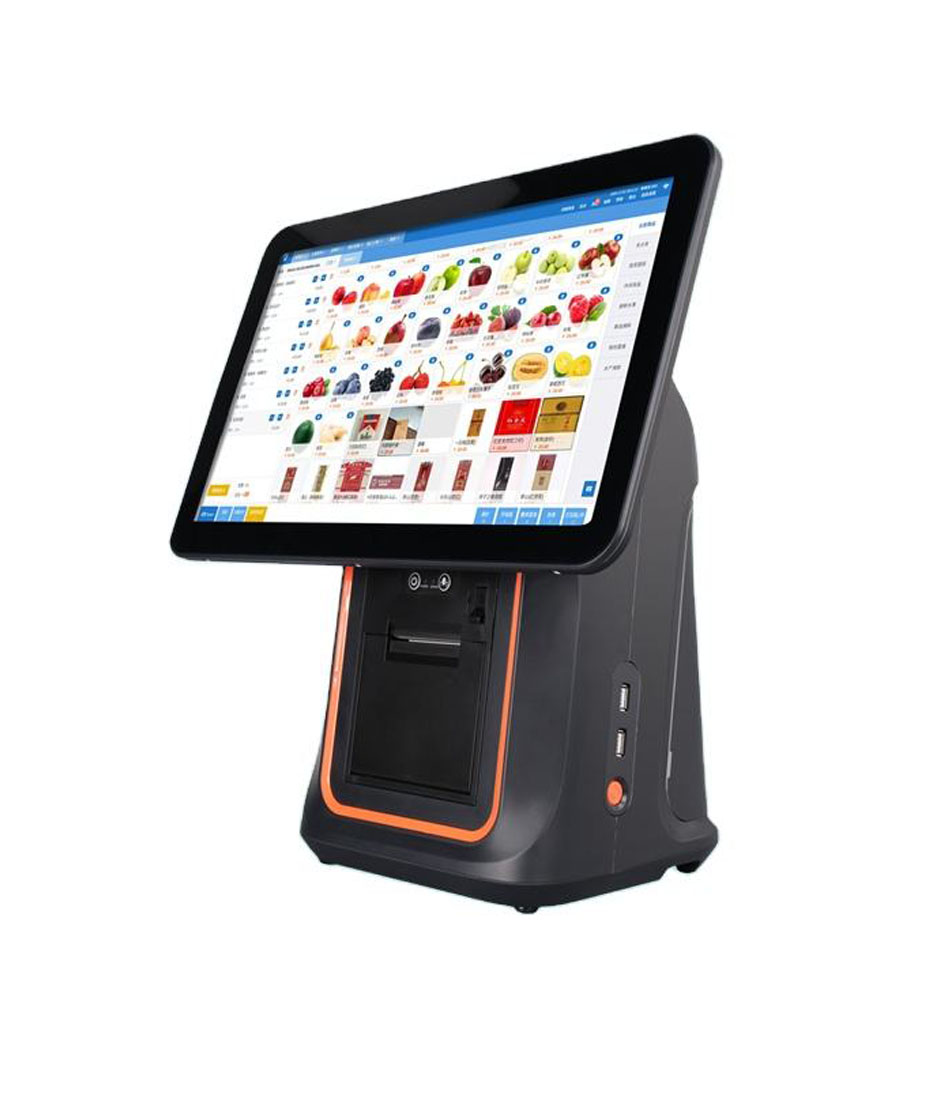
DCA-KSA15.6″ 1366×768, Android 11 on RK3566 or RK3568, with an 80 mm or 58 mm printer inside the shell. Second screen 15.6, 14 or 11.6″, 2×20 VFD optional, side MSR, top camera and scanner optional.Specifications →
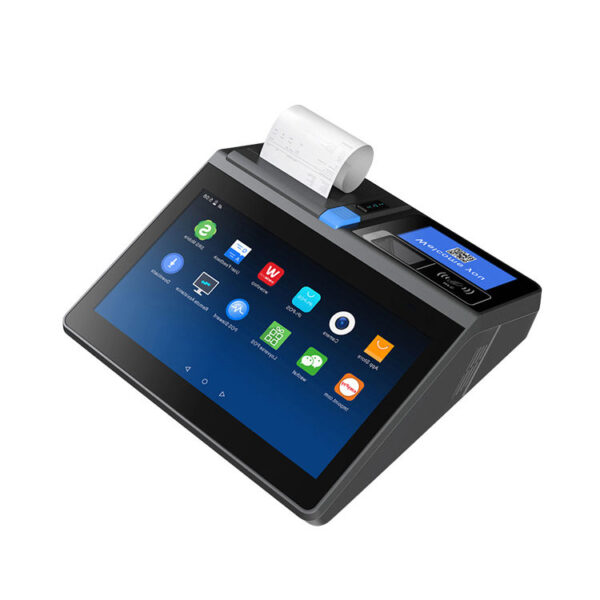
DCA-POS116A11.6″ 1366×768 with a Seiko mechanism and auto cutter at 200 mm/s. 5×USB, RJ45, 2×RJ11 drawer, 1×RS232, 6000 mAh battery, 2.35 kg.Specifications →
DCA-NB1111″ 800×1280, 80 mm or 58 mm built in, 2.4″ rear screen, 1D/2D scanner and NFC. 700 g with a battery — the one that leaves the counter.Specifications →
DCA-156A15.6″ 1366×768, Android 11, no printer inside: 4×USB (one OTG), 1×RJ45, 1×RJ12 scale, 1×RJ11 drawer. Second screen 10.1″ 1280×800 optional.Specifications →
DCA-Q3S15.6″ Windows from Celeron J1900 to Core i5, 80 mm printer inside the shell and an 11.3″ rear LCD. 440×300×360 mm, 7 kg. For Windows-only software.Specifications →
DCA-155A15.6″ Android 11 on RK3566 or RK3568, 2 GB plus 16 GB. Its published port list stops at power and DC-in, so put the drawer on the printer.Specifications →
Every countertop and all-in-one unit: POS terminals · what "all-in-one" actually integrates: what is an all-in-one POS system · Android equivalents: Android POS terminals · Windows: Windows POS systems
Where the second screen goes, and what it can be
Almost every café ends up with two screens and only one of them is a customer display. The second screen at the till is usually for the operator: the order screen is the software’s main view, and a second panel holds the menu grid, the modifier tree or the open tabs list so the cashier is not switching views in front of a queue.
That changes which machine you buy. The 156A and the Q3S take a rear screen as an option; the 155A takes a 15.6″ or 12.1″ non-touch rear panel; the KSA takes a 15.6, 14 or 11.6″ panel with or without touch, and can also carry a 2×20 VFD on the back cover. The NB11 carries a 2.4″ panel only, which is enough for a total and not enough for anything else.
Two things to settle before you order a second panel. First, whether the panel is touch: a non-touch rear panel is a customer display that happens to be mounted behind the terminal, and a touch one is a second workstation. Second, whether your software can address two screens at all — on Android that is a per-application question, and it is the single most common reason a second screen arrives and stays dark.
A rear LCD and a pole display are not the same purchase even when they show the same thing. The rear panel is driven by the terminal’s own second display output and is usually a factory option on the shell. A pole display is a separate device on USB, VGA or HDMI, mounted on a stand the customer can see over the counter. If you want both, count the display outputs before you count the screens — the payment station below covers that trap.
Why a rear panel and a customer pole display behave differently, and what each costs in counter space: restaurant POS terminal with a dual screen · mirror or extend: the second-screen decision
Station 2 — the ticket is the work order
This is the section that decides whether the bar keeps up, and almost none of it is about print speed in the abstract. It is about how many lines one drink occupies, and what happens to those lines on a narrow roll.
The arithmetic of a folded modifier
An 80 mm roll prints 72 mm wide. At the standard 12×24 dot font that is 48 half-width characters on a line, and the specification sheets for our label printers state exactly that: 72 mm printable, 48 English characters per line. A 58 mm roll prints 48 mm wide, which is 32 characters per line on the same font.
Now take a real order line. "OAT / EXTRA SHOT / VANILLA / LESS ICE" is 40 characters. On an 80 mm ticket it sits on one line and reads as one instruction. On a 58 mm ticket it wraps to two lines, and the second line starts with "LESS ICE", which is exactly the kind of detail that gets missed when the ticket is under a cup. Multiply by a six-modifier drink and a two-drink order, and the 58 mm ticket is five to seven lines longer than the same order on 80 mm — in a shop where the barista has about eight seconds to read it.
| Model | Roll | Print width | Speed | Cutter | Roll diameter |
|---|---|---|---|---|---|
| POS-8330widest port set | 80 mm | 72 mm | 260 mm/s | Full or partial, auto | 83 mm |
| POS-8250short housing | 80 mm | 72 mm | 260 mm/s | Full or partial, auto | 83 mm |
| POS-8220 | 80 mm | 72 mm | 260 mm/s | Full or partial, auto | 83 mm |
| POS-8360USB, LAN or BT only | 80 mm | 72 mm | 220 mm/s | Full or partial, auto | 80 mm |
| POS-83701.5 million cuts | 80 mm | 72 mm | 220 mm/s | Full or partial, 1.5M cuts | 83 mm |
| POS-5890U58 mm, no cutter | 58 mm | 48 mm | 70 mm/s | None |
Six models, one decision: 72 mm of printable width or 48 mm. Speed and cutter are second-order against that, and the 5890U shows why — its own specification lists the auto cutter as "No".
What the 58 mm roll actually costs
A 58 mm printer is not a smaller version of an 80 mm printer. It is a different class of machine, and the specification says so plainly. The 5890U prints at 70 mm/s against 220–260 mm/s on the 80 mm models, rates its print head at 50 km against 100 km, and has no automatic cutter at all. On a 200 mm ticket that is 2.9 seconds of printing against 0.9, plus a hand movement to tear the paper, on every order.
At 90 orders an hour the tear is not the problem; the problem is that the printer is still running while the cashier is taking the next order, so the ticket sits in the mechanism and the barista reaches for it mid-cut. Shops that start on 58 mm almost always move to 80 mm within a year, and the ones that do not are the ones where the cup label does the work and the receipt is only a customer copy.
There is one place a 58 mm roll still makes sense: inside a handheld. The 58 mm mechanism in the H62 prints at 90 mm/s and the one in the H50 at a similar rate, and both exist because the device has to fit in a hand. That is a mobility trade, not a counter trade. Do not put the same logic on the counter and expect it to hold.
Paper: one roll a day is normal
It is worth doing the paper sum before choosing a model, because the roll diameter is the specification nobody reads and everybody notices. A 200 mm ticket at 400 orders a day is 80 metres of paper. An 80 mm roll at 80 mm diameter holds roughly that much. In practice the machine is refilled once a day at a busy shop and twice at a very busy one.
That is why the difference between an 80 mm roll capacity and an 83 mm one matters more than it looks. The 8360 takes an 80 mm roll; the 8250, 8330, 8220 and 8370 take 83 mm. Three millimetres of diameter is roughly a fifth more paper, which on a 400-order day is the difference between a refill at the morning peak and a refill at close.
POS-833080 mm at 260 mm/s, USB, serial, parallel, Ethernet, WiFi or Bluetooth. 83 mm roll. The widest port set in the range — the one to buy when the printer has to sit away from the terminal.Specifications →
POS-837080 mm at 220 mm/s, USB, LAN or Bluetooth, 100 km print head, cutter rated at 1.5 million cuts, and a downloadable logo for the top of each ticket.Specifications →
POS-836080 mm at 220 mm/s, USB, LAN or Bluetooth. Cheaper than the 8250 and it gives up serial, parallel and WiFi, plus 3 mm of roll diameter.Specifications →
POS-825080 mm at 260 mm/s with the full port set, in the shortest housing of the three 260 mm/s models. The default choice when counter depth is tight.Specifications →
POS-8220The same 260 mm/s mechanism and full port set as the 8250 in a taller housing, 186×145×140 mm. Stock difference rather than a specification one.Specifications →
POS-5890U58 mm at 70 mm/s, USB plus Bluetooth, 50 km print head, no auto cutter. For a handheld or a backup till, not for a bar.Specifications →
All widths, interfaces and cutter ratings: thermal receipt printers · the width decision in more detail: 80 mm vs 58 mm, what the width changes · why printers fail in wet kitchens: why receipt printers fail in kitchens · the receipt as a VAT document
Three ways to print, and a router with one port
There is a physical limit that catches cafés fitting a second printer: most all-in-one terminals have one drawer port and one or two USB host ports on the operator side, and the printer needs one of them. If the terminal has the printer inside the shell, the mechanism is already wired and the external USB port stays free for a scanner. If the printer is external, the printer takes the USB port and the drawer hangs off the printer’s RJ11, which is why every 80 mm model in our range lists a drawer control output at 12 V or 24 V.
So the ordering is: printer first, then drawer on the printer, then scanner on the terminal, then customer display on whatever video output is left. Written that way it sounds obvious. In practice shops order a terminal with a built-in printer, add an external 80 mm unit for the pastry counter, and then discover that the second printer and the drawer are fighting for the same RJ11 on a machine that has one.
If the shop runs two printers at one till, buy the second one with Ethernet. A networked printer does not consume a USB port, does not change identity when the terminal is swapped, and can be addressed by IP from the pastry station as well as the bar. The receipt printer range lists LAN on the 8330, 8250, 8220 and 8360; the 8370 offers USB, LAN or Bluetooth.
Station 3 — the cup label instead of the paper ticket
A takeaway shop discovers the limit of paper at about order ninety. The receipt is in the barista’s hand, the cup is on the bar, and the two are only connected by the fact that somebody remembered which was which. The usual fix is a marker pen on the cup, and the usual result is five cups with the same illegible three letters on them.
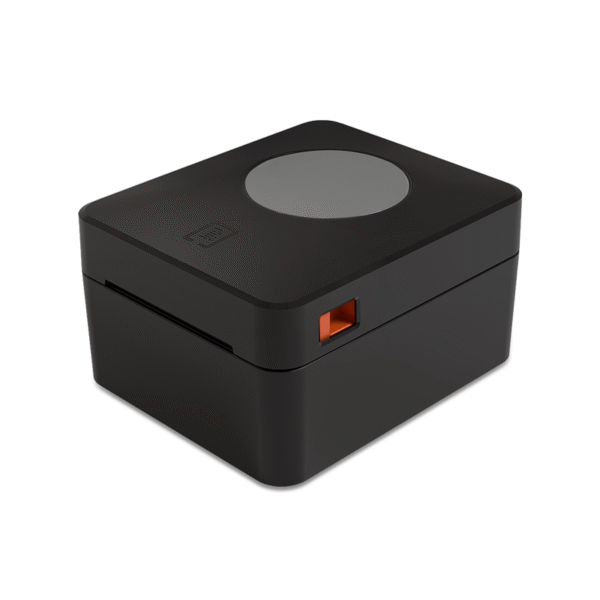
A cup label puts the modifier list on the object it belongs to. That is the whole argument, and it changes what you buy: not a better receipt printer, a label printer with the right stock width and a print head that survives being run all morning.

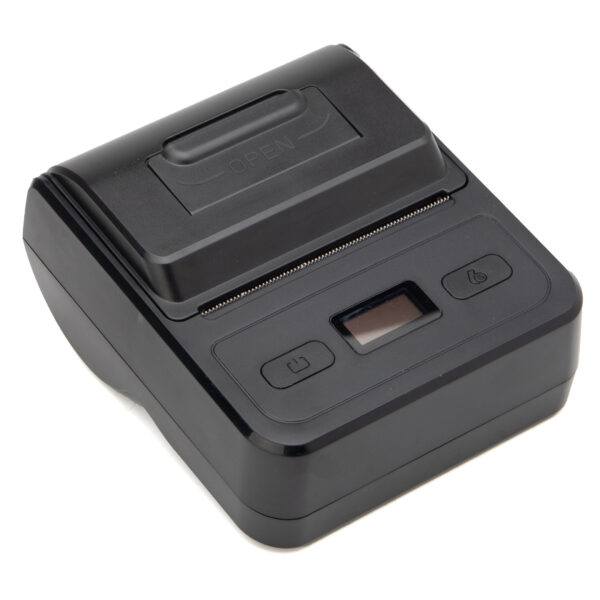
| Method | Stock | Fits | Breaks down when |
|---|---|---|---|
| Marker on the cup | A pen | One size, one milk, no syrups | Two modifiers or more, or two staff writing in the same shift |
| 58 mm label sticker | 20–50 mm labels | Short codes: size, milk, one add-on | A full modifier list; the label runs out of width before the order runs out of words |
| 80 mm cup label | 20–80 mm, gap or black mark | Drink name, size, modifiers, order number, time | Mixed hot and cold cups in one queue with no naming rule |
| 110 mm order label | 104 mm max, up to 0.3 mm thick | The whole order on one label, one row per cup | Any cup narrower than the label — it has to be cut or folded |
Read the second row as a warning: a 58 mm label is 48 mm of printable width, which is the same width problem as a 58 mm receipt, in a place where the customer can see it.
POS-9250110 mm class desktop label printer: 25–100 mm effective print width, 104 mm stock, 160 mm/s, TSPL, CPCL and ESC/POS. The one that prints a whole order on one label.Specifications →
POS-800780 mm portable: 72 mm print width, 60 mm/s, USB-C plus Bluetooth, 2600 mAh battery, 350 g, 20–80 mm stock with gap and black-mark sensing. The cup-sticker workhorse.Specifications →
POS-8008The same 80 mm class without the cable: 70 mm/s, USB plus Bluetooth, 30–72 mm stock, 2000 mAh, cover-open and paper-out alarms.Specifications →
Stock widths, sensors and battery life for every portable model: thermal label printers
What direct thermal cannot do
Every label printer in our range is direct thermal: the image comes from heat on a coated paper, no ribbon. That is why there is no ink to change and why the machine is small enough to sit on a counter. It is also why the label is not permanent.
A direct thermal label fades with heat, with friction and with certain solvents. On a hot cup it is fine for the ten minutes it needs to be fine for. On a cold cup it will bead with condensation and can smear under a thumb. On a bag that goes into a hot delivery box for twenty minutes it will go grey. And if a shop tries to use the same printer for a shelf label or a date code that has to last a month, it will fail — not because the printer is wrong but because the chemistry is wrong.
Two honest limits before you plan a label workflow. Our label printers are direct thermal only — we do not make thermal transfer units, so anything that has to survive washing, freezing or a month on a shelf is out of scope. And the print head is rated at 50 km on the 9250, 8007 and 8008, which is a consumable rating: a shop printing 600 labels a day at 80 mm is running about 48 metres a day, so the head is a years-scale part, not a lifetime one.
Cup label or receipt, not both
Shops that run both usually find out within a month that the receipt is only for the customer and the label is the only thing the bar reads. That is not a hardware failure, it is a workflow split, and it changes the printer count. A takeaway counter with a cup label printer often ends up with a 58 mm receipt printer beside it for the customer copy, on the grounds that a 58 mm customer receipt is cheaper than a 80 mm one and nobody reads it.
If that is the plan, buy the two printers with different connection types. A USB label printer and a USB receipt printer on the same terminal, both printing at the same time, is the second most common cause of a job that disappears. Put one of them on Bluetooth or Ethernet and the queue problem goes away.
Station 4 — the bar screen, and why IP65 beats resolution
The screen at the bar has one job: tell the person making the drink what to make, in an order that matches the queue. It sits within 60 cm of a steam wand, gets wiped with a wet cloth several times an hour, and runs in a room that is 32 °C at the ceiling by mid-morning. Every one of those conditions is a specification, and none of them is resolution.
The DCA-215C is the model we build for this. Its front panel is rated IP65, which is the number that decides whether the screen is still working in year three. Consumer panels are not sealed at the front: steam condenses inside the bezel, migrates into the backlight diffuser and leaves a permanent cloud across the lower third of the panel. Nobody notices until the ticket text stops being readable in the afternoon sun, and by then the panel is a replacement, not a repair.
The second number is the operating range: −10 to 55 °C. A bar under a heat lamp or next to an oven hood runs above 40 °C at the panel face, and most indoor displays are rated to 40. The 215C also carries three RS-232 ports and one RS-485 alongside VGA, HDMI and USB 3.0, which is what makes it usable as an industrial panel rather than only as a monitor.
DCA-215CKitchen display, 21.5″ 1920×1080, IP65 front panel, −10 to 55 °C, 3×RS-232 plus RS-485, VGA, HDMI, USB 3.0. Windows 10, 7 or 11 on J1900.Specifications →
Digital Menu Board32″ 1920×1080 at 350 cd/m², 3000:1, RK3566 on Android 11, 2 GB plus 16 GB, HDMI in optional, 60,000 hour panel. Indoor brightness.Specifications →
DCA-170117″ 5:4 at 1280×1024, capacitive, 350 nits, VESA 75×75, 35 million touches, 12 V 4 A. The cheap second panel for the bar.Specifications →
Panel sizes, cut-outs and touch options: KDS and all-in-one PC solutions · the same panel family by category: KDS and all-in-one PCs
Does a 20-seat shop need a KDS at all?
Not necessarily, and the honest threshold is staffing rather than size. One person making every drink does not need a screen — they need the ticket in their hand, because they never put it down. The screen starts earning its place when a second person joins the bar, because now two people are reading the same queue and one of them is reading it from the wrong end.
The practical test is what happens at the handover. If the shop has ever had a drink made twice, or a drink made and then abandoned on the bar, it has a routing problem that a screen solves and a bigger printer does not. Below 40 orders an hour with one barista, a second till screen or a paper ticket rail is the cheaper answer.
The menu board is a different purchase
The 32″ board is 350 cd/m². That is an indoor figure: it is bright enough to read across a 4-metre room, and it is not bright enough to fight daylight through a west-facing window. Shops that put one in a shopfront and then complain that it looks grey in the afternoon are asking an indoor panel to do an outdoor job.
Two things follow. Mount it inside the room where it faces the queue, not in the window. And if the position is genuinely sunlit, plan on a high-brightness commercial panel, which is a different product class from anything on this page. The board is an Android 11 player with 2 GB of RAM and an optional HDMI input — the HDMI input is what lets it mirror a laptop for a training session or a last-minute menu change, and it is worth specifying at order because it cannot be added later.
If the shop already owns a Windows POS and wants the bar screen to run the same software, the 215C is a Windows machine — the KDS application runs on it directly, no second box. If the shop is Android end to end, the same 21.5″ panel becomes a display fed by the terminal, and the software has to support a second output. That difference is decided by the software supplier, not by the panel.
Station 5 — payment, drawer, scanner and the port you forgot
A café takes less cash than any other retail format and still needs a drawer, because the float has to live somewhere and the tips have to be counted at close. That makes the drawer a low-cycle part — except at a market stall or a shop in a cash economy, where it is the opposite. Both cases exist and they want different drawers, so the specification that matters is depth, not cycle rating.
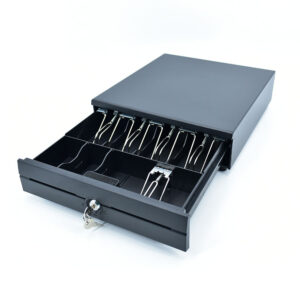
The 350A is 92 mm tall against 100 mm on the other two, and 380 mm deep against 420. On a 2 metre bar where the drawer sits under the counter on a shelf, that is the difference between a drawer that opens and one that catches the shelf above it. It also has no media slot in the front and only RJ11 or RJ12 connections, which is fine for a shop that prints receipts and nothing else.
POS-350A350×380×92 mm, 4 kg, 4 or 5 bill and 2, 5 or 8 coin, RJ11 or RJ12 only, 12 V or 24 V solenoid. No media slot. The shallowest drawer we make.Specifications →
POS-405A405×420×100 mm, 4/5/6/8 bill with 8 adjustable coin slots, two media slots, RJ11, RJ12, USB, RS232 or DC jack, rated 1,000,000 open cycles.Specifications →
POS-410BThe same tray and the same 1,000,000-cycle rating in a 410 mm shell, with a cash-drawer status micro switch so the software knows the drawer is shut.Specifications →
Tray layouts, locks and the 12 V / 24 V question: cash drawers · why the kick-out voltage must match: 12 V versus 24 V kick-out
The voltage is fixed at order, and the failure looks like software
The drawer opens on a solenoid pulse from either the terminal’s RJ11 port or the printer’s drawer port. The 405A, 410B and 350A are all built with a 12 V or 24 V solenoid, specified when you order, and the specification sheet says so in as many words: it must match the printer’s drawer port. A 24 V drawer on a 12 V pulse will not latch. The software sends the open command, the drawer stays shut, and the first hour of diagnosis is spent on the POS application.
Our 80 mm printers publish 12 V at 1 A on the drawer output. If you are ordering a drawer to hang off a printer, specify 12 V and write it on the purchase order. If the drawer is going on a terminal port, read that terminal’s sheet — and if the sheet does not state a drawer voltage, put the drawer on the printer instead.
The customer display eats a video output
This is the recurring trap in a café, because a café wants three screens: the till, the second operator panel and something the customer can see. There are only two ways to drive a customer-facing panel and they are not interchangeable.
A VFD pole display — two lines of twenty characters — connects on USB or RS232. It shows a total and a line item and it is what most shops actually need. The PD220V-II is USB only at 500–1000 cd/m² and rotates 355°, so it can be turned to face the customer or the cashier.
An LCD customer display connects on VGA or HDMI. The 7″ POS-CD7A takes either; the 10.1″ POS-CD10H is HDMI only. Both consume a display output on the terminal, which means they compete with the second operator panel. A 15.6″ all-in-one has one external video output at most. Count it before you order: one video output, one panel. If you want a rear LCD and a customer display on the same machine, one of them has to be the factory rear panel option rather than an external device.
PD220V-IITwo lines of 20 characters, VFD at 500–1000 cd/m², USB only, 355° rotation, 15.5 to 41.5 cm pole.Specifications →
POS-CD7A7″ 16:9 at 1024×600, 430 cd/m², VGA or HDMI, non-touch, 12 V 3 A. Consumes a video output.Specifications →
POS-CD10H10.1″ IPS at 1280×800, 430 cd/m², HDMI only, 350° horizontal and 60° vertical adjustment, 1.5 m cable.Specifications →
Pole displays, card readers and the rest of the counter: POS peripherals
The scanner is for the customer’s phone, not for beans
A café scans almost nothing. There are no barcodes on a latte, and a bag of retail beans is a small part of the day. What gets scanned is the loyalty code on a phone screen and the pickup code on a paper ticket, and both are 2D on a screen at low brightness.
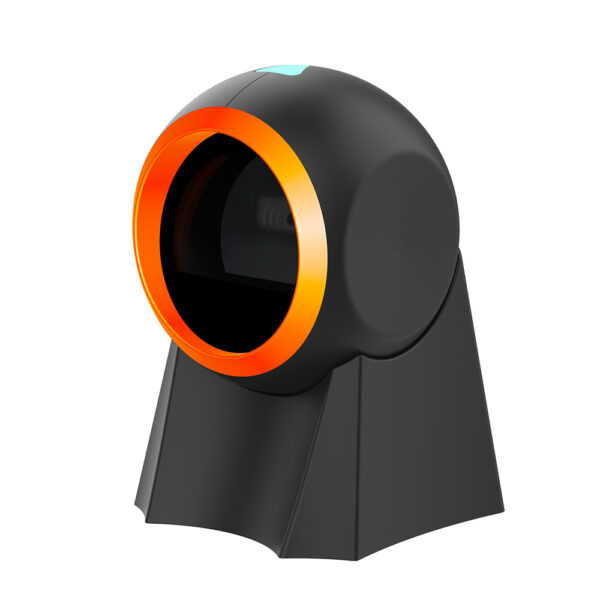
That is a different requirement from a supermarket’s. A 2D desktop imager on the counter — the POS-8800F at 110×99×150 mm and 308 g — reads a phone screen from about 15 cm without the cashier having to aim, which is what keeps the queue moving. A handheld 2D unit is the second scanner, for the pastry case or the retail shelf, and it needs to read a curved cup label as easily as a flat box.
Two practical notes. Phone screens need a 2D imager; a 1D laser will not read them at all, so if a shop is upgrading from an old laser scanner the loyalty programme will stop working the day the new hardware arrives. And screen brightness matters: a phone at 20 % brightness under a counter light is the hardest read on the whole counter, which is why the imager rather than the laser is the right default even though the shop "only scans a few things".
POS-8800FDesktop 2D imager on the counter: 110×99×150 mm, 308 g, USB, 0.25 A operating. Reads a phone screen at low brightness without being aimed.Specifications →
POS-1800AHandheld 2D wired, for the pastry case and the retail shelf. Reads a curved cup label as easily as a flat box.Specifications →
POS-8280AWireless omni 2D, 30 m range, 100,000-barcode cache, USB HID or CDC. For a shop with no free USB port left on the terminal.Specifications →
Symbologies, mounting and current draw: barcode scanners · why a laser and an imager behave differently on a phone screen: laser versus imager
If the shop’s software is cloud-hosted, none of the counter hardware changes — but what happens when the link drops does. What a cloud POS leaves on the counter covers the offline window and the local hub separately, and it matters more in a café than in most formats because the queue does not wait for a reconnect.
Three builds, and the counter length that produces them
The builds below are not packages we sell. They are three shapes that come out of the decisions above, written so that a shop can check its own plan against one of them.
| Build | Order entry | Ticket | Cup label | Bar | Payment |
|---|---|---|---|---|---|
| Takeaway kiosk, 8 m² | DCA-POS116A, 11.6″ with the 80 mm mechanism inside | Inside the terminal, 200 mm/s with auto cutter | POS-8007 on Bluetooth | None — one person, ticket rail | POS-350A drawer, PD220V-II on USB |
| Independent shop, 20–30 seats | DCA-KSA, 15.6″ with the 80 mm mechanism and a 15.6″ rear panel | Same mechanism, plus POS-8330 on LAN for the pastry counter | POS-8008, no cable on the bar | DCA-215C, 21.5″ IP65 | POS-410B drawer, POS-CD7A on HDMI |
| Chain, four to ten stores | DCA-156A, locked model, 10.1″ rear panel | POS-8370 on LAN, cutter rated 1.5 million cuts | POS-9250 at the milk station, 110 mm order labels | DCA-215C per store; digital menu board at the window | POS-405A drawer, POS-CD10H on HDMI |
The pattern to notice: the kiosk build puts everything inside one box, the independent shop splits the printing across two counters, and the chain standardises the terminal and moves the money into the printers.
Reading it backwards from the counter length
Most shops know their counter length before they know their hardware. That number is a better starting point than a budget, because it decides how many things can be reachable at once.
| Counter length | What fits | Printer | Bill of parts |
|---|---|---|---|
| Under 1.5 m | One operator, one screen, no second panel | Inside the terminal, no exception | 4 — terminal, drawer, scanner or phone code, cup label |
| 1.5–2.2 m | One operator plus a customer display, one grinder each side | Inside the terminal, or an external 80 mm if the shell has none | 5–6 |
| 2.2–3.0 m | Two operators at peak, second panel, pastry case at the far end | External 80 mm on LAN, second unit at the case | 7–8 |
| Over 3.0 m | Two tills or one till plus a kiosk, bar screen above the pass | One per till, both on LAN | 9–11 |
The parts count includes the drawer, scanner, customer display and bar screen. It excludes the kiosk, the menu board and the handheld, which are per-shop rather than per-counter decisions.
How the same parts are arranged in a supermarket, where the counter is six stations rather than a line: grocery POS system by station · how a hotel or restaurant front desk differs: hospitality POS hardware · where the client sits down instead of queueing: salon POS hardware · where the till has to be carried: tablet POS hardware · what the counter costs, line by line: POS system cost
Station 6 — the three places the counter cannot reach
Everything above assumes the customer comes to the till. In a café three things sit outside that assumption, and each one is a different piece of hardware rather than a different setting on the same one.
The queue at the door
A self-ordering kiosk does not speed up the till. It takes orders off the till, which is a different claim and a more useful one. The Q series is a 23.8″ 1920×1080 panel with ten-point capacitive touch in a metal shell behind tempered glass, wall-mounted, 13 kg, on Windows 10 or Linux with a J1900 to Core i7 motherboard. There is an 80 mm mechanism with an auto cutter inside it at 150 mm/s, a 2D scanner, an optional camera, an optional IC card reader and optional 4G. It also has a bay designed to hold a POS terminal, for shops that want the kiosk to be a terminal enclosure rather than a second computer.
Three limits worth stating before a shop buys one. It is an ordering device, not a payment device: there is no cash drawer and no EMV acquiring in the base build, so a kiosk either takes payment through the shop’s own terminal or hands a ticket number to the counter. It is wall-mounted at 13 kg, which means a wall or a purpose-built base, not a folding table at a market. And the panel sizes run 21.5 to 32″, so the choice is a sightline question: at 21.5″ the customer stands closer and the queue is denser; at 32″ the menu is readable from three metres and the kiosk needs 40 cm more wall.
Sizes, options and the payment split: self-service kiosk range · kiosk models by category · what a self-ordering kiosk buys a restaurant · running one in a café
The patio, the market and the lane
A handheld in a café is not a smaller till. It is a device that has to work standing up, in sunlight, with one hand, for a four-hour shift, and it has to print something the bar can read. That combination is what separates the three units worth considering.
The H50 is the only one here that can take the payment itself: EMV level 1 and 2, magnetic stripe with three tracks, contactless on 14443A and 14443B, two PSAM slots, and a 58 mm printer in the same 410 g body. For a drive-through lane or a market where a waiter takes a card at the table, that is the difference between one device and two.
The H62 is the one to take outdoors. IP54, a 5000 mAh battery, 358 g, a 58 mm mechanism at 90 mm/s and a two-year warranty. It has no card reader, so it is a till extension rather than a payment point — which is exactly what a Saturday market needs when the payment goes through a phone.
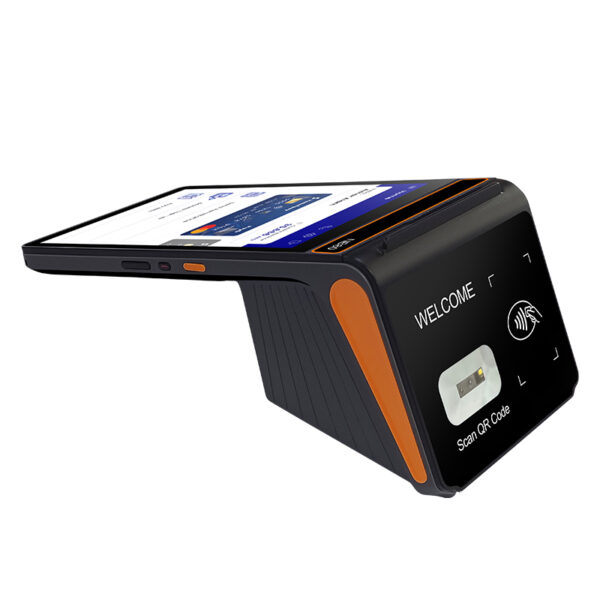
The H80 is the one with a usable screen. Eight inches at 800×1280 is large enough to show a modifier tree, which is the whole problem with handheld ordering in a coffee queue: a 5.5″ screen forces the operator to scroll through eight decisions while the customer watches. It also takes 80 mm paper as an option, and the Pro build carries RJ11, RJ12, LAN and two USB-A ports, so it can drive a drawer and a second printer when it is docked.
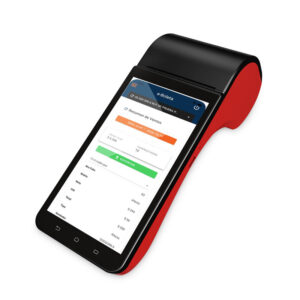
DCA-H506″ at 1440×720, Android 11, 410 g. EMV, magnetic stripe and contactless built in, 58 mm printer, 2×PSAM, 2600 mAh. The one that can take the payment itself.Specifications →
DCA-H625.5″ at 1280×720, Android 8.1 or 11, 58 mm printer at 90 mm/s, 5000 mAh, 358 g, IP54 and a two-year warranty. The market-stall unit.Specifications →
DCA-H808″ at 800×1280, Android 12 or 13, 1D/2D scanner, 58 mm or 80 mm paper, removable 6400 mAh. The Pro build adds RJ11, RJ12, LAN and 2×USB-A.Specifications →
Every handheld, with printer and radio options: handheld POS terminals · mobile POS systems · battery and radio in a busy room: choosing a restaurant handheld
One thing a handheld will not fix: a queue that is caused by the menu. If orders take 40 seconds because the customer is deciding, moving the order to a tablet does not shorten it — it moves the decision into the seating area, which is sometimes better and sometimes just a different queue. Measure the order time before buying the hardware.
What we do not make
Half of a good purchasing decision is knowing what is out of scope, so this is the list we would rather a shop read before sending an enquiry than after.
- Espresso machines, grinders and ice machines. We build the till and the things attached to it. Nothing on this page brews, grinds or chills.
- Scales. A bakery weighing flour, or a shop selling beans by weight, needs a scale — and a scale needs a serial port and a protocol that the POS software implements. That decision is covered in the grocery page, because it is the same problem there.
- Thermal transfer label printers. Every label model we make is direct thermal. Anything that has to survive a wash, a freezer or a month on a shelf needs a ribbon, and a ribbon printer is a different product.
- Outdoor-brightness displays. The 32″ menu board is 350 cd/m². It is an indoor panel, and putting one behind a sunlit window is a specification error rather than a warranty claim.
- EMV acquiring inside a kiosk. The Q series can take an IC card reader as an option and it cannot acquire a card payment on its own. A kiosk that takes payment needs either a payment terminal beside it or an integration through your provider.
- Software, licences and menu engineering. We do not sell POS software, and we cannot tell you which package supports a given modifier tree, a given second screen or a given kitchen printer. Those are questions for the software supplier, and they should be asked before the hardware is ordered.
If the shop is being fitted from scratch, the order that works is: count the counter, choose the ticket width, then pick the terminal that has the ports for the printer and the display. Shops that pick the terminal first spend the rest of the fit-out finding adapters. The POS system collection has the same parts arranged by position rather than by shop type, and types of POS systems covers the counter, handheld and kiosk forms side by side.
Café POS hardware: six questions we get asked
Can a 58 mm printer run a café counter?
It can run a counter where the receipt is a customer copy and the cup label carries the order. It cannot run a counter where the paper ticket is what the bar reads, for two specification reasons: 48 mm of printable width folds a six-modifier drink across extra lines, and the 58 mm models do not carry an auto cutter at the 220–260 mm/s class. The 5890U is listed at 70 mm/s with the cutter marked "No". Use 58 mm inside a handheld, where the size is the point, and 80 mm on the counter.
Does a 20-seat shop need a kitchen display?
Not if one person makes every drink. A screen earns its place when a second barista joins, because the failure it prevents is the duplicate drink — two people reading the same queue from opposite ends. The trigger is staffing and handover, not seat count. Below roughly 40 orders an hour with one barista, a second till screen or a paper rail is the cheaper fix.
Should the second screen mirror the main one or extend it?
Extend, if the software supports it and the second screen is for the operator. Mirror, if the second screen faces the customer and you want them to see the order as it is built. There is no hardware constraint either way on a rear panel option — the constraint is the POS application, and a shop should confirm with its software supplier that a second display is addressable before ordering the panel.
Can one terminal run a receipt printer and a cup label printer?
Yes, but not both on USB at once with any confidence. Two USB printers on one host is the second most common cause of a print job that disappears under load. Put one on Bluetooth, LAN or serial. The 8007 and 8008 take Bluetooth, the 9250 takes LAN, and the 80 mm receipt models take LAN on the 8250, 8220, 8330 and 8360.
Android or Windows for a café?
Android, unless the software says otherwise. The Android units in this range are fanless, boot in under a minute and cost less per unit; the Windows units exist because some POS packages, most kitchen display applications and every legacy back-office tool require Windows. The 215C bar screen is a Windows machine, which is why a Windows shop can run its KDS on the panel itself instead of on a second box. The full comparison is in Android POS terminal versus Windows POS system.
What does a café need that a restaurant does not?
Three things: a printable width wide enough for a modifier list, a cup label option, and a bar screen that is sealed at the front. A restaurant can put the ticket on a rail and read it at the pass; a café reads it 60 cm from a steam wand. The parts are the same class of machine, the specifications are not. The restaurant case, including coursing and multi-station routing, is on food and beverage POS hardware.
Tell us the counter length and the orders per hour
Those two numbers decide most of the bill of parts: whether the printer goes inside the terminal, whether the bar needs a sealed screen, and whether a kiosk earns its wall space.
- Counter length and how many operators stand at it at peak
- Orders per hour at the morning peak, and whether cups are labelled or marked
- Which POS software, and whether it supports a second display
- Whether the shop needs a kiosk, a handheld, or neither