Small business · four boxes
One counter, one or two people, and a queue that forms the moment the receipt printer jams. The hardware decision comes down to three measurements taken at the counter, four boxes that have to sit on it, and one of those four you can leave out.
A small business POS is not a scaled-down supermarket system. It is one counter, one or two people, and a queue that forms the moment a receipt printer jams. The software choice and the hardware choice are separate problems. This page is about the hardware: what has to be on the counter, how the four parts talk to each other, and which of them you can safely leave out.
Start with three measurements, not a spec sheet
Before a model number means anything, three numbers on your counter decide most of the configuration.
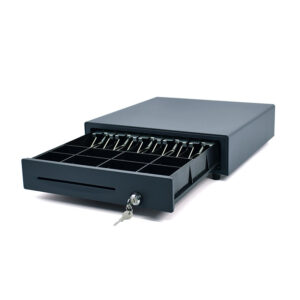
Clear depth behind the edge. A 405 or 410 cash drawer is 420 mm deep; the 350 mm model is 380 mm. Add 40–50 mm for the cable bend at the back and you need 425–470 mm of clear depth. Under that, the drawer opens into the customer side of the counter or not at all, and no datasheet will warn you. On a shallow counter, either take the 350 or put the terminal on a foldable stand (DCA-152W) so the drawer keeps the depth to itself.
Outlets, and where they sit. Count one lead per device, then add the printer. An all-in-one with the printer inside the chassis — DCA-POS116A, DCA-KSA, DCA-Q3 — takes one 12 V lead. A terminal plus a separate 80 mm printer takes two, and the printer’s adapter is a 24 V brick (the POS-8220 and POS-8250 are DC 24 V/2.5 A). A power strip under the till is not the same as two sockets behind it: those bricks rarely sit side by side.
Cable or no cable. With a network drop at the counter, any terminal with an RJ45 will do. Without one, check the Wi-Fi band rather than the word “wireless”: the DCA-156A is 2.4 GHz single band, the POS116A is dual band 802.11 a/b/g/n/ac. In a mall with a dozen access points, single-band 2.4 GHz is where a “the POS is slow” complaint usually starts.
How many stations a small store actually needs
Station count follows the peak queue, not the floor area. A 40 m² shop with six people waiting at lunch needs a second lane; a 200 m² showroom with one sales desk does not.
| Store shape | Lanes | What sits on the counter | Model reference |
|---|---|---|---|
| Café, kiosk, single till under 30 m² | 1 | 11.6-inch all-in-one with the 80 mm printer inside, 350 mm drawer, handheld 2D scanner | POS116A + POS-350A + POS-1800A |
| Bakery, boutique, pharmacy | 1 + backup | 15.6-inch terminal, separate 80 mm printer, 405 mm drawer, desktop scanner | 156A + POS-8220 + POS-405A + POS-8800F |
| Convenience store, small grocery | 2 | One terminal and one printer per lane; a drawer on the cash lane only | 2 × 156A + POS-8250 + POS-410A |
| Restaurant: counter plus tables | 1 + 2 handhelds | Counter terminal with printer, two handhelds for table orders and counts | KSA + 2 handhelds |
| Hardware, auto parts, warehouse desk | 1 + 1 handheld | Windows terminal, label printer for shelf and carton labels, handheld for the aisles | 151WS + POS-9250 + handheld |
Model references describe the shape of the configuration, not a fixed bill of materials. Every row changes once you know what the software runs on.
The four boxes, and what each one decides
Terminal
Screen size sets how much of the order the cashier sees at once. Memory sets whether the keyboard keeps up with a browser POS and a second tab.
Receipt printer
Print width and roll diameter set how often someone walks away from the counter to change paper. The cutter decides whether receipts are torn by hand.
Cash drawer
Depth sets whether it fits under the counter. Solenoid voltage decides whether it opens at all, because the drawer is triggered by the printer, not the terminal.
Scanner
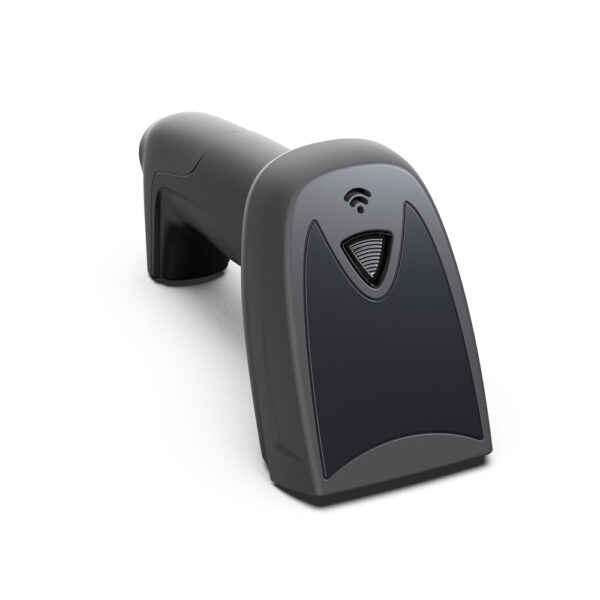
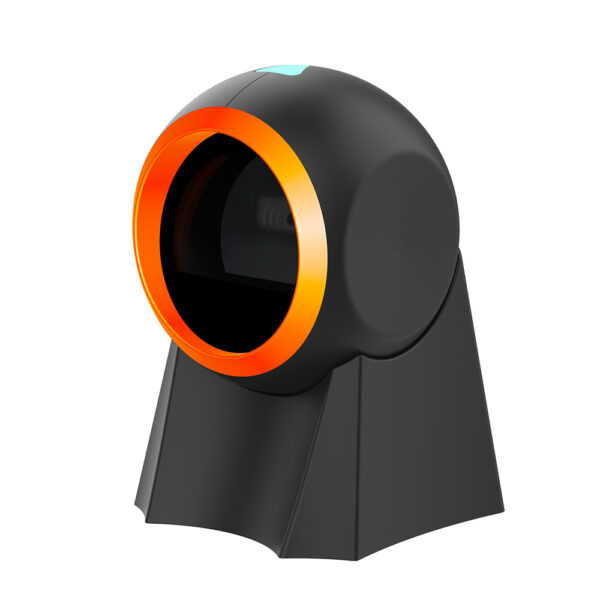
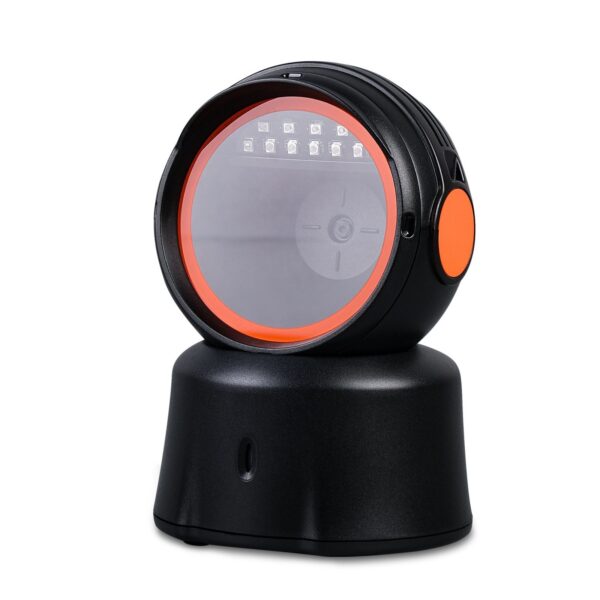
1D or 2D is a payments question. A 1D scanner reads barcodes; it cannot read a QR code or a phone screen.
Terminal: 11.6 or 15.6 inches
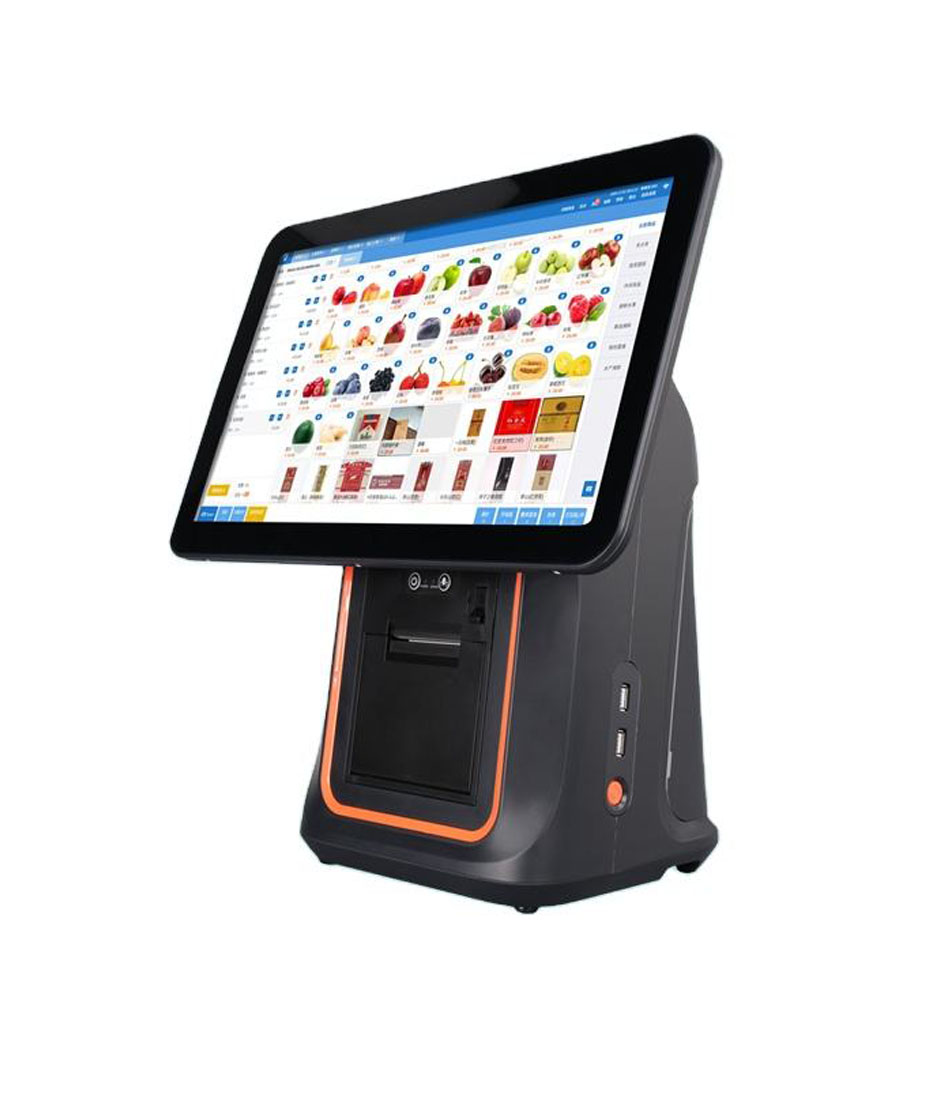
Both sizes are common at 1366×768, so the larger screen is not sharper, only bigger — roughly double the area, which is the difference between seeing a 20-line order and scrolling it. An 11.6-inch chassis is the only way to get a printer and a screen into a 292 mm wide footprint, which is what the POS116A is for. A 15.6-inch unit (155A, 156A, Q3A) gives two-handed operation and room for on-screen keys a cashier can hit without looking.
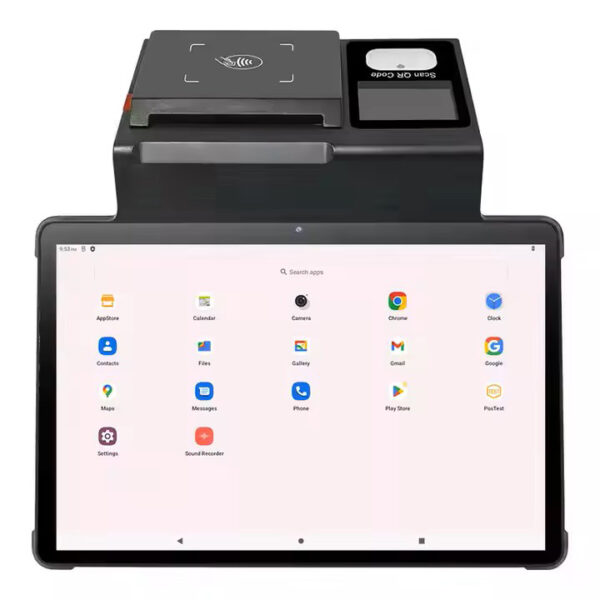
On Android, memory matters more than the CPU badge. Most units here ship 2 GB RAM and 16 GB storage with 4/32 as an option. That is enough for one app in the foreground. It is not enough for a browser POS with a stock app in a second tab, which is the configuration most small shops actually run. If the software is a web app, order the 4 GB.
Receipt printer: 80 mm, and a cutter
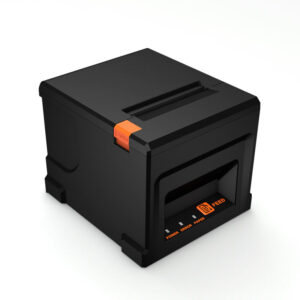
80 mm is the default for a counter printing more than a few receipts an hour: 72 mm print width, 576 dots per line, 260 mm/s on the POS-8220 and POS-8250, 220 mm/s on the POS-8360, all with a full or partial auto cutter and a 12 V/1 A drawer port. The 58 mm POS-5890U prints at 70 mm/s with no cutter: fine for a market stall, wrong for a queue. What that width has to carry in the UK — and the fields a receipt needs before it counts as a VAT invoice — is on EPOS systems and the receipt.
Roll diameter is the number nobody quotes. An external 80 mm printer takes an 83 mm roll; the printer built into the POS116A takes a 60 mm roll at the same paper width. That is a paper change in the middle of the lunch rush, roughly twice as often, for the sake of one fewer box on the counter.
Cash drawer: it is wired to the printer
Three widths, two heights, one trigger. The 350A is 350×380×92 mm; the 405A and the 410A/410B are 405–410×420×100 mm. All of them open on a 12 V or 24 V solenoid fired from the printer’s RJ11/RJ12 port — the drawer plugs into the printer, not into the terminal. This is why a drawer that “stopped opening” is usually a printer swap with a different solenoid voltage, not a broken drawer. Order the voltage to match the printer and it stays a solved problem.
Layout matters more than steel gauge at this size. The 405 and 410 take 4, 5, 6 or 8 bill clips with 8 adjustable coin slots and two media slots; the 350A stops at 5 bills, 8 coins and no media slot. If cheques, signed slips or float bags go in the drawer, that missing slot rules the 350 out.
Scanner: 1D reads barcodes, 2D reads the world
A 1D scanner such as the POS-1670 reads a printed barcode and nothing else. It cannot read a QR code, a phone screen or a 2D label, so the moment customers pay by QR — or you print your own shelf labels — it becomes the wrong tool. A 2D imager covers all three: POS-1800A handheld, POS-8800F on a stand, or the hands-free POS-8230 where the cashier needs both hands on the goods. All three are USB and enumerate as a keyboard, so they work without a driver.
One box or two: printer inside the terminal, or beside it
On a single-lane counter this is the biggest fork, and it is usually decided on looks rather than service life. Both layouts work; they fail differently.
| Printer inside the terminal | Terminal plus separate printer | |
|---|---|---|
| Example | DCA-POS116A | DCA-156A + POS-8220 |
| Power leads | One, 12 V/5 A | Two: 12 V/2 A for the terminal, 24 V/2.5 A for the printer |
| Paper roll | 60 mm diameter | 83 mm diameter |
| Print speed | 200 mm/s | 260 mm/s |
| Footprint | 292×100×297 mm, all in | 363×350×210 mm plus 186×145×140 mm |
| Drawer link | 2 × RJ11 on the terminal | 12 V/1 A port on the printer |
| When a printer dies | Terminal goes to the bench | Swap one box, keep selling on a spare |
| Second screen | 4.3-inch or VFD option | 10.1-inch on the 156AD variant |
Specifications are from each model’s product page. Print speeds are the manufacturer rating on thermal paper.


The trade is readable from that table: the integrated unit buys you counter space and one cable, and pays for it with a smaller roll, a slower head and a single point of failure. A shop doing 150 receipts a day should take the separate printer. A coffee counter doing 40 should take the space.
Android or Windows on a single counter
The operating system has to be chosen by the software you already pay for, not the other way round. If the POS application is a Windows desktop program — an old ERP client, a grocery system with a scale driver — no Android terminal will run it, and the argument ends there. If the POS is a web app or a cloud service, Android boots faster, draws less power and carries no licence.
| Android terminal | Windows terminal | |
|---|---|---|
| Current models | POS116A, NB11, 155A, 156A, KSA, Q3A | 151WS, 152W, 155W, KSW, Q3, Q3S |
| Software it runs | Web POS and Android apps | Windows 7/10/11 and POSReady clients |
| Ports on a typical unit | 4 × USB (1 OTG), 1 × RJ45, 1 × RJ12 scale, 1 × RJ11 drawer | 6 × USB, 2 × COM RS232, 1 × RJ11 drawer on the 151WS |
| Power | DC 12 V/2 A on the 156A, 12 V/5 A on the POS116A | DC 12 V/5 A on the 151WS |
| Screen | 15.6-inch 1366×768 on the 156A | 15-inch 1024×768 4:3 on the 151WS |
| Fails when | The software is a Windows-only client | There is no room for a full PC image to maintain on the counter |
Two details bite in practice. First, serial ports: a weighing scale, or an old drawer that talks RS232, needs a COM port, and the Android terminals here carry one RS232 at most — a Windows model with two is the safer buy. Second, USB count: the 151WS has six external ports, which is what you need once a scanner, printer, card terminal, customer display and scale are all plugged in at once. Count the devices before choosing the terminal, not after.
If the answer is Android, compare across the Android POS systems; if it is Windows, start from the Windows POS systems. The POS terminal category puts every countertop shape side by side by form factor.
Where cheap configurations fail
- A 12 V drawer on a 24 V printer port. The drawer opens once, weakly, then stops. The solenoid is specified at order for a reason; write the voltage on the purchase order next to the printer model.
- A 1D scanner in a shop that takes QR payments. It reads the barcode on the product and nothing on the customer’s phone. The upgrade is a 2D imager, and it costs less than the second scanner you will otherwise buy.
- A 60 mm roll in a busy counter. The integrated printer is a space decision, and space stops mattering at the third paper change of the day.
- Two USB ports for five devices. Scanner, printer, card terminal, customer display, scale. A hub is not a fix at a checkout; it is the first thing to fall out.
- 2 GB of RAM with a browser POS. The app opens, then the keyboard lags behind the cashier, and the complaint is filed against the software vendor.
If the store sells anything by weight, the list gains a sixth device and the port count stops being the deciding question: a scale needs either a dedicated RJ12 port or a native RS232 COM port, and a terminal with four USB ports and neither will not take one. The grocery POS system configuration covers that case station by station, from the scale counter to the shelf edge.
A one-counter café uses the same four boxes, chosen differently: cafe POS system hardware begins with receipt width and cup labels instead of a scanner and a drawer. A nail bar or a hair salon inverts one more variable: the client never stands at the till, so the receipt stops being the constraint and the screen the tip is confirmed on starts to matter. That build is on salon POS system hardware.
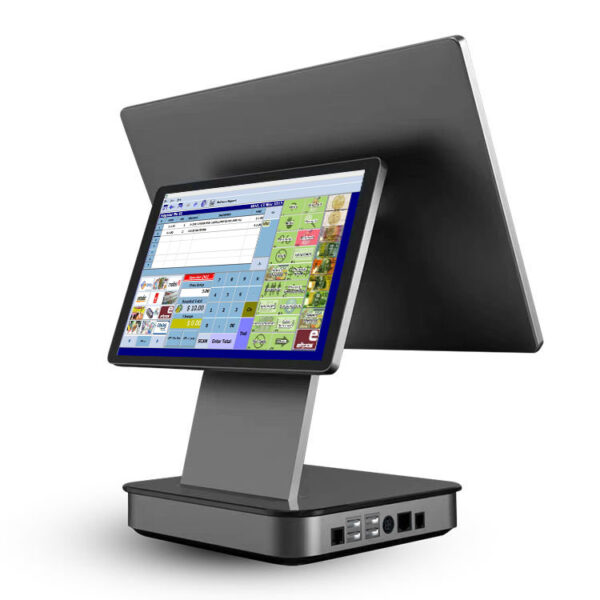
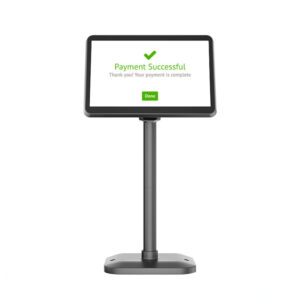
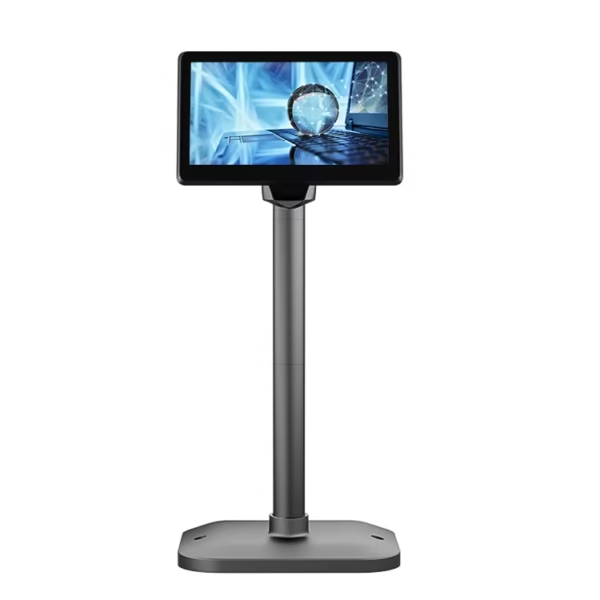
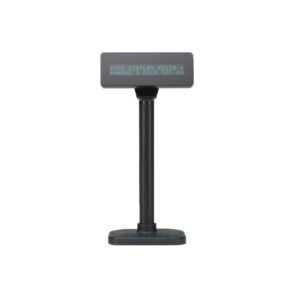
The one option worth adding early: a second display, if the counter faces the customer. The 152W and 156AD take a 10.1-inch sub-display, the KSA takes 11.6 to 15.6 inches; on the POS116A it is a 4.3-inch panel or a 2×20 VFD. It is also the option most often left out of a first order and retrofitted at three times the hassle.
What actually drives the price
There is no useful average price for a small business POS, because the same four boxes stretch from a market stall to a pharmacy. What moves the number, in order of weight: whether the printer is inside the terminal, screen size, RAM and storage, a Windows licence, a second display, and the scanner type. The drawer is the cheapest part of the system and the one buyers spend the most time on.
For the cost side of the same decision — three worked bundles with what each one adds up to — we keep that on a separate page: three POS bundles for a small business and what each one costs. This page is the hardware side: which parts, in which order. The whole bill, line by line, including the two lines no supplier quotes, is POS system cost, counted by station.
If you are buying for resale
Most of the configurations above are also the shapes dealers order in small volumes: an 11.6-inch all-in-one with the printer inside for the café market, a 15.6-inch Android chassis for retail, a Windows 15-inch 4:3 for markets still running legacy software. Branding, boot logo, housing colour, packaging and pre-loaded configuration are set per order — the OEM/ODM process covers what changes and what carries a minimum quantity.
Questions we get from single-store buyers
Can I use a tablet instead of a POS terminal?
You can run the software, but you lose the parts a counter needs: a drawer trigger, a wired scanner, a printer that survives a queue. A tablet pairs with a Bluetooth printer and no drawer, or with a printer that triggers the drawer and a cable to the tablet. It works for a market stall and stops working at the first busy Saturday. The comparison in full, one body at a time: tablet POS hardware and the port block.
Do I need a cash drawer if most payments are by card?
Not for transactions, but almost every shop keeps a float, and a drawer is the only place a shift change reconciles cleanly. If cash is under 10% of takings, the 350 mm model is enough: smallest footprint, still five bill clips.
Will the terminal run my existing POS software?
Only if the software exists for that platform. Windows-only clients need a Windows terminal; cloud and web POS run on Android. Ask the software vendor for the platform list before choosing hardware — it is the one decision an adapter cannot fix.
What happens when the internet drops?
That is a software question, and the answer decides whether you need a UPS. On the hardware side, keep the printer and drawer independent of the network: a cached order can still be printed, and the drawer still opens from the printer port when the terminal has no link.
Can I add a customer display later?
Only if the terminal was ordered with the option. The sub-display and VFD mounts are factory fittings on the KSA, 152W and 156AD; they are not a USB monitor you can add in month three. Decide it with the first order.
How many terminals does a shop with two tills need?
Two terminals, two printers, and one drawer on the cash lane — a card-only lane does not need one. Sharing a single printer between two lanes never survives a rush, because the second receipt waits for the first.
Send us the counter, not the wish list
Four numbers are enough for a configuration and a quote:
- Clear depth behind the counter edge, in mm
- How many lanes, and the busiest hour
- What you scan — barcodes only, or QR and phone screens too
- Whether the software is Windows, Android or a browser
We build the terminals, printers, drawers and scanners in our own factory, so the answer comes back as a bill of materials rather than a catalogue page.