The Second Screen Changes the Transaction, Not Just the Hardware
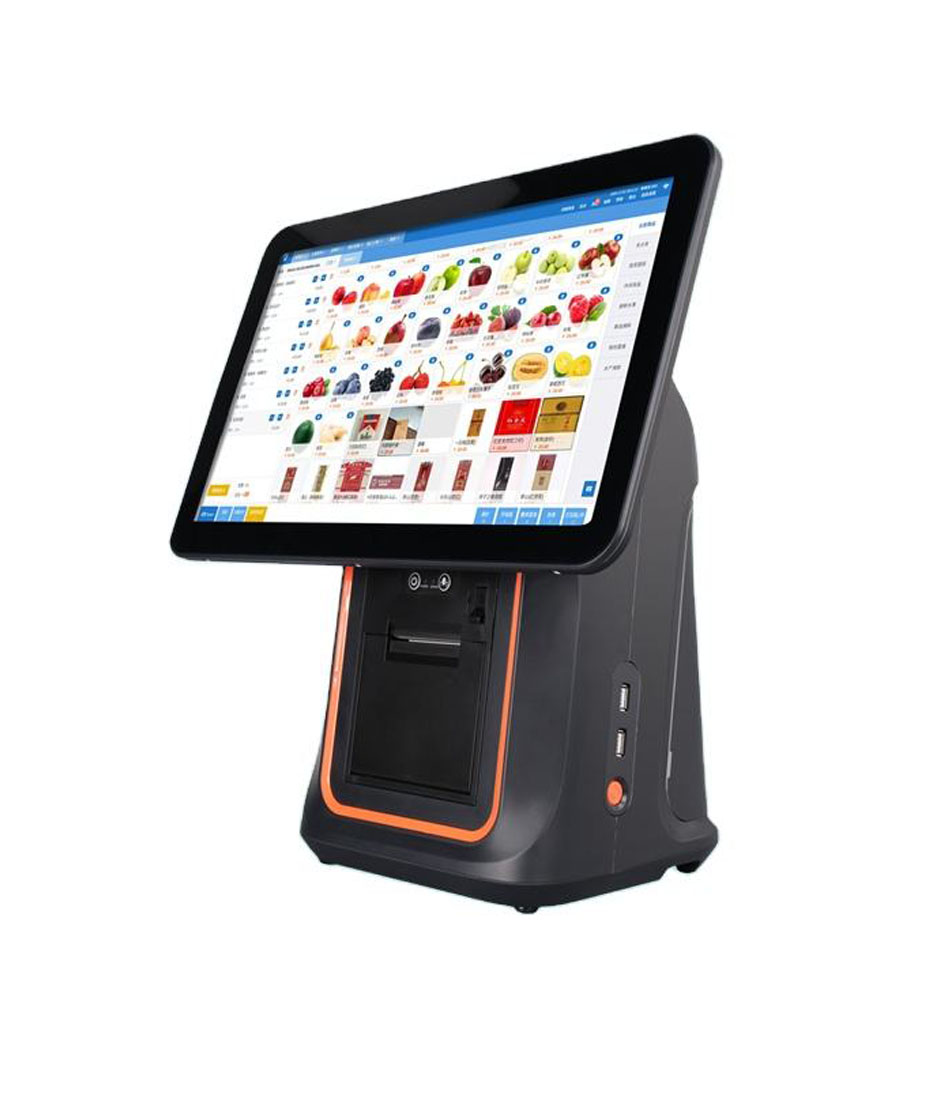
On a single-screen terminal, everything the customer needs to know sits on the wrong side of the counter. The item list, the running total, the discount that was applied, the amount actually charged — all of it is on a panel facing the cashier, and the customer either leans over, asks, or finds out when the receipt prints. The DCA-Q3S closes that gap with an 11.3-inch LCD panel mounted on the back of the main unit, powered and driven by the same terminal, showing the customer the transaction while it happens.
This is not a second computer and not a second workstation. It is a display-only panel that turns the payment moment into a visible, checkable step — and the difference shows up in disputes, in throughput, and in what the counter can sell while it waits.
The Loop: Quote, Confirm, Pay, Up-sell
Four things happen in every transaction. On a single-screen till, three of them are invisible to the person paying. On the Q3S, all four are visible, in the same second, without the cashier turning anything around.
1. The quote is visible while it is being built
A cashier rings up fourteen items. On the Q3S the customer watches the list build, line by line, at the same pace the cashier enters it. When a price looks wrong, the question gets asked before payment rather than after, and it gets answered by pointing at a line item instead of re-scanning the basket. In food service this is the difference between a customer noticing a double-charged side at the counter and noticing it at home.
The panel also does the work that a printed receipt cannot: it shows the modifiers. No onions, extra shot, large instead of medium — the specification the kitchen is actually working from is on the screen the customer is looking at, which is the cheapest possible defence against a remake.
2. Payment confirmation where the customer is already looking
The 11.3-inch panel is not a touchscreen, and that shapes how the payment step works — in a good way. The panel displays the amount due and, where the payment software supports it, a QR code for wallet payment, a membership sign-up code, or a feedback link. The customer scans with their own phone. Nothing is handed across the counter, no shared keypad is touched, and the confirmation appears on the same panel a second later: paid, approved, change due.
For QR-heavy markets this matters more than the hardware spec suggests. The alternative on a single-screen terminal is a QR code printed on paper, taped to the counter, or shown on the cashier’s screen and physically rotated — all three of which slow the queue and none of which confirm anything back to the customer.
3. The idle screen earns its keep
Between transactions the panel is not dark. It becomes merchandising space at eye level, in the one place a customer is guaranteed to look: the moment they are waiting to pay. A drink at a set price with a meal, a seasonal item, an opening-hours card, a loyalty programme sign-up — the message is driven by the host terminal, so it changes with the promotion rather than with a print run.
This is the part of the loop that most single-screen deployments simply do not have. A poster on the wall is seen by people walking past. The panel on the back of the terminal is seen by people who have already decided to buy something.
4. The receipt becomes a confirmation, not a discovery
By the time the 80 mm printer cuts the receipt, the customer has already seen the total, the modifiers and the approval. The receipt stops being the first document that explains the charge and becomes the record of an agreement that was visibly made. Returns and chargebacks get easier to resolve because the customer watched the number appear.
Why the Customer-Facing Panel Is Not a Touchscreen
A public screen on a counter is touched by hundreds of hands a day and cleaned with whatever the closing shift has to hand. Leaving the touch layer off is a deliberate engineering choice, not a cost cut, and it pays off in three places.
- Durability. No touch layer means no delamination, no scratched digitizer, and no calibration drift after a year of cleaning chemicals. The panel keeps showing a clean image long after a touch panel in the same position would be showing fingerprints and wear marks.
- Transaction integrity. A customer cannot interrupt a tender, dismiss a total, or navigate away from a payment screen that has no input surface. The cashier’s screen stays the only place a transaction can be changed.
- Hygiene and cost. Nobody has to wipe the customer side between customers, and the bill of materials stays where it belongs — in the terminal, not in a second touch controller.
What the customer needs at the counter is to read, confirm and scan. All three work on a display-only panel, and all three are worse on a shared touchscreen.
The Panel Itself: 11.3 Inches, Rear-Mounted, Internally Powered
The secondary display is an 11.3-inch LCD fitted to the back of the Q3S head unit, facing the customer across the counter. It is driven by the host terminal as an extended display, which matters for two practical reasons: it is powered from the terminal rather than from a separate adapter, and there is no external video cable running down the counter to snag, disconnect, or get blamed when the screen goes blank.
Because it is rear-mounted on the same casting as the main panel, it adds no footprint. The terminal occupies the same counter area it would as a single-screen unit — the difference is entirely on the customer’s side of the glass. The main panel remains the 15.6-inch USB multi-point capacitive touchscreen at 350 cd/m², and the built-in 80 mm thermal printer with auto cutter handles receipts as on the rest of the Q3 platform.
One deployment detail is worth stating plainly: the second panel is an extended display, not a mirror. Windows and the POS application treat it as a separate screen, so the customer side shows the customer view — item list, total, QR code, promotion — while the cashier side shows the till interface. Setting it to duplicate mode defeats the purpose and shows the cashier’s screen to the customer.
What a Single-Screen Terminal Cannot Do
It is worth being honest about the alternatives, because a second screen is not the only way to solve this.
- A pole-mounted customer display (2×20 VFD). Cheaper, and still available on this platform as an option. It shows a number and nothing else: no item list, no modifiers, no QR code, no promotion. For a two-line total it is enough. For a transaction loop it is not.
- A separate monitor on a bracket. Works, and needs its own power, its own cable, its own VESA mount and its own failure point. On a busy counter it is also the first thing to get knocked.
- Turning the main screen around. Every transaction becomes a physical negotiation with the customer, and the cashier loses the till interface while it happens.
The Q3S exists because none of those three is a good answer for a counter that runs a high volume of small transactions.
Where the Loop Pays for Itself
- Quick-service restaurants and coffee. Modifier confirmation at the moment of ordering cuts remakes; the idle panel sells the add-on at the moment of payment.
- Convenience and fuel retail. Short baskets, high queue pressure, and a customer base that pays by phone. Showing the QR and the approval on the customer side removes the pause at the end of every sale.
- Table-service and bars. The bill is built in front of the guest, which removes the “we did not order that” conversation without moving the terminal.
- Pharmacy and clinic counters. Where the customer needs to read a charge and confirm it before paying, in a setting where a disputed amount is a privacy issue as much as a financial one.
- Any counter running promotions. The screen that is already at eye level is the cheapest advertising space in the building.
Configuration Notes for a Q3S Deployment
Specify the CPU against the software, not against the spec sheet. J6412 is the sensible default for a dual-screen build: two displays plus a POS client plus a browser-based dashboard is a light but constant load, and the low-power platform keeps the die-cast housing cool without a fan. i3 where the terminal also runs back-office or reporting locally. J1900 is adequate for a plain order-entry setup, with the same caveat as everywhere else on this platform: it does not meet Windows 11 requirements.
Confirm three things with your POS vendor before ordering: that their software supports a customer-facing second display, what layout it renders there, and what resolution it expects. If the software has no customer-display feature, the panel can still be used as a promotion and QR surface driven by a simple full-screen viewer — but that is a different project, and it is better to know before the units ship than after.
|
Specification
|
|
|
Product Name
|
DCA-Q3S
|
|
Color
|
Black + White
|
|
Main Screen Size
|
15.6 inch
|
|
Secondary Display
|
11.3″ LCD customer display, non-touch, rear-mounted, powered by the terminal
|
|
Installation
|
Desktop
|
|
Touch Screen
|
USB multipoint capacitive screen
|
|
Brightness
|
350cd
|
|
Support Win7/10/11 OS
|
|
|
CPU
|
J1900/J6412/i3/i5
|
|
RAM
|
DDR3L-4GB
|
|
ROM
|
MSSD-128GB
|
|
Optional Accessories
|
|
|
Rear Display
|
11.3″ LCD (standard on Q3S); 11.6″ / 15″ (optional on Q3)
|
|
Thermal Printer
|
Built-in 80mm thermal printer
|
|
Customer Display
|
2*20 VFD (optional alternative to the 11.3″ LCD)
|
|
MSR + Dallas Key
|
Yes
|
|
Fingerprint Reader
|
Yes
|
|
Camera
|
Yes
|
|
Card Reader
|
Support IC card / ID card / NFC / RFID
|
|
VESA Mounting
|
75 x 75mm / 100 x 100mm
|
|
Wi-Fi module
|
Yes
|
|
Speaker
|
2 x 2W Internal Speaker
|
|
Power Supply
|
60-90W (12V,5A,7.5A) External Adapter
|
|
Material
|
Aluminium Die-casting + Plastic + Glass
|
|
Housing Color
|
Silver Gray
|
|
Operating Temperature
|
0ºC ~ 40ºC, 10% ~ 90% RH, non-condensing
|
|
Storage Temperature
|
-20ºC ~ 60ºC, 10% ~ 90% RH, non-condensing
|
|
Dimension( W x H x D)
|
440*300*360 mm
|
|
Weight
|
7.0KG
|
|
Gross Weight
|
8.5KG
|
|
Certification
|
CE EMC, FCC SDOC, RoHS, UKCA
|
|
Warranty Time
|
2 Years
|
Frequently Asked Questions
Can the 11.3-inch customer panel be used as a second workstation?
No. It is a display-only panel driven by the host terminal, intended for the customer view: item list, total, QR code and promotions. Cashier input stays on the main 15.6-inch touchscreen.
Does the customer panel support touch?
No, and that is intentional. A public panel without a touch layer avoids wear, delamination and cleaning between customers, and it prevents a customer from interrupting a tender in progress.
Does it need a separate power supply or video cable?
No. The panel is powered and driven from the terminal itself, with no external adapter and no external video cable on the counter.
Can it play video or advertising?
Yes, as an extended display driven by the host. Between transactions it can show a promotion loop, opening hours or a loyalty sign-up. Content is controlled by whatever software you run on the terminal.
How does the Q3S differ from the Q3?
The Q3S ships with the 11.3-inch LCD customer display fitted to the rear of the unit as standard. The Q3 is a single-screen terminal on the same platform, with an optional 11.6-inch or 15-inch rear display. If the customer-facing loop is the point of the purchase, the Q3S is the build that includes it; if you need a single-screen Windows till, the Q3 is the cheaper answer.
What resolution does the secondary panel run at?
It depends on the build and on what your POS application expects on the customer display. Tell us the software and its layout requirement at quotation stage and we will confirm the panel specification in writing.
Next step: send the POS software you run, whether it has a customer-facing display layout, and the markets you deploy in — we will confirm the CPU option, the panel configuration and a factory-direct quote. Email sales@dcapos.com or contact us.
Related: DCA-Q3 single-screen Windows POS · DCA-151WS dual-screen POS · POS systems · DCA-KSA all-in-one terminal · POS peripherals