Android versus Windows is normally argued on cost per unit and on which interface staff prefer. Neither decides it. The decision is made by your peripheral stack and by who controls the operating system image — two things that are invisible on a datasheet and expensive to discover after deployment.
Both platforms will run a modern POS application and both will print a receipt. The split appears when you connect the devices that were specified years ago, and when the vendor stops shipping security patches.
The two software stacks, side by side
| Layer | Windows | Android |
|---|---|---|
| Peripheral standard | OPOS and JavaPOS, vendor DLLs | Vendor SDK over USB, HID or ESC/POS |
| Serial port | Native COM ports, any baud rate | USB-serial only, and the kernel must carry the driver |
| Receipt printing | ESC/POS via spooler or raw TCP 9100 | ESC/POS over USB bulk, Bluetooth SPP or TCP 9100 |
| Scanner | HID keyboard wedge or OPOS | HID keyboard wedge (works everywhere) |
| Cash drawer | RJ11 pulse from the printer | RJ11 pulse from the printer |
| Who ships updates | You choose the channel | The hardware vendor |
| Remote management | RDP, third-party agents, MDM | Android Enterprise, device-owner mode |
Read the third row again, because it is the one that ends projects.
The kernel serial driver is the hidden constraint
A Windows terminal has a real COM port. You plug in the old scale, set the baud rate, and it works — the driver has been in the operating system for twenty years.
An Android terminal has no native serial port. USB-serial adapters work only if the kernel image includes the driver for the bridge chip inside the adapter — commonly CP210x, CH340 or FTDI. Many Android builds ship without them, and no application can add a kernel driver at runtime. If your scale, label applicator or dispensary controller is RS-232, this is the single most important question in the whole comparison.
Ask this before you order
“Does the firmware image include the CP210x and CH340 USB-serial drivers, and can you confirm it on a unit with our adapter?” A supplier who cannot answer this in writing is telling you the answer. For scale-and-dispenser integrations, Windows remains the shorter path, and it is worth paying for.
The USB permission dialog
Android treats USB peripherals as a permissioned resource. An app asks the user to allow access to a specific device, and the grant can be remembered — but it can also return after a reboot, after the device is re-enumerated, or after the app is reinstalled. The dialog is a security feature doing its job.
In a shop it is a morning ritual that nobody was trained for, and the device it affects is usually the scanner. The test is simple and takes ten minutes: reboot the terminal and reconnect the scanner ten times, and count the dialogs. A well-built image shows none.
Memory is a floor, not a target
Android at 2 GB runs a POS app, a print service and a payment SDK, and it runs them close to the low-memory killer. When memory pressure rises the system reclaims background services first — which is the print service, because the order screen holds the foreground. The symptom is that printing stops mid-afternoon and returns after a reboot.
Windows needs more headroom for the same job, because the OS itself is larger: 4 GB is a working minimum for a browser-based POS and 8 GB is comfortable. The comparison that matters is not 2 GB against 4 GB, it is whether the memory is enough for the software you actually run — so test with your application, not with a demo app.
Power loss and boot behaviour
Restaurants lose power. What happens next is a hardware feature, and it differs by platform in a way that is easy to check and hard to fix later.
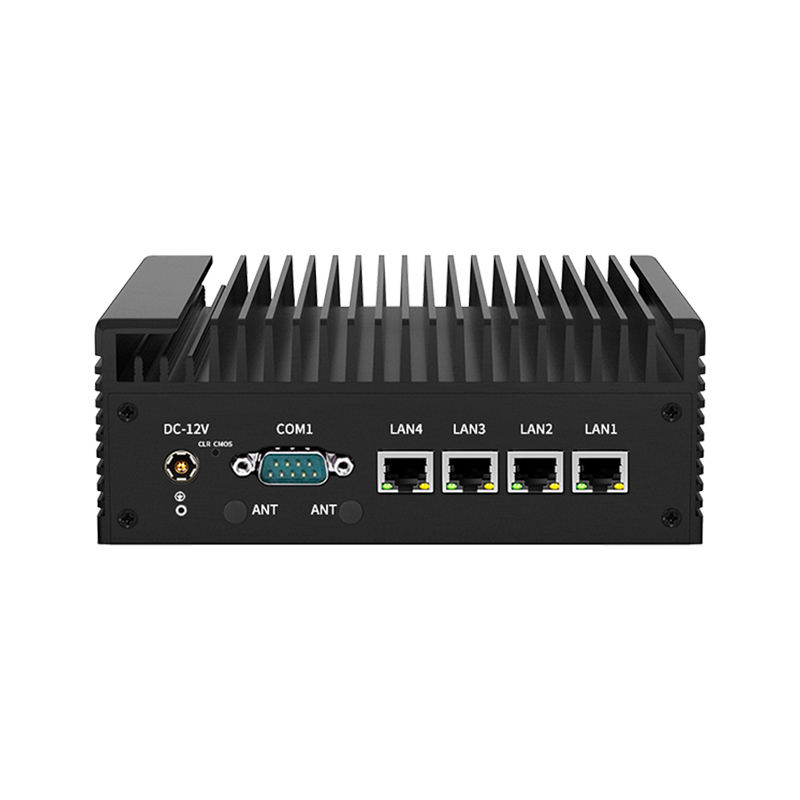
A Windows mini PC or box PC exposes a firmware setting — usually called Restore on AC Power Loss — that brings the machine back up when mains returns. Set it once and the site recovers by itself. An Android terminal depends on firmware support for the same behaviour, and not every build has it: some units stay off until somebody presses the button, which at 7 AM means the shop opens late.
Ask both questions: does the device power on automatically when mains returns, and how long does it take to reach a usable order screen? A cold Windows boot is typically 25 to 45 seconds and an Android boot 18 to 30, both of which are long enough that a site with a flaky supply should be on a small UPS.
Who controls the update, and for how long
A Windows deployment can be pinned to an LTSC build and receive security patches for a decade, with you deciding when a feature update lands. That control is real and it is the main reason Windows survives in sites with proprietary peripherals.
An Android terminal receives whatever the hardware vendor ships. That is fine when the vendor maintains images, and it is a dead end when they do not: the device keeps working and stops receiving patches. Ask for the security patch cadence in writing, and ask which Android versions the model will receive. If the answer is vague, plan the replacement cycle at the same time as the purchase.
What the Android version number actually changes
The version number is usually quoted as a compatibility badge, and it does carry real consequences for a POS. Three of them matter in practice.
| Change | Since | What it does to a POS deployment |
|---|---|---|
| Scoped storage | Android 11 | An app cannot freely read shared folders; exports go through the Storage Access Framework |
| Background service limits | Android 8 onward | A print service that is not a foreground service gets killed when memory tightens |
| Bluetooth and location permissions split | Android 12 | Scanning and pairing prompts change; older apps break silently |
| Per-app USB permission persistence | Varies by build | The allow-access dialog may return after each reboot |
None of those is a reason to avoid Android. They are reasons to buy from a vendor who tests their image against the application you actually run, because the difference between a terminal that prints reliably and one that does not is usually a foreground-service declaration in the app — not the CPU.
Kiosk mode only holds if the device is provisioned, not configured
A terminal that has been set up by hand into a single-app kiosk will drift. Somebody installs a second app, a system dialog appears over the kiosk, an update reboots into the launcher, and the next person on shift is looking at a home screen.
Android solves this properly through device-owner provisioning: the device is enrolled in a management system at first boot, by QR code or by zero-touch, and the policy — allowed apps, no settings access, no factory reset — is applied from outside the device. Windows has the equivalent in kiosk mode plus an MDM agent.
The question to ask a supplier is not whether the device supports kiosk mode, because every Android device does. It is whether the image has been provisioned through device-owner mode and whether the policy survives a factory reset. That is the difference between a kiosk and a tablet with an app pinned to the screen.
If you are migrating from Windows, inventory the peripherals first
Migration projects fail on the oldest device in the building, not on the POS application. Before choosing a platform, list every peripheral and the interface it uses:
- Anything on RS-232 — scales, label applicators, dispensers, cash-acceptor controllers. These are the migration blockers.
- Anything that only has a Windows driver and a vendor DLL. Ask the vendor for an Android SDK before you commit; if they do not have one, the device stays on Windows.
- Anything that plugs in as a keyboard — scanners, MSR readers. These move to Android without changes.
- Anything on the network — printers, KDS units, customer displays. These are platform-neutral and usually migrate cleanly.
A fleet of twenty terminals usually splits: eighteen migrate and two stay on Windows because of one legacy scale. Planning for that split in advance is cheaper than discovering it during rollout, when the alternative is running two platforms at every site.
Where each one actually fits
| Situation | Android | Windows |
|---|---|---|
| Cloud POS, modern app, USB or LAN peripherals | Yes — cheaper, faster to boot | Works, more cost |
| RS-232 scale, dispenser or legacy controller | Only with a kernel that carries the driver | Yes, native |
| OPOS or JavaPOS middleware already deployed | No | Yes |
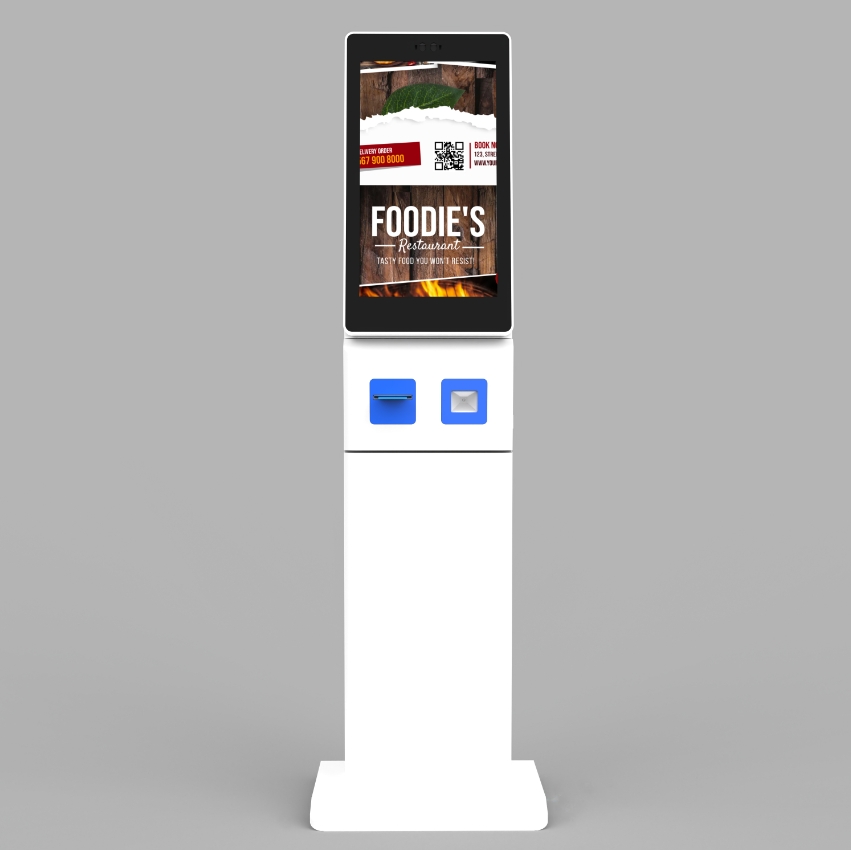
| Kiosk or self-service unit with one app | Yes — kiosk mode is straightforward | Possible, heavier |
| Vendor-managed fleet across many sites | Yes, if the vendor ships MDM images | Yes, with an MDM agent |
| Proprietary Windows-only POS software | No | Yes |
| Long service life with pinned updates | Depends entirely on the vendor | Yes, LTSC |
Five checks before you commit
- Connect your oldest peripheral to a demo unit and confirm it enumerates. Do this first; everything else is negotiable.
- Reboot and reconnect the scanner ten times and count the Android permission dialogs.
- Pull the mains plug with the terminal idle, restore it, and time how long until the order screen is usable.
- Run your real POS application for a full shift and watch memory. A demo app will not show you the low-memory killer.
- Get the security patch cadence and the supported Android versions in writing, with a date.
FAQ
Is Android cheaper than Windows for a POS terminal?
The hardware usually is, because the platform needs less RAM and no licence. The total cost depends on the peripherals: if an RS-232 device forces a Windows unit, the saving disappears immediately.
Can Android terminals run Windows POS software?
No. Android runs Android applications. Some vendors offer a Windows-emulation layer or a remote desktop session to a server, and both add a network dependency to the checkout path — which is the one place you do not want one.
Which one lasts longer?
Windows lasts longer in service life because updates are under your control and the hardware is generic. Android terminals are usually replaced when the vendor stops shipping images, not when the hardware fails.
Where to go next
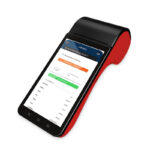
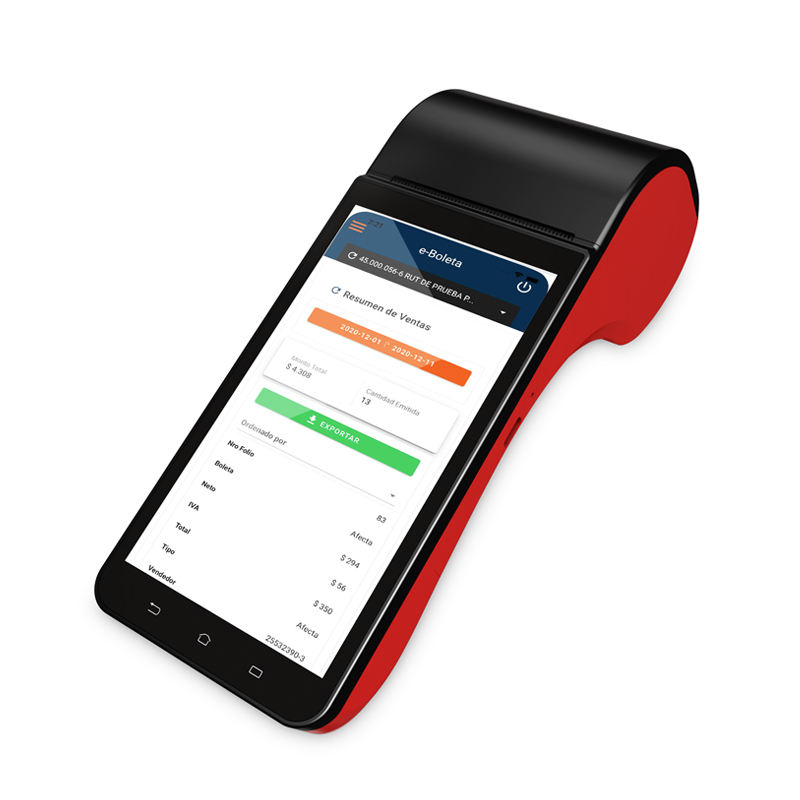
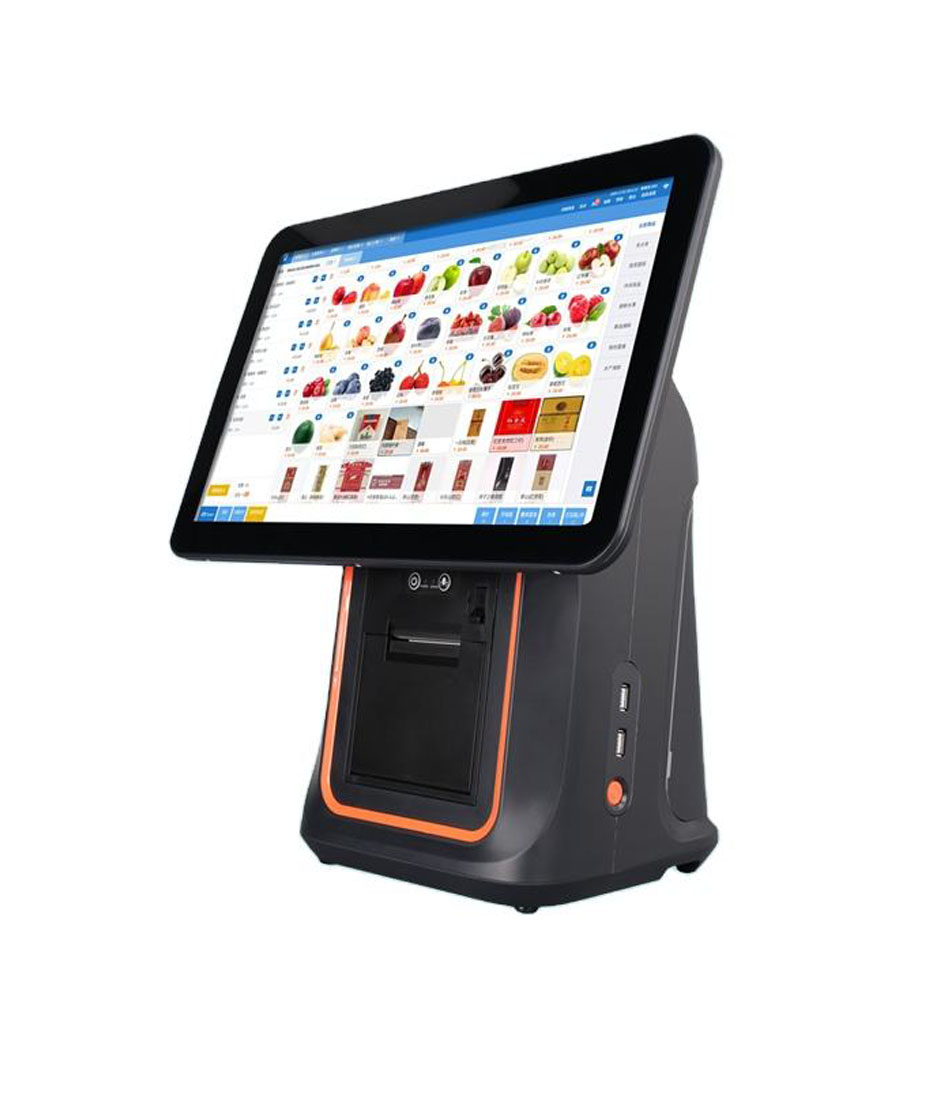
We build both, which is the only reason we can say this without a preference: the peripherals choose the platform. Here are the two families:
Android POS terminals Windows POS terminals DCA-Q3S dual-screen Windows terminal DCA-155A Android terminal who makes which part