A printer that “will not print” is not one fault. It is at least seven, sharing a sentence only because the person at the counter has no other way to describe what they see. The paper never moved. The paper moved and came out blank. The machine made its noise and produced nothing. The self-test page works but the till ignores it. It prints garbage. It stops halfway. It prints two copies of everything.
Those seven have almost nothing in common mechanically, and telling them apart costs twenty seconds and no tools: the printer’s own self-test page.
What follows is the order we walk a counter through on the phone, sorted by how much each check eliminates rather than how likely each fault is. The environment side — grease film, paper dust, heat, humidity — is in why receipt printers fail in kitchens: maintenance, not diagnosis.
Check 1: print the self-test page, and read which half you are in
Cut the power. Hold FEED down. Apply power while still holding, keep holding for two to five seconds, then release. The printer prints a page from its own firmware with no computer attached. The button combination differs between models — check the sheet that came with the unit, because on some models holding FEED at power-on enters a data dump instead.
| What comes out | What it proves | Next step |
|---|---|---|
| Page prints, characters even, paper feeds smoothly | Motor, head, paper path and firmware all working | The printer is not the fault. Go to Check 3. |
| Page feeds but is completely blank | Head is firing into the wrong side of the paper, or the paper is not thermal | Go to Check 2. Change no settings yet. |
| Nothing feeds, no motor sound, no light change | No power, cover interlock open, or the control board is not starting | Go to Check 4. |
| Page prints with a fixed vertical white stripe | One column group of the head is dead, or the head ribbon is unseated | Reseat the ribbon with the power off; replace the head if the stripe stays put. |
The page also prints what nobody remembers: firmware version, interface type, baud rate and handshake on serial units, character set, density, and any DIP or memory switches. Photograph it. It is the only place those values appear together, and they are what you compare against when the till and printer disagree.
The most common wasted hour
Replacing the USB cable, reinstalling the driver and rebooting the till, on a printer whose self-test page already printed perfectly. If the page prints, the cable and the driver were never the fault.
Check 2: it printed, and you cannot see it
Direct thermal paper is coated on one side only. The coating is a dye and a developer in a binder; heat above roughly 70 °C turns it black. Load the roll the other way round and the head presses against the back of the sheet: the mechanism works, the paper advances, nothing appears. This is the most common non-fault in the category.
The coating side is the smooth, slightly glossy one, faintly green or off-white against the matte back. Scratch it briskly with a fingernail: the coated side goes dark grey within a second, the back does not. Load with the coating facing the head, which on almost every counter printer means facing you as the paper leaves the roll.
The other half of this check is the paper itself. Bond paper, inkjet paper and the “receipt paper” sold for impact dot-matrix printers are not coated and will never mark. A roll stored above 30 °C, in sunlight or in a humid back room prints pale and grey, then fades over months. Faint but even across the full width means paper or density, not head. Roll construction is in what GSM and caliper actually change — a 0.08 mm roll also needs more head energy per dot to reach the same density.
| What you see | Most likely cause | How to confirm |
|---|---|---|
| Uniform white, no trace of characters | Roll loaded coated side inward, or non-thermal paper | Fingernail scratch test, then reload coating towards the head |
| Faint but perfectly even grey text | Density too low, or aged / damp paper | Raise density one step; retest on a fresh sealed roll |
| Top half prints, bottom half blank | Paper narrower than the sensor expects, or roll near end | Measure the roll — 58 mm stock in an 80 mm printer is the usual case |
The width case is mechanical, not electrical. A 58 mm roll fits an 80 mm printer: the compartment has adjustable guides and the spindle is narrow enough. What does not move is the paper-end sensor at the 80 mm edge, which sees no paper under a 58 mm roll, reports out-of-paper and stops mid-receipt. What that does to the 576-dot print width is in 80 mm vs 58 mm receipt printers.
One mechanical item looks like a paper fault: the cover. Most counter printers use a microswitch or hall sensor on the lid and will not turn while it reads open. On several models that state does not light the error LED — the printer simply does nothing. Press the lid down at both ends until you hear the latch.
Check 3: the data never arrived
If the self-test page was clean, you have a working device that is not receiving bytes it recognises. A thermal printer has no idea what a document is: it receives text, line feeds, cut commands and bitmaps, and executes them in order. Work down the chain — interface, port, queue, application — because the first three are visible in under a minute and the fourth is where people usually start.
| Interface | Typical failure | What settles it in 15 seconds |
|---|---|---|
| USB | Cable over 5 m (the USB 2.0 limit), a dead port, or a hub shared with a scanner that browns out at 500 mA | Device Manager: does the device vanish when you unplug it? Does the port move from USB001 to USB003? |
| Serial RS232 | COM number drifts between adapters (COM3 today, COM7 after a reboot), or baud rate and handshake do not match | Compare baud rate against the self-test page. A mismatch prints garbage, not nothing. |
| Ethernet | Printer took a new DHCP address, or TCP 9100 is blocked after a network change | Watch the link LED, ping the address on the self-test page, open a raw connection to port 9100. |
| Bluetooth | Paired at OS level but no live channel to the app — pairing is not a connection | Watch the printer LED while sending. If it stays idle, the app never opened the channel. |
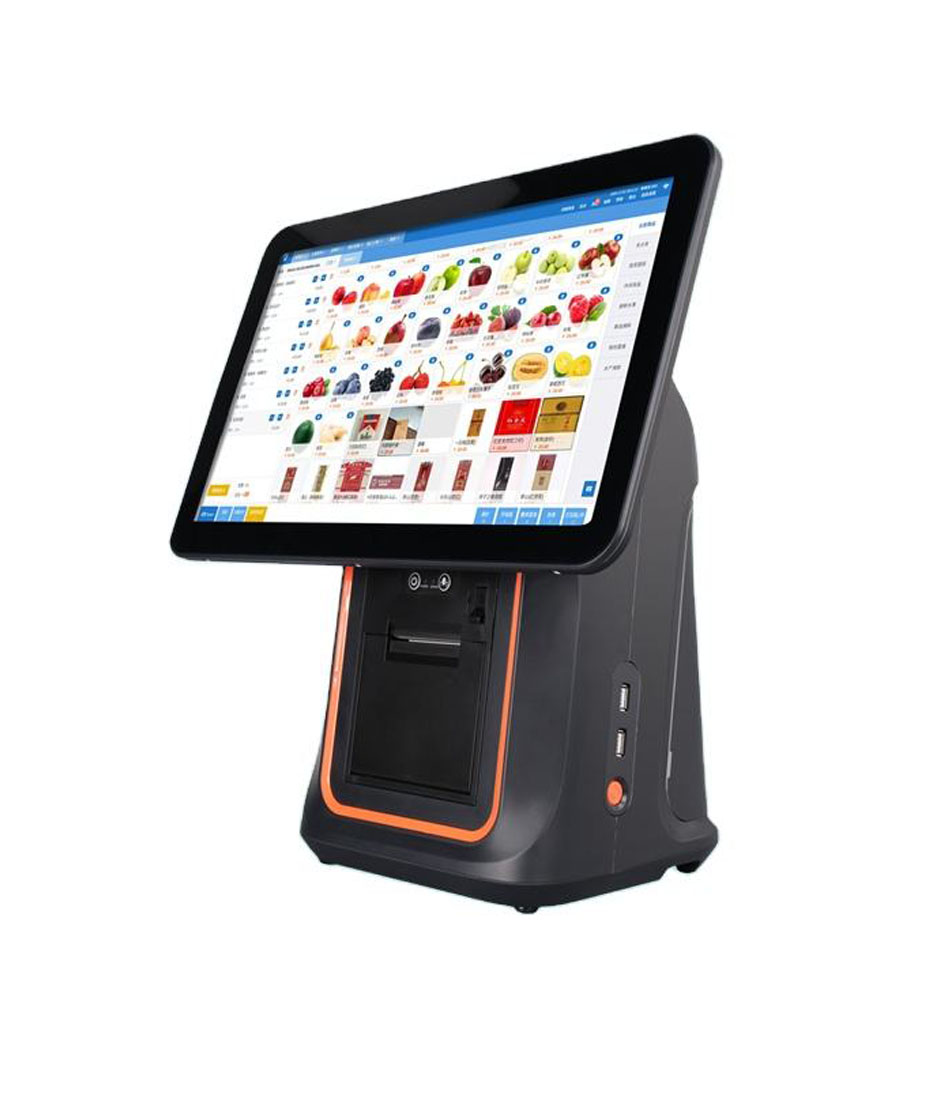
| Android all-in-one | No driver and no spooler exist on Android; printing goes through the vendor SDK to a serial node or USB host | If a Windows PC prints to the same unit, the printer is fine and the SDK path is the fault. |
Serial deserves a number: at 8N1 each byte costs ten bits on the wire, so byte rate is baud divided by ten. Take a 2,000-byte receipt — forty lines of 48 characters at 576 dots, plus control codes:
| Baud rate | Bytes/second | Time for 2,000 bytes | Is the wire the bottleneck? |
|---|---|---|---|
| 9,600 | 960 | 2.08 s | Yes — 2.9x slower than the mechanism |
| 19,200 | 1,920 | 1.04 s | Yes — 1.4x slower |
| 38,400 | 3,840 | 0.52 s | No — the mechanism now sets the pace |
| 115,200 | 11,520 | 0.17 s | No — wire is idle most of the time |
The comparison point is the mechanism: forty lines at 4 mm spacing is 160 mm, which a 220 mm/s unit moves in 0.73 s. Below 38,400 the port is the slower half of the system. Raising 9,600 to 115,200 removes about 1.35 s per receipt; across 900 receipts a day that is roughly 20 minutes of queue time nobody attributes to the printer.
On a Windows till three more things produce a silent no-print while the printer is perfect. The default printer quietly reverting to Microsoft Print to PDF. A stuck spooler: the job sits in C:\Windows\System32\spool\PRINTERS as an orphaned SPL/SHD pair that restarting the service does not clear — stop the service, delete those files, start it again. And the print processor set to EMF instead of RAW, which re-renders raw printer commands as a document and produces nothing.
What to check before you touch the printer again
Is the till pointed at the right device? Print a Windows test page from Printer Properties. If that works, the fault is in the POS application, not the driver.
Does the job reach the queue? A document stuck at Printing or Error is a link problem. An empty queue after you press print is an application problem.
Did the port change? Move a USB cable and Windows may allocate a new virtual port; the old one still exists and still looks valid.
Is the baud rate the one on the self-test page? Garbage and half receipts come from a mismatch here, never from a worn head.
Check 4: the machine — power, cutter, head
When the self-test page does not come out at all, the fault is on the printer side of the cable and the first three checks are irrelevant.
Power. These units run from a 24 V adapter and the failure is usually sag, not a dead supply. A thin or long DC lead, or a shared strip at the end of a busy circuit, drops enough when the motor and head fire together that the unit resets mid-receipt. Measure at the printer connector while printing, not at the wall with the unit idle: 24 V unloaded and 19 V under load is the fault, and it looks exactly like a mainboard failure.
The cutter. A blade stopped halfway jams the paper and the printer will not advance, because the mechanism is waiting for the cutter to finish its cycle. Power off, then turn the shaft back by hand in the direction shown in the manual — never lever it with a screwdriver, the edge is exposed at that point. Cutter life belongs on the datasheet: the POS-8370 is rated at 1.5 million cuts, which at 900 receipts a day is about 4.6 years, or 2.3 years if the same unit also cuts a kitchen copy.
The head. A vertical white stripe in the same position on every page is a column group that has stopped heating, either because the head is worn there or the ribbon is not fully seated. Power off, reseat the ribbon, retest; if the stripe stays in the same column the head is gone. Head life is quoted in metres: a 50 km head is about 200,000 receipts at 25 cm each, and abrasive paper shortens it well before that.
The error LED. Flash codes are the least portable information in this subject. The same two-flash pattern means over-temperature on one model and cover-open on another, and the mapping changes with firmware revision inside a product family. Read the flash table in the manual that shipped with the unit. Guessing from a forum thread is how people replace a mainboard to fix a paper sensor.
The whole thing on one page
| Symptom at the counter | Most likely | First action |
|---|---|---|
| No sound, no feed, no LED change | Power or cover interlock | Measure 24 V under load; press the lid down |
| Feeds paper, prints nothing visible | Roll loaded backwards, or non-thermal paper | Fingernail test; reload coating to the head |
| Feeds and prints, then stops mid-receipt | Paper-end sensor, narrow roll, or supply sag | Measure the roll width, then the voltage |
| Self-test fine, till sends nothing | Port, queue, or wrong default printer | Print a Windows test page; look at the queue |
| Prints garbage or half characters | Baud rate or character set mismatch | Compare against the self-test page |
| Every receipt prints twice | Two queues to one device, or a copy count in the driver | Remove the duplicate printer entry |
| Cutter stops with paper jammed | Blade mid-cycle | Power off; reset the shaft by hand |
Photograph these three things before you call anyone
Remote support is expensive because the description arrives as “it is not working” and every question after that costs a round trip. Three photographs collapse most of it: the complete self-test page including the settings block, the error LED as a five-second video rather than a still (the information is in the rhythm), and the paper compartment with the roll in place so width and coating orientation are both visible.
Questions we get about printers that will not print
Why does it print blank paper?
The roll is in the wrong way round, or it is not thermal paper. The coating is on one side only and the head can only mark that side. Scratch the surface: the coated side goes dark, the back does not.
Why does it print garbage characters?
Baud rate, handshake or character set does not match between till and printer. The self-test page prints the printer’s current values; set the software to those, or the printer to the software. A failing head loses columns, it does not scramble letters.
The self-test page prints but the POS app does not. Is the printer broken?
No. The page proves the mechanism and the firmware, so the fault is in the port, the queue or the application. Print a Windows test page from Printer Properties; if that works, the driver is fine and the POS software is sending to the wrong place.
Can I put 58 mm paper in an 80 mm printer?
It fits and it prints, but the paper-end sensor sits at the 80 mm edge and will report empty with paper still on the roll. Print width also drops from 576 to 384 dots.
Why does it stop halfway through a long receipt?
Three causes in order of frequency: a roll narrower than the printer expects, a supply that sags when motor and head fire together, and a spooler stalled on a job. The first two look identical at the counter and are separated by measuring the roll, then the voltage.
Does a USB-to-serial adapter work with these printers?
Yes, with two conditions. Install the adapter driver before connecting, and expect the COM number to change when the adapter moves to another USB port. A fixed COM assignment is why a printer that worked yesterday is silent today.
Where to go next
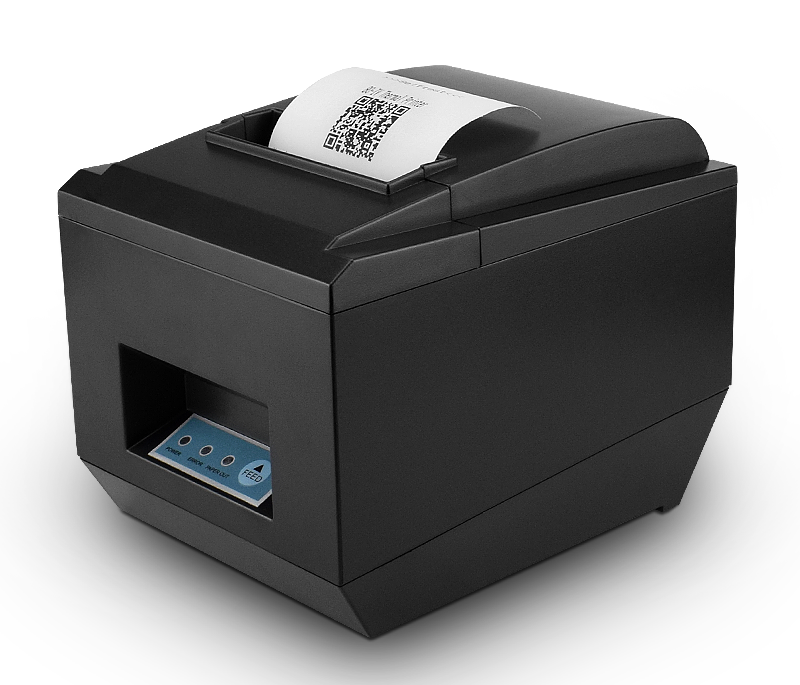
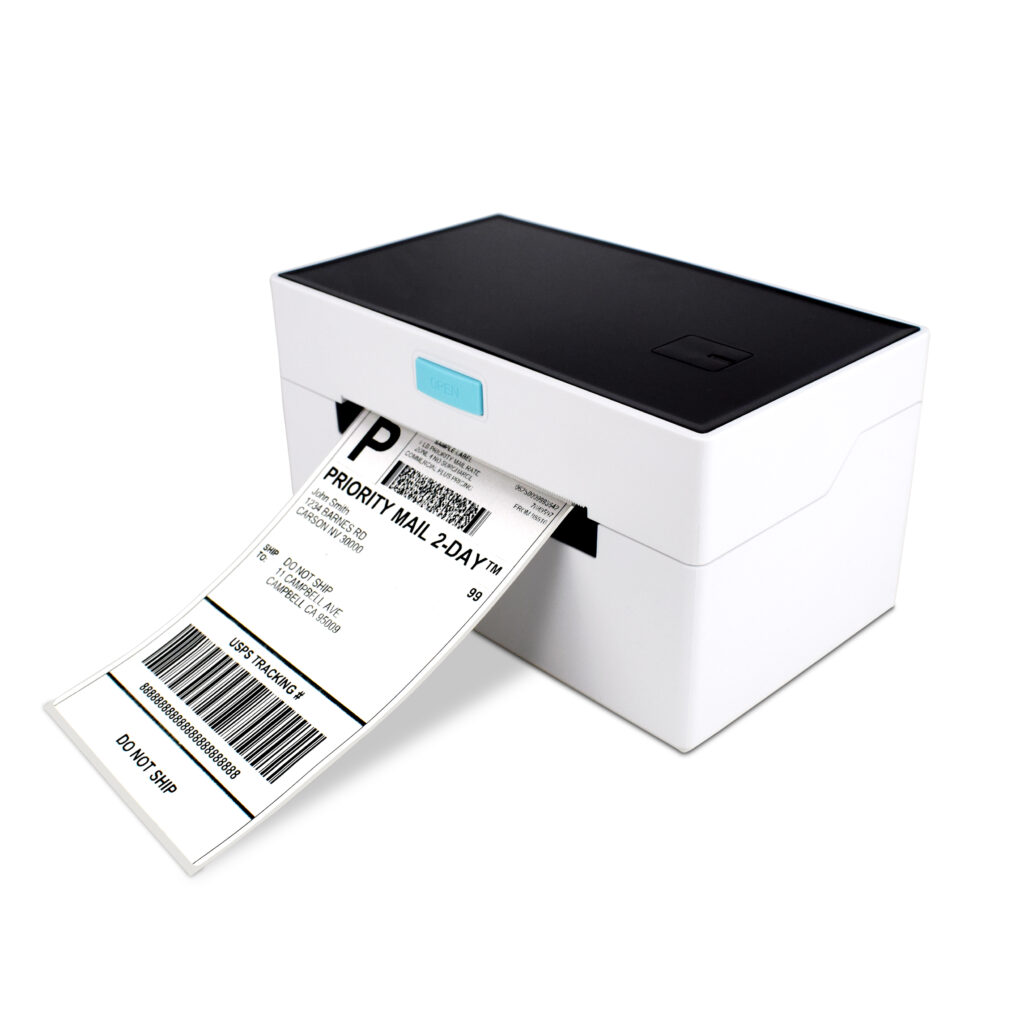
If you are still choosing hardware, the receipt printer range lists interfaces, print widths and cutter ratings side by side — the POS-8250 for a single USB till, the POS-8360 where freight and unit cost dominate, the POS-8370 where the 1.5-million-cut cutter and stored logo matter, and the POS-8330 where the counter has no floor space left. How the mechanism turns bytes into dots is in what a thermal printer is.
If a specific model still will not print after the four checks, send the self-test page and the model number and we will tell you which of the four it is.
Specifying the hardware? The hardware side is covered in The five lines on a POS bill — which of them are hardware and which are not.