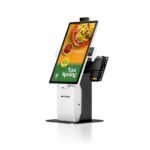
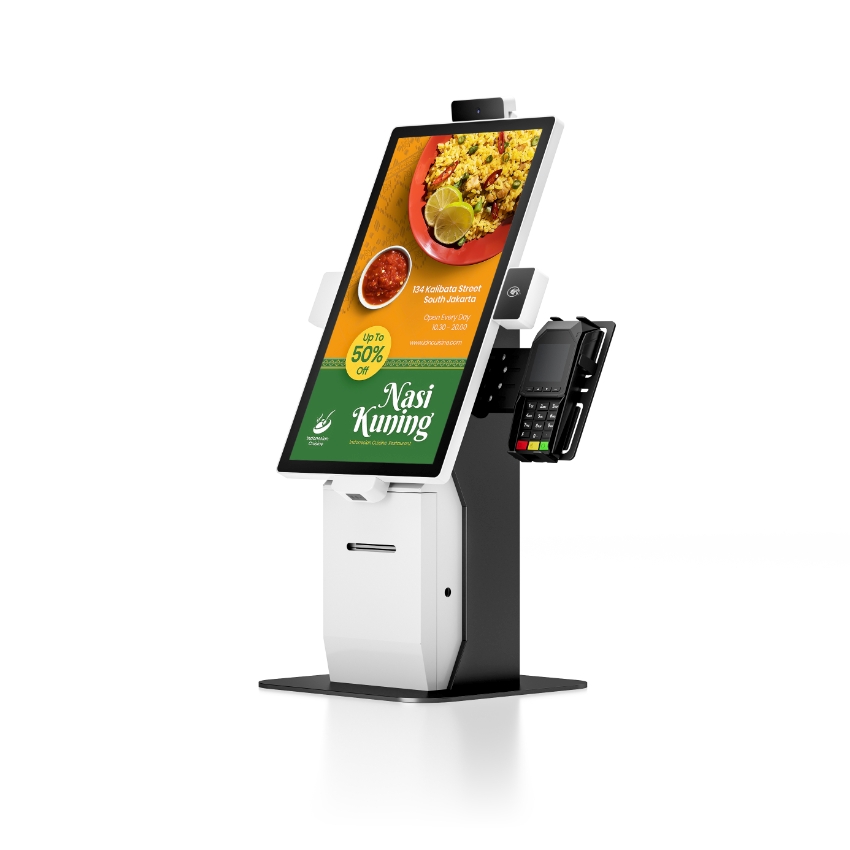
A kiosk is a self-contained unit — an enclosure, a screen and a computer — that lets a customer complete a specific task without a member of staff: place an order, pay for goods, check in, or join a queue. What separates a kiosk from a tablet on a stand is that the kiosk is designed around one task, so the hardware is chosen for that task and nothing else.
The word covers three products that share an enclosure family and almost nothing else. A self-ordering kiosk in a burger restaurant has a receipt printer and a QR payment reader. A check-in kiosk in a clinic has an ID scanner and a label printer and will never handle cash. A self-checkout lane in a grocery store has a scale, a bagging area and a very different safety story. Buying “a kiosk” without naming the job is how projects end up with a printer nobody uses and a scanner that cannot read the document in front of it.
The three jobs, and what each one needs
The pattern is consistent: the panel and the computer are common to all three, and the peripherals are not. That is why the useful question in a kiosk specification is not “what size screen” but “what has to come out of the machine” — a receipt, a label, a ticket, or nothing at all.
The four modules behind the glass
| Module | What it is | What to check | What it costs you when it is wrong |
|---|---|---|---|
| Panel | 23.8-inch 1920×1080, 10-point projected capacitive, tempered glass | Brightness, mm per pixel, whether the glass is bonded | A screen that washes out by a window, or taps that land a centimetre off |
| Computer | J1900 / i3 / i5 / i7, 4–8 GB, 128–256 GB SSD, Windows or Android | Fan or fanless, operating temperature, storage grade | A fan that pulls flour dust into the box, or an SSD that wears out in a 24/7 unit |
| Printer | Embedded 72 mm thermal, partial cut, up to 170 mm/s | Paper path access, roll diameter, cut type, head life | A jam inside a locked enclosure, with the queue in front of it |
| Payment and scanning | 2D imager for QR, card reader, or an ID/document scanner | Whether it reads from a screen as well as paper | A 1D laser that cannot read a phone, so QR payment is impossible |
A 23.8-inch panel is the most common size in this category, and the alternatives run from 21.5 to 32 inches at the same 1920×1080 resolution. That single fact is the most useful thing on the datasheet, because resolution held constant while the diagonal grows means the pixels get physically bigger.
Panel size is an ergonomics decision, not a specification
Millimetres per pixel is panel width in millimetres divided by horizontal resolution. At 1920 pixels wide, a 16:9 panel works out like this:
| Panel | Width | mm per pixel | A 96 px button is | Who it suits |
|---|---|---|---|---|
| 21.5″ | 476 mm | 0.248 | 23.8 mm | Tight footprint, short reach, seated users |
| 23.8″ | 527 mm | 0.274 | 26.3 mm | Standing order kiosk — the common choice |
| 27″ | 598 mm | 0.311 | 29.9 mm | Lobbies where two people read at once |
| 32″ | 708 mm | 0.369 | 35.4 mm | Menu boards and check-in, viewed from further back |
A 26 mm target is comfortable for a standing adult with a free hand. It is generous for a child, a person holding a bag, or anyone in gloves — and those are the people who actually use a kiosk at 12:30. Going up one panel size buys about 12% more physical button per pixel; going up two buys 25% and costs 200 mm of counter width.
The lower bound is set by seated reach, not by taste. If the same kiosk must serve a wheelchair user, the interactive area needs to start no higher than roughly 1,200 mm from the floor — which for a 23.8-inch panel means the screen centre sits around 1,300 mm, not at standing eye level.
Brightness is the number that fails in service
Kiosk panels in this category are quoted at 300 cd/m², with a 350 and 450 cd/m² option on some models. That is fine in a dim room and marginal in the two places kiosks usually go: a lobby with a glass wall, and a restaurant with downlights at 3,000 K directly above the screen.
Two things help more than a brighter panel. The first is bonded glass: a fully laminated panel has no air gap between the cover glass and the display, so it does not fog in a cold lobby and does not reflect a second image of the ceiling. The second is where you put it — a kiosk facing a window at 10:00 will be unreadable at 16:00 no matter what the datasheet says, and rotating the unit 90 degrees costs nothing.
The printer inside a kiosk fails differently from the one on a counter
A counter printer runs at 220 to 260 mm/s. The embedded unit in a kiosk is typically quoted at 170 mm/s maximum, with a 72 mm print width and a partial cut. The lower speed is not a cost compromise; it is what the mechanism can do inside a sealed box with a 12 V supply and no room for a large motor.
Three consequences follow, and all three show up as support tickets:
- Partial cut, not full cut. The receipt stays attached to the roll and the customer tears it. A full cut drops chads into a tray that nobody empties inside a locked enclosure.
- Heat has nowhere to go. A kiosk with a 300 cd/m² panel, a PC and a printer in one box runs warmer than a counter terminal. Paper stored in that box curls, and a curled roll feeds crooked.
- The paper path is behind a lock. When it jams, the queue waits for whoever holds the key. A kiosk design that puts the roll door on the customer side trades a small theft risk for a much shorter mean time to recovery.
The 40-degree box
Thermal paper starts to darken at 60–80 °C, so ambient heat alone will not print on it. But paper kept at 40 °C for weeks takes a set, and a roll with a set feeds at an angle. If a kiosk is going next to an oven line or under a skylight, specify the paper storage away from the printer, not above it.
What the computer has to do, and what it does not
The computer options in a kiosk are usually a Celeron J1900 at 2.0 GHz, an i3 or i5, or an ARM board like the RK3288 for Android builds. A kiosk application is a browser view, a payment SDK and a printer driver. None of that needs an i7, and the i7 option exists mainly for customers who want to run digital signage on the same box.
What does matter is cooling. A fanless unit in a sealed enclosure with no filter runs well above ambient inside the box; a fan pulls in whatever is in the air, which in a restaurant is flour and oil vapour. The practical answer for food service is a fanless unit with a ventilated plinth, and a filter schedule written into the cleaning rota.
The numbers a kiosk project actually needs
| Item | Typical figure | Why it matters |
|---|---|---|
| Panel | 23.8″, 1920×1080, 300–450 cd/m², 10-point PCAP | Readability and touch accuracy |
| Enclosure | Metal shell, tempered glass, spray finish, 13 kg net | Floor loading and cleaning |
| Power | 12 V 8 A adapter, 110–240 V input | One socket per kiosk, not a shared strip |
| Operating range | 0 to 50 °C, 10–90% RH non-condensing | Lobbies and covered outdoor areas |
| Mounting | Wall mount, adjustable height, VESA pattern | Retrofit into an existing counter |
| Printer | 72 mm width, partial cut, 170 mm/s, embedded | Receipt size matches the counter printer |
A kiosk also needs a network drop and a way to get one cable in without leaving a hole a hand can reach through. That is a mechanical detail, and it is the one most often left to the installer — which is how kiosks end up with a cable entering through an open side panel.
FAQ
Is a kiosk just a tablet in a stand?
No, although a tablet in a stand is sometimes sold as one. A tablet has no thermal printer, no cash handling, no lockable enclosure and no rated operating temperature, so it works for a queue ticket and not for a receipt. The distinction that matters commercially is whether the unit can complete the task alone.
What is the difference between a kiosk and a POS terminal?
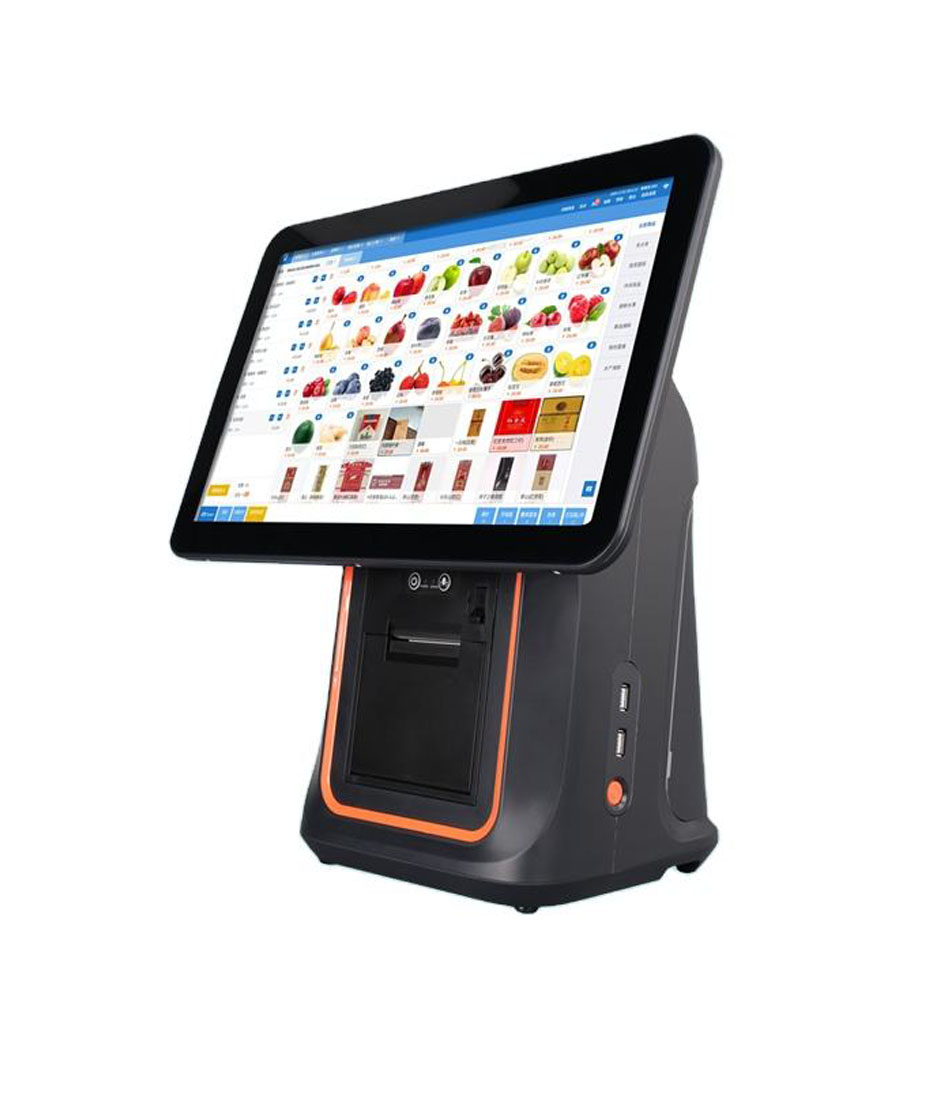
A POS terminal is operated by staff and is one part of a station with a printer and a drawer. A kiosk is operated by the customer, includes its own printer and payment reader inside one enclosure, and normally has no cash drawer at all. The screen sizes overlap; the ownership of the interaction does not.
Do kiosks need a fan?
It depends on the enclosure. A fanless unit avoids pulling dust and flour into the electronics but runs warmer; a fan-cooled unit runs cooler but needs a filter and a cleaning schedule. For food service, fanless with a ventilated plinth is usually the better trade.
How bright does a kiosk screen need to be?
300 cd/m² is adequate in a dim interior. Any unit within three metres of a window, or under a downlight aimed at the screen, needs 450 cd/m² or more, bonded glass, and a re-think of the mounting angle. Brightness alone does not fix a reflection.
Can one kiosk do ordering and payment?
Yes, and that is the normal self-ordering build: a 2D imager or card reader beside a 23.8-inch panel, with the printer below. The constraint is the payment provider’s certification, not the hardware — the reader has to be approved for the acquirer, which is why kiosk projects start with the payment partner and not the enclosure.
Where to go next
A kiosk is specified by the job, then by the modules that job needs — the panel and the enclosure are the easy part.
the kiosk range custom kiosk builds kiosks outside restaurants how the printer inside works receipt printers