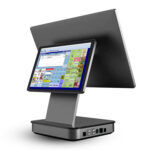
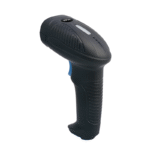
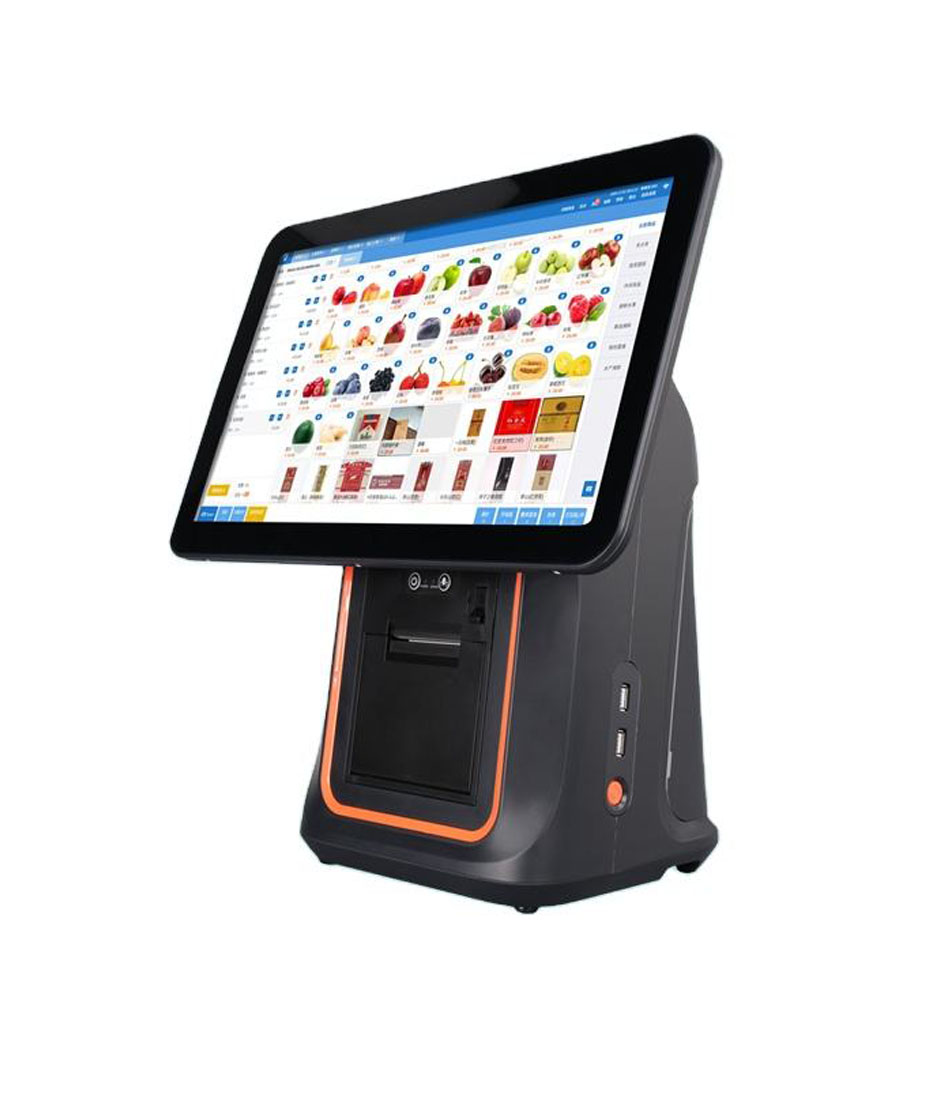
Square does not sell a barcode scanner. It sells a card reader, a stand, a register and a terminal, and it publishes a short list of scanners it has tested with them. That list has six USB models and three Bluetooth models, all from Zebra, Honeywell and Socket Mobile.
Which means the question behind this search is usually the wrong one. People look for a scanner “for Square” and assume the list is the set of devices that work. It is not. It is the set of devices somebody at Square plugged in and wrote down. What decides whether a scanner works is three settings on the scanner, and the first of them is the reason the compatibility error exists.
The list is a test record, not a specification
Here is what Square publishes. Six USB models and three Bluetooth ones, all listed below with the one thing that differs between them.
| Model | Connection | Type | Note |
|---|---|---|---|
| Zebra LS2208 | USB | 1D laser | The reference unit; most guides assume it |
| Zebra DS6707 | USB | 2D imager | Reads screens and PDF417 |
| Honeywell Hyperion 1300G | USB | 1D imager | Long depth of field, no moving parts |
| Honeywell Xenon 1900 | USB | 2D imager | Area imager |
| Honeywell Voyager 1200G | USB | 1D laser | Common in retail bundles |
| Honeywell Voyager 1250G | USB | 1D laser | Extended range version |
| Socket Mobile S721 | Bluetooth | 1D/2D | Fewer devices ticked than the USB rows |
| Socket Mobile S720 | Bluetooth | 1D/2D | Same family, different radio |
| Socket Mobile 7Ci | Bluetooth | 1D | The oldest of the three |
Not one of the nine speaks a Square protocol, because there is no such protocol. The six USB models arrive as keyboards and the three Bluetooth ones as a Bluetooth keyboard: characters arrive, then a terminator, then the item is added.
What the list actually tells you
The six USB models on the list are known to arrive in keyboard mode out of the box, or to be switchable to it with a barcode in the quick-start sheet. A scanner that is not on the list is not excluded. It is untested, which is a different claim.
Three interface modes, and only one of them works
A USB barcode scanner presents itself to the host in one of three ways, and the default depends on who the scanner was built for. Industrial and OEM scanners usually ship in serial mode because they were designed to talk to a fixed terminal. Retail scanners usually ship in keyboard mode because they were designed to talk to a till that already had a keyboard port.
| Mode | What the host sees | Works with Square | Why |
|---|---|---|---|
| HID keyboard | A keyboard | Yes | Characters are typed into the focused field |
| USB-COM / CDC | A serial port | No | Needs a driver and an app that opens the port |
| Vendor HID | A proprietary device | No | Correct shape, wrong report layout |
The middle row is the trap. A scanner in USB-COM mode is not broken and not incompatible. It is presenting a serial port to a device that has no way to open one, and the error the app shows is written by whoever wrote the app. On Square hardware that error says the USB device is not compatible.
Which is why the troubleshooting step that fixes it is not a setting menu. It is a barcode. Scanner quick-start sheets carry configuration barcodes, and one of them is labelled USB Keyboard HID or HID Keyboard Emulation. Scan it, unplug, plug back in, and the same device that was rejected a minute earlier is now accepted.
Why the fix barcode must be printed
Square’s own instructions say the configuration barcodes cannot be scanned from a monitor or a phone screen. This is not caution for its own sake, and it trips up people who are otherwise careful: they open the PDF, hold the scanner to the laptop, and the scanner beeps at nothing.
A screen draws a barcode as lit pixels with gaps between them. A laser reads reflected light along a line, and a backlit pixel does not reflect the way ink does. An imager does better but still has to resolve module edges a display renders with a bright halo while the panel refreshes. A configuration sheet is the worst case, held at an angle at arm’s length.
Print the page. This is the single most common reason a scanner that would work is reported as broken, and it costs one sheet of paper to eliminate.
Three ports, and the reader takes one
Square Stand, Register and Terminal all connect accessories through a hardware hub that sits in the power path. That hub has three USB ports. Square’s own guidance, for anyone who needs a fourth, is to move the cash drawer off USB and drive it from the receipt printer instead.
Two things usually eat the ports before the scanner gets one. The chip reader can connect over Bluetooth or through its dock on the hub, and if it is docked it holds a port permanently. A USB receipt printer holds another. That leaves one for the scanner, which is fine until somebody adds a customer display or a scale.
| What is plugged in | Hub ports used | Scanner gets a port |
|---|---|---|
| Reader over Bluetooth, printer over USB | 1 | Yes |
| Reader docked on hub, printer over USB | 2 | Yes |
| Reader docked, printer, USB drawer | 3 | No |
| Reader docked, printer, drawer on printer port | 2 | Yes |
The bottom two rows are the same physical shop with one cable moved. A drawer driven from the printer’s RJ11 port costs nothing extra if the drawer supports it and frees a hub port that a scanner needs. If the drawer is already wired that way and still will not open, the fault is electrical rather than spatial and belongs in the pulse test, not here.
Android is a separate case on the same arithmetic. Square’s guidance is that an Android device connects USB accessories through an OTG adapter, and that the adapter has to be one the device supports. On an iPad there is one port and it is usually charging, which is the real reason the stand with a powered hub exists at all.
One footnote on that page matters to anyone building a self-service counter. When Square Kiosk hardware is running the Kiosk app, it cannot connect external accessories over Bluetooth, USB or Ethernet at all. The same hardware running the ordinary POS software takes the same accessories as a Stand. A kiosk that needs a scanner to read a loyalty code therefore has to run the POS app, which changes the screen the customer sees.
The hub itself is powered from the adapter, which is why the guidance is to plug the hub into the adapter rather than into a laptop. A passive hub inserted between them adds a device that has to negotiate for current, and it fails in a way that looks exactly like a scanner fault.
Bluetooth is an iOS path
Square’s support documentation is explicit that the Bluetooth scanner path assumes an iPad or iPhone, and that Android devices are not supported for it at present. The same document spends its length on one Socket Mobile unit, which is how narrow that path is.
The compatibility page makes the same point less directly. The three Bluetooth models carry fewer ticked devices than the six USB ones, and the USB column is the one that works everywhere. If a shop is choosing between a Bluetooth scanner and a USB scanner for a Square setup, the USB one is the safer purchase unless the counter genuinely cannot take a cable.
There is a second Bluetooth trap that has nothing to do with Square. Pairing in the operating system and pairing inside the app are different states. A scanner paired from the iPad’s Bluetooth settings will show as connected and will still deliver nothing to the app, because the app opens its own connection. Pair from the hardware menu inside the Square app, and remove the system-level pairing first if one exists.
Layout: why some labels mangle
Keyboard mode means the scanner types. A US-layout scan of a code containing a hyphen arrives as a hyphen; the same scan on a device set to a UK layout can arrive as something else, because the character a given keycode produces depends on the host layout, not on the scanner.
This is where retail gets lucky and every other use of a scanner does not. EAN-13 and UPC-A contain digits only, and the digit row is identical on every Latin layout. A shop scanning grocery barcodes will never see a layout fault. The same scanner used to read an asset tag in Code 39, a shelf label with a slash, or a licence with a hyphen, will produce wrong characters on exactly those symbols and correct ones everywhere else.
The symptom is selective: some labels read perfectly and some come in mangled, and the difference follows what characters the label holds rather than which product it is. That pattern is a layout mismatch, and the interface test isolates it in under a minute.
The suffix decides the scan
A scanner in keyboard mode sends one keystroke per character. EAN-13 is thirteen characters, so thirteen keystrokes, and then the scanner sends whatever its terminator is configured to send: nothing, carriage return, line feed, or both.
Square needs a terminator to know the code is finished. A scanner that sends none will fill the search field with thirteen digits and sit there, which looks identical to a scanner that is not being recognised. A scanner sending CR and LF sends two, and an application that treats either as submit can add the same item twice.
Both are configuration barcodes on the quick-start sheet, and both are worth checking before suspecting the app. The test is a text editor: if the code appears and the cursor does not drop to a new line, the terminator is missing. That single observation separates a scanner problem from an app problem faster than anything in the settings menu.
What the scanner still has to decode
None of the above matters if the scanner cannot read the code in front of it. Two families cover almost every Square shop, and the split is not about price.
| Symbol | Where it appears | 1D laser | 2D imager |
|---|---|---|---|
| EAN-13 / UPC-A | Packaged goods | Yes | Yes |
| Code 128 | Shipping labels, internal tags | Yes | Yes |
| GS1 DataBar | Fresh produce, pharmacy | Some | Yes |
| QR / Data Matrix | Phone screens, gift cards, coupons | No | Yes |
| PDF417 | Licences, manifests | No | Yes |
The rows that matter are the last three. A 1D laser cannot read a code on a screen, because the code is made of light rather than ink and the reflected signal is wrong. If a shop takes gift cards, loyalty codes or digital coupons at the counter, that is a 2D imager requirement and it decides the purchase before anything else on this page does. The trade-off in speed and depth of field is set out in the 1D against 2D comparison.
For a counter that reads groceries and nothing else, a 1D laser is faster and cheaper and will outlive the shop. For one that reads a phone once an hour, a 2D imager pays for itself in the first week of not asking customers to read out a code.
The on-screen keyboard will disappear
One behaviour surprises every first-time installer. A device in keyboard mode is a keyboard, so the iPad treats it as one and hides the software keyboard to avoid two input sources. Then the cashier needs to type a price, and there is no keyboard on screen.
Square’s own fix is undramatic: double-click the power button on the scanner and the software keyboard returns. Some scanners use a dedicated key. Teach it on the first day, or a cashier concludes the scanner has broken the till.
Ten minutes, four observations
Before committing a shop to a scanner it has not used, the whole question can be settled at the counter with the device in front of you.
- Open any text field and scan one product. Digits appear, cursor drops a line: mode and terminator are both correct.
- Digits appear, cursor stays: the terminator is missing. Scan the Enter or CR suffix barcode.
- Nothing appears and the app reports an incompatible device: the scanner is in serial or vendor mode. Print the quick-start sheet and scan the HID barcode.
- Characters appear but they are wrong on hyphenated or slashed labels only: layout mismatch. Set the scanner to the host layout, not the other way round.
Four observations, no software, no support ticket. Three of the four are fixed by a barcode on the sheet that came in the box.
Questions before you buy
Is any USB barcode scanner compatible with Square?
Almost any of them, once it is in HID keyboard mode. Square reads characters, not a device, so the brand on the label matters far less than the interface setting and the terminator. The nine models on the list are the ones known to arrive that way without configuration.
Does Square sell its own barcode scanner?
No. Square sells readers, a stand, a register and a terminal, and resells a few third-party scanners. Every model on its list is made by Zebra, Honeywell or Socket Mobile.
Can I use a Bluetooth scanner with an Android device on Square?
Square’s support documentation says no, and that the Bluetooth path assumes an iPad or iPhone. On Android the wired route through an OTG adapter is the supported one, which also solves the pairing problem because there is nothing to pair.
How many USB accessories will a Square Stand take?
Three, through the hub on the power cable. A docked card reader and a USB receipt printer use two, which leaves one for a scanner. Moving the cash drawer onto the printer’s RJ11 port is the conventional way to recover a port without buying anything.
Where to go next
The electrical side of the same counter is in the kick-out signal guide and the pulse test; the choice between a tablet, a terminal and a box under the counter is in the four shapes.
For a fixed lane, a wired handheld at 150 mA from USB needs no supply of its own and takes the least from a hub that has three ports; a 2D wireless handheld is the one to choose when the counter also reads phone screens. A counter that never leaves its position is better served by a desktop 2D unit, which frees a hand rather than a port. The full range is in barcode scanners.
If the scanner in question is not on Square’s list and you want to know whether it is worth trying, send the model and a photograph of its quick-start page through the contact form. The answer is usually a barcode number on that page rather than a new purchase.
Specifying the hardware? The hardware side is covered in Android barcode scanners — what USB-HID versus USB-COM changes.