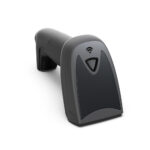
Almost every scanner datasheet sold into retail carries a line like System Supported: Linux, Android, Windows, MAC. It sits near the bottom, it is one line, and it is true in the narrowest possible sense: the operating system will not refuse the device. It says nothing about whether the code reaches your application.
On Windows that gap rarely bites, because the operating system has thirty years of accumulated behaviour around keyboards and serial ports. On Android it decides the entire integration. We build both ends of this connection — the scanners and the Android terminals they plug into — and the failures we get asked about are almost never in either device. They are in the part between.
What the datasheet line actually promises
A scanner is a small computer with an image sensor, a decoder and a USB controller. “Supports Android” means the USB controller enumerates on an Android host without being rejected, and that the device class it presents — keyboard, serial, or vendor-specific — exists in the Android kernel. That is all.
Two scanners can both carry that line and behave completely differently in the same terminal, because the line does not say which class the device presents by default, whether the class can be changed without a Windows configuration utility, or what the app is expected to do with the data once it arrives. Those three questions are the whole installation.
Three paths, and only one of them is finished for you
Every Android scanning setup is one of the following. The differences are not about quality; they are about who writes the glue.
| Path | What carries the code | What Android needs | How it fails |
|---|---|---|---|
| Built-in scan head | The head sits inside the terminal and talks to the mainboard; the vendor SDK hands the decoded string to the app | The app calls the SDK, or the ROM injects into a system service | App bypasses the SDK and waits for a keyboard that never types. Nothing appears at all |
| USB HID | Keyboard reports — the same packets a USB keyboard sends | Nothing. The kernel already has a HID driver | Characters land in whatever field has focus, or in none |
| USB CDC (virtual COM) | A byte stream over bulk transfers | USB Host permission plus serial code inside the app | The app opens nothing, because there is no device node to open |
| Bluetooth HID or SPP | Same two models, over RF instead of a cable | Pairing, and an app that survives a dropped link | The link drops overnight and nobody re-pairs it in the morning |
Our own range covers all four. The POS-8230 offers USB and RS-232, the POS-7200 lists USB-HID, USB-COM and RS-232 in one unit, and the POS-3230A adds Bluetooth. What changes between them is not the decoding; it is which of the paths above you end up maintaining.
HID mode is a keyboard, and a keyboard cannot see the cursor
In HID mode the scanner identifies itself as a keyboard and types. Android routes those keystrokes to whatever has input focus at that instant. This is not a scanner behaviour you can configure away; it is how the input stack works, on Android exactly as on Windows.
The difference is that a Windows POS is usually a native application with one persistent text box, while an Android POS is often a web view. A web checkout screen re-renders on every state change. Scan an item, the row is added, the list re-renders, the search box that was focused is destroyed and replaced by a new element — and the next code goes to the document body, which accepts nothing.
The symptom is distinctive and worth memorising: the scanner beeps, the LED flashes, and no characters appear anywhere. Operators learn to tap the search box before every scan, which halves their scan rate without anyone diagnosing the cause.
Test it in ten seconds
Open any text field on the terminal — a note app is enough — and scan. If the code appears there, the scanner and the cable are fine and the problem is focus inside your POS application. If nothing appears anywhere, the scanner is in the wrong mode or has no drop-down suffix configured.
The suffix that decides whether the app ever sees a complete code
A HID keyboard report contains key presses, not a string. It does not include a terminator. Out of the box most scanners send the twelve digits of an EAN-13 and stop. Most POS applications wait for a carriage return before they look at the buffer.
So the operator scans, the digits appear in the field, nothing is looked up, and the next scan appends to the same field. After four items the field holds forty-eight digits and the app looks broken. This is the single most common “the scanner does not work” call we get, and it is a setting, not a fault.
The fix is a suffix — CR, LF, CR+LF or TAB — configured by scanning a configuration barcode from the manual or by a utility. Do not confuse it with the on-screen keyboard: the “done” or “go” key on an Android soft keyboard does not generate a carriage return. An app that relies on the IME action button will behave differently when a hardware keyboard is present.
Why CDC mode is not the escape hatch people expect
The usual advice is to switch the scanner to virtual COM and read the port directly. On Windows this is five minutes: install the driver, a COM port appears, the application opens it. On Android the same sentence means something else.
Android does ship a CDC-ACM driver in many vendor kernels, but a normal application cannot open /dev/ttyACM0. SELinux policy blocks it, and the device node is owned by a system group the app does not belong to. There is no equivalent of “just install the driver and pick a port number”.
The two paths that actually work are: the app talks to the USB device directly through Android’s USB Host API and implements the serial protocol itself, or the terminal vendor ships a modified image that exposes the port and grants the app access. The first is common and well supported by libraries; the second only exists if you are buying from someone who will do it for you.
Ask this before choosing the mode
“Does your POS app read a keyboard, or does it open a serial port?” If the answer is keyboard, CDC mode on the scanner changes nothing. If the answer is serial, confirm which library the app uses and whether it has been tested on the terminal model you are buying — not on a developer phone.
Non-ASCII codes come out wrong, and it is not a fault
A HID keyboard report carries usage codes and modifiers — which physical key was pressed, and whether shift was held. It has no concept of a character outside the mapping table the operating system applies. Latin letters and digits survive; anything else depends on the active input method.
In practice this hits three cases: product names encoded into a Code 128 label by a local ERP, asset tags written in a double-byte script, and logistics labels whose QR payload is UTF-8. In HID mode the first two tend to arrive truncated or as the wrong characters, and the third arrives as a string of mojibake that the app rejects as an invalid SKU.
The fix is to move that data off the keyboard path: read the raw bytes over CDC, or have the app subscribe to HID input reports and decode the payload itself rather than relying on key mapping. If you cannot change the app, encode the label in a symbology and character set the keyboard path can carry — Code 128 handles ASCII, and QR or Data Matrix in byte mode carry the rest.
Power, ports, and the terminal with no USB-A at all
Current draw is not the problem. Our scanners sit between 115 mA and 270 mA at 5 V:
| Model | Working current | Connection | Note |
|---|---|---|---|
| POS-8230 | 115 mA | USB, RS-232 (customised) | Hands-free omni; command mode needs USB-COM or RS-232 |
| POS-1670 | 150 mA | USB (KBW, COM), DB9 | Two modes selectable on the same unit |
| POS-1800A | 200 mA, 270 mA peak | USB | Peak matters on a passive hub |
| POS-7200 | 240 mA | USB-HID, USB-COM, RS-232 | Desktop 2D, 120 fps |
| POS-8280A | 240 mA | USB (HID, CDC) | Omni QR, 262 g |
| POS-2210A | 240 mA | 2.4 GHz wireless, USB receiver | 2600 mAh, 10 h, 100,000-code buffer |
| POS-8800F | 0.25 A, 0.32 A max | USB | Desktop, auto-sensing |
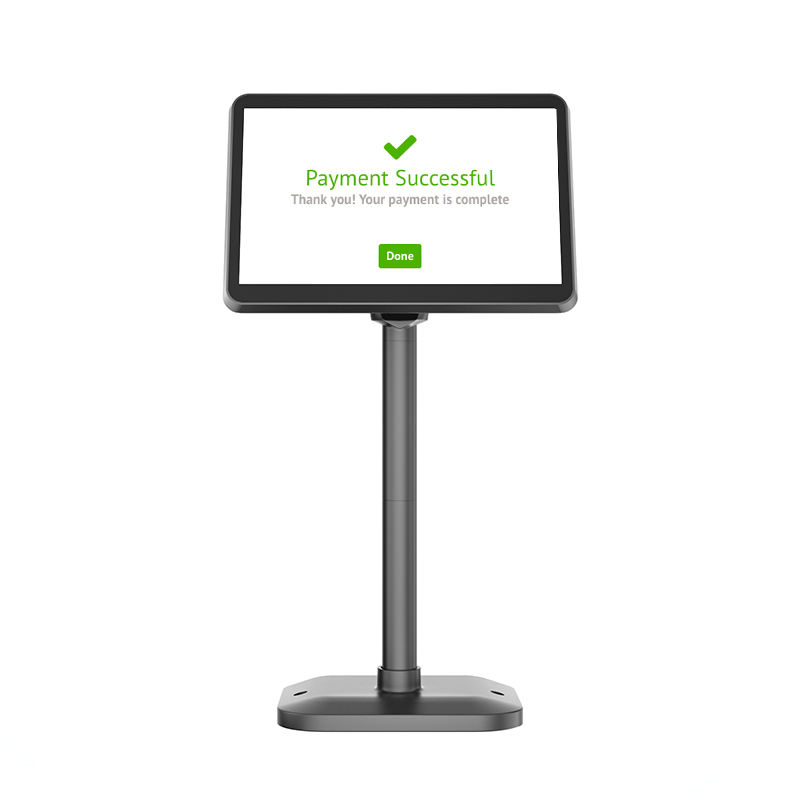
A USB 2.0 port supplies 500 mA, so one scanner is never a load question. Four peripherals behind an unpowered hub is. A scanner at 270 mA peak, a thermal printer on its own 12 V supply and a customer display fed from the same hub will not all behave, and the failure looks like a scanner that works until the drawer opens.
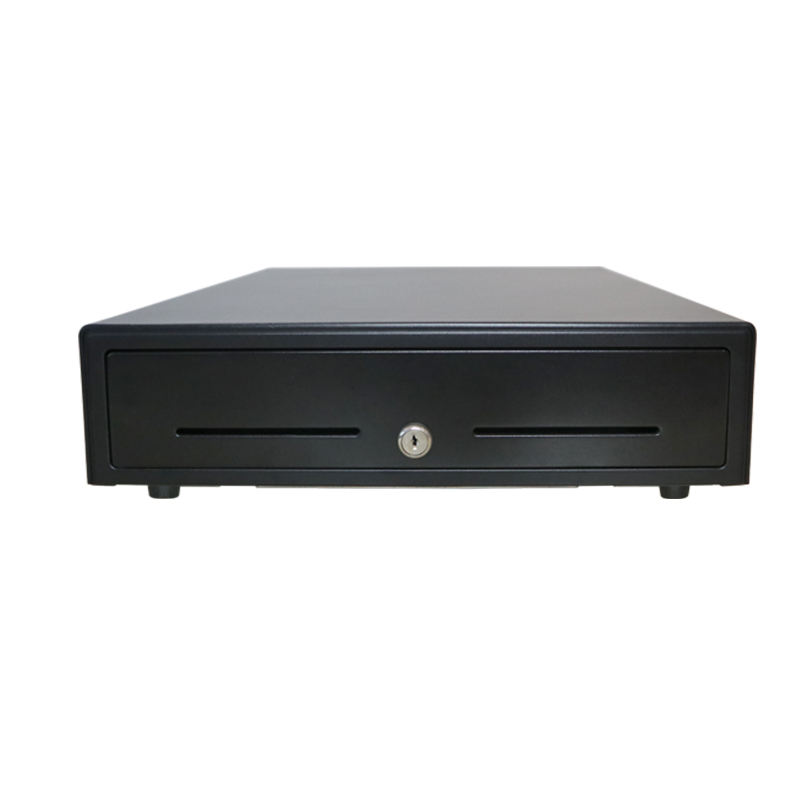
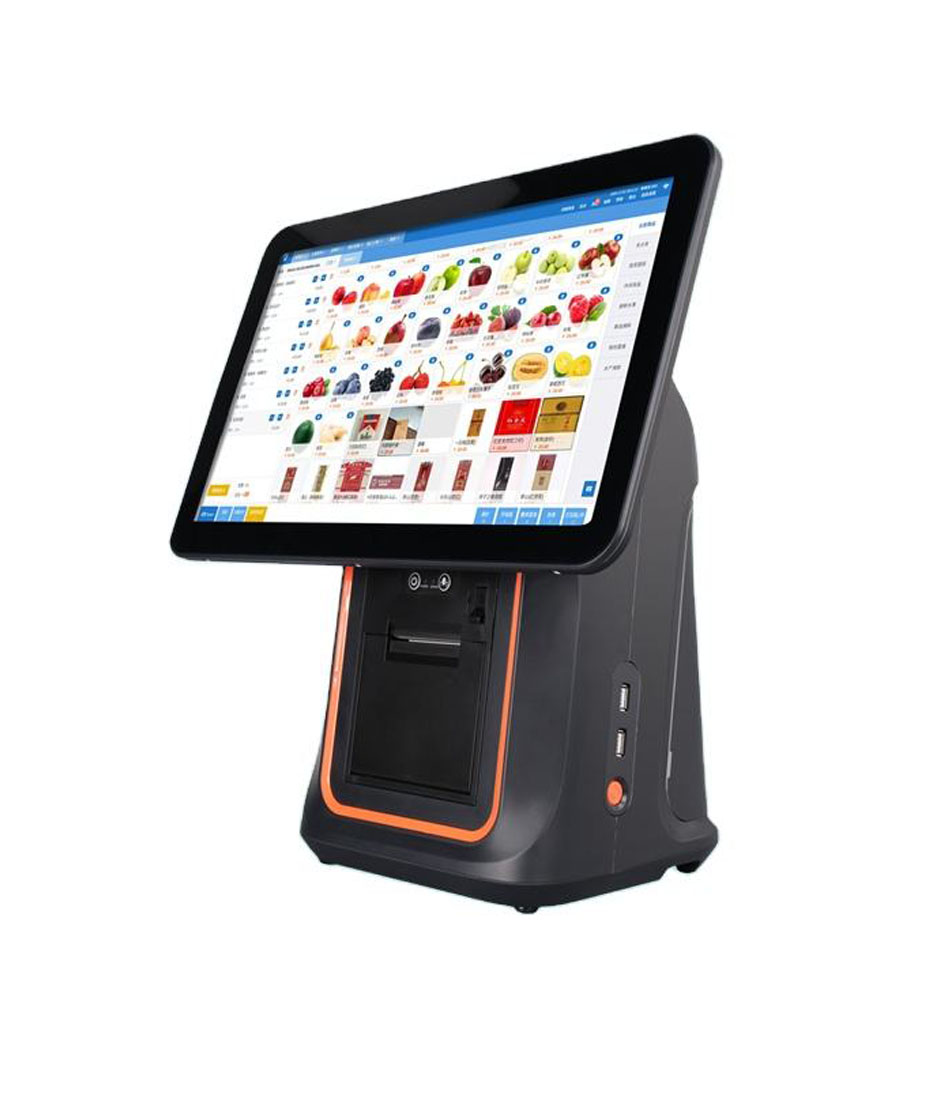
The port count is where Android terminals differ from each other more than the datasheets suggest. Our 156A and Q3A both list four USB ports including one OTG, which leaves three free — enough for a scanner, a customer display and a printer, while the drawer uses the RJ11 on the terminal itself.
The NB11 is the case worth reading the whole spec sheet for. The standard build lists SIM ×2; Type-C×1 and USB 2.0 (OTG). There is no USB-A port on that build. It also has a 1D/2D scan head and an 80 mm printer inside it, so for many buyers the missing A port never matters — but if the plan is to add an external scanner, that Type-C port is the only one and it is also the charging port. The NB11 Pro build is different: USB A×4, RJ45, RJ11, RJ12 and a separate DC input.
Read the parentheses
“4×USB (including 1×USB OTG)” is three usable ports, not four. The OTG port is there so the terminal can act as a device — for flashing, for a host connection — and on several builds it doubles as the power input. Count the ports you need after the OTG one is spoken for.
Built-in head, cable, or Bluetooth: what each one costs you
Once the terminal is fixed, the scanning method is a maintenance decision more than a specification one. The three options differ less in read performance than in what happens in month eight.
| Method | What you gain | What you take on | Fits |
|---|---|---|---|
| Built-in head | No cable, no extra port, no focus problem — the SDK delivers a string | A repair means opening the terminal; the scan angle is fixed by the housing | Terminals used as scanning stations, where the operator scans in one direction all day |
| USB cable | Cheapest, replaceable in a minute, any scanner any terminal | One port consumed, focus management in the app, a cable that gets pulled | Lanes with a fixed counter and a power budget |
| Bluetooth | No cable across the counter, can move to a shelf | Pairing, a second battery to charge, a link that drops and stays down | Pop-up counters, market stalls, stocktaking outside the lane |
| Hands-free omni | Both hands free; the 8230 decodes at 65 cm/s | Bench depth — the unit needs a footprint beside the terminal | High-volume grocery, where items are passed over a fixed window |
Two of our handhelds make the trade-off visible. The H61 lists a 1D CCD scan head as an option — a cost decision for shops that only ever see EAN and Code 128. The H50 supports 1D and 2D symbologies with a Symbol 4710 2D engine as the optional upgrade. If loyalty cards or payment QR codes are part of the workflow, the 1D option is the wrong saving: no setting makes a linear CCD read a phone screen, which is the same limit described in 1D laser versus 2D imager.
When the all-in-one is the wrong shape for the job
An Android all-in-one is a counter device. It has a base, a fixed screen angle and a power cable, and it expects to stay where it was installed. Scanning work that involves walking — receiving, shelf counting, price checks on the floor — does not fit that shape, and the usual workaround, a long USB cable to a scanner on a coiled lead, fails within a month.
That work belongs on a handheld. The H20 is the purest example in our range: 300 g, Android 10, a 5.7-inch screen, two dedicated scan keys and no printer, which makes it a stocktaking tool rather than a till. The H30 and H50 add a 58 mm printer and a single scan key, so they can close a sale at the table. The H80 goes to eight inches with a 2D CMOS head and an optional build that adds USB-A, LAN, RJ11 and RJ12 — a handheld that can also sit in a cradle as a small terminal.
There is a third case that decides itself: the terminal with one usable USB port. If the build has a single Type-C that also charges, adding a USB scanner means choosing between scanning and charging. The right answer is a model with a built-in head, or a different build of the same model, not a USB hub taped to the base.
What to check before you order
Seven items, in the order they cause trouble. Each one is answerable from a spec sheet plus one test on a real terminal.
| Check | Why it decides the installation | How to verify |
|---|---|---|
| Free USB-A ports | A scanner takes one; so does a drawer interface; a printer may need another | Read the USB line and subtract the OTG port |
| Scanner default mode | HID and CDC are different integrations, not different settings | Scan one code into a note app, then into the POS app |
| Drop-down suffix | Without CR the app never sees a complete code | Scan twice into one field and count the characters |
| App input method | Keyboard, serial, or vendor SDK — each excludes the others | Ask the software supplier, in writing |
| Label character set | Non-ASCII data cannot travel over key mapping | Scan a real label from your own ERP |
| Engine type | A 1D CCD cannot read a screen; no setting changes that | Scan a payment QR on a phone |
| Power under full load | Peaks coincide: scan, print and open the drawer in the same second | Run a full lane for an hour with every peripheral attached |
Frequently asked questions
Can any USB barcode scanner work with an Android POS?
In HID mode, almost any of them will, because the Android kernel supports USB keyboards and needs no driver. Whether the code reaches your application is a separate question, answered by focus and by the suffix setting. In CDC mode the answer depends on the app, not on the scanner.
The scanner beeps but nothing appears on screen. What is wrong?
Two candidates, checked in this order. First, focus: if the app has no text field focused, keystrokes go nowhere. Second, mode: if the scanner is set to CDC and the app is listening for a keyboard, nothing arrives at all. A note app distinguishes them in one scan.
Do I need a driver on Android?
Not for HID. For CDC you need more than a driver: you need an app that implements USB serial communication, because a normal Android app cannot open the kernel serial device. That is code in your application, not a file you install.
Can I charge the terminal and use a USB scanner at the same time?
On builds with several USB-A ports, yes — the ports and the DC input are separate. On builds where a single Type-C port is both the OTG port and the charging input, no, not without a hub that supports power delivery while passing data. Check whether the model has a dedicated DC jack.
What is the difference between an Android barcode scanner and a handheld POS?
A handheld POS is a complete computer: screen, battery, Android, usually a 58 mm printer, with a scan head inside. An Android barcode scanner in the sense buyers usually mean is either a dongle-free scanner paired to a terminal, or a terminal with a head fitted. The distinction that matters at purchase is whether the scan head is inside the device or attached to it.
Will a USB scanner read a QR code on a phone screen?
Only a 2D imager will. A laser or linear CCD measures reflected light along one line and cannot resolve a self-luminous display. If the shop takes QR payment, the scanner must be a 2D imager — our 8800F, 1800A and 7200 all are.
Where to go next
The engine decides what a scanner can read; the interface decides whether the code reaches the app. If you have not settled the first question, What is a barcode scanner covers engines, resolution and depth of field. If the terminal is still open, the POS machine range lists port configurations per model, and handheld terminals for stocktaking covers the walking case.
If the deployment depends on a cloud service that may go offline, the choice of scanner is the small problem: cloud based POS hardware covers what the terminal has to keep doing when the connection drops.
Tell us the app and the label
Two details decide which scanner we would quote: what your POS application expects to receive, and what is printed on the label. Send both and we will tell you which of the four paths above you are actually on — including the cases where the answer is that you need a different terminal, not a different scanner.
Send us the app name and a photo of the label, or see the full barcode scanner range for models, interfaces and current draw.