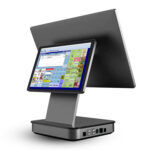
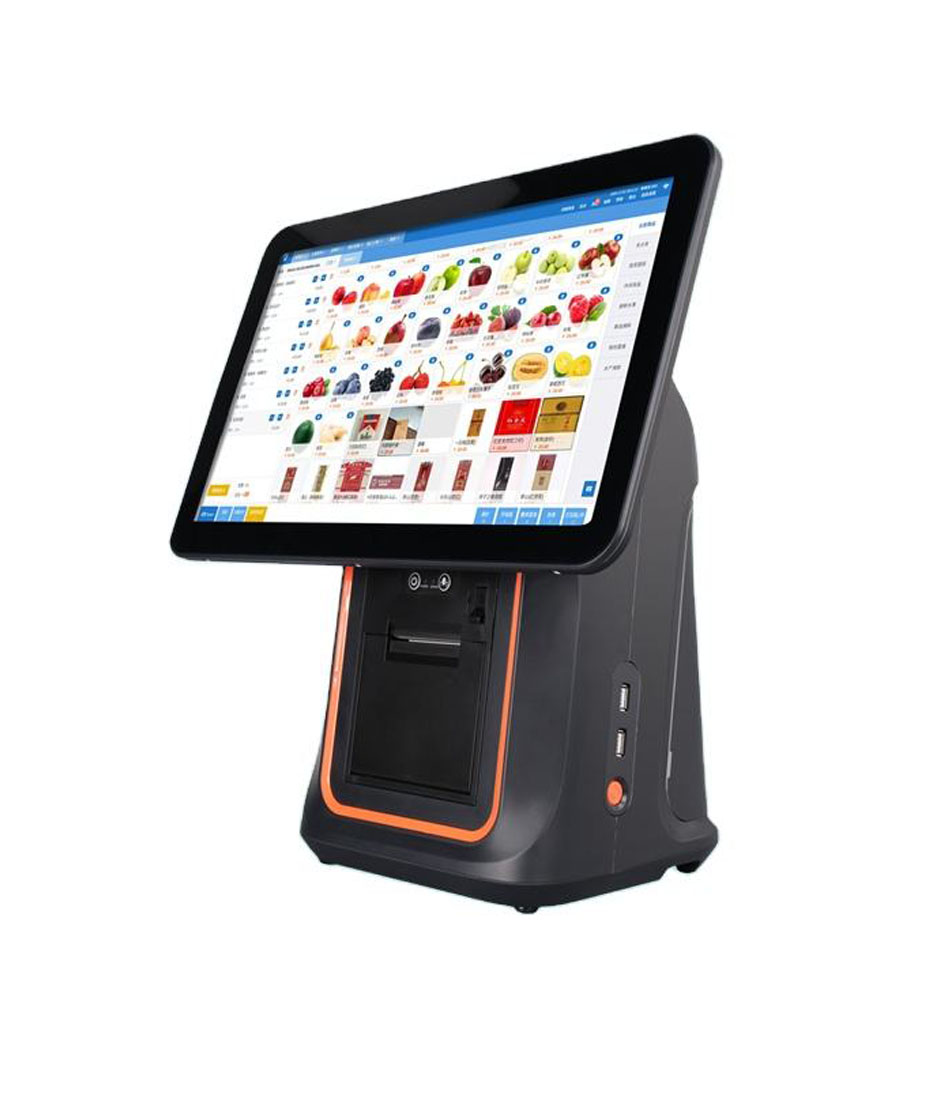
A restaurant does not buy an Android POS terminal on features. It buys on three constraints that bind the counter: how many taps an order takes, how wide the ticket that reaches the kitchen is, and whether the cash drawer and the printer have a hardware path into the device. Everything else is a preference.
Android became the default in restaurant terminals for unglamorous reasons. There is no per-device operating system licence, the boot time is short, applications are distributed without a per-site installer visit, and the hardware costs less for the same screen. None of that is a reason to choose a specific model, which is where this guide starts.
Why Android took the restaurant counter
The technical reason is that a POS application is not demanding. It draws a form, queries a local database, prints an ESC/POS payload and talks to a payment SDK. A quad-core Cortex-A53 with 2 to 4 GB of memory does that comfortably, and the same hardware can be produced at a price that lets a restaurant put three of them on a counter.
The practical reason is updates and deployment. An Android terminal can be provisioned, locked to one application and updated remotely, which matters when a chain has forty sites and no IT staff at any of them. The same mechanism is what makes a single-app terminal behave predictably: a device provisioned as device-owner cannot be talked out of the POS app by a curious member of staff, and a device that was only configured by hand will drift out of it within a month.
What changes when the terminal is also the payment point
Restaurants split into two configurations, and the difference is not commercial. Either the terminal has the card reader built in, or a separate PIN pad sits beside it.
| Configuration | What it means for hardware | Where it goes wrong |
|---|---|---|
| Integrated reader in the terminal | One device, one power lead, one certification scope | The reader module is certified, not the terminal — a model change has to be re-approved |
| Separate PIN pad | Reader is certified independently and can move between terminals | Cable routing, and a second power adapter at the counter |
| Reader on a handheld | Payment at the table | The handheld has to be certified too, and it is the device most likely to be dropped |
The question to settle early is who approves the configuration: the acquirer or the payment provider has to accept the specific model, not a family of models. Buying twelve terminals and then discovering that the reader module was approved on a different SKU is the expensive version of this mistake.
Constraint one: taps per order
The modifier grid decides throughput. A modifier with its own button is one tap; the same modifier inside a dropdown is three. On a 15.6-inch 1366-wide panel one pixel is about 0.252 mm, so an 88-pixel button is 22 mm wide and six columns fit across the screen. On an 11.6-inch panel the same button is 16.5 mm and four columns fit.
That difference is what decides whether a five-group modifier tree — size, base, protein, sauce, extras — can be shown without paging. Paging a modifier grid is where orders get made wrong, because the cashier loses their place between pages.
| Panel | mm / px | 88 px button | Modifier columns | Five groups without paging |
|---|---|---|---|---|
| 15.6″ 1366 x 768 | 0.252 | 22.2 mm | 6 | Yes |
| 14″ 1366 x 768 | 0.226 | 19.9 mm | 5 | Tight |
| 11.6″ 1366 x 768 | 0.188 | 16.5 mm | 4 | No — two pages |
| 10.1″ 1280 x 800 | 0.169 | 14.9 mm | 3 | No — three pages |
Constraint two: how wide the ticket is
The kitchen reads paper. At Font A on a 203 dpi head, an 80 mm roll gives 48 characters per line and a 58 mm roll gives 32. A modifier-heavy line runs to 35 to 40 characters, so on 58 mm it wraps and the kitchen parses nearly twice as many lines for the same order.
That is the argument for an 80 mm printer behind the pass and against a built-in 58 mm head for anything the kitchen reads. A 58 mm printer belongs on a handheld, where the customer is the reader.
Constraint three: does the drawer have a path
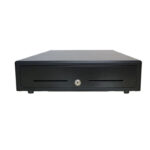
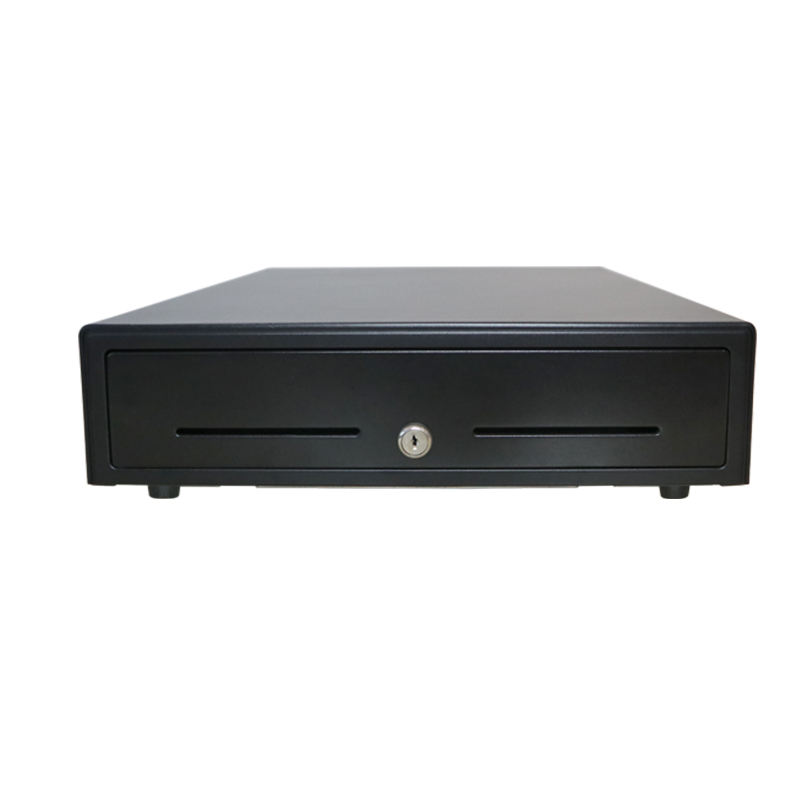
A cash drawer opens on a 12 V or 24 V pulse down an RJ11 cable, usually fired by the printer. If the terminal has an RJ11 port, the drawer connects directly. If it does not, the drawer has to be driven by the printer, which works, or by an adapter, which does not.
The failure that costs the most and gets diagnosed last
An app that fires the drawer pulse over a USB adapter stops firing it whenever the app leaves the foreground — during a payment, a stock lookup or a screen lock. The cashier switches to the key, the drawer stops being locked, and cash reconciliation quietly stops meaning anything. It is not a hardware fault and no terminal upgrade fixes it.
Memory and the version, stated plainly
2 GB of RAM and 16 GB of storage is the entry configuration. In a restaurant that runs a POS app, a print service and a payment SDK at once, that configuration sits close to the low-memory killer, which reclaims background services first — and the print service is a background service.
The symptom is specific enough to be a diagnostic: printing works all morning and stops in the afternoon, and comes back after a reboot. 4 GB of RAM and 32 GB of storage removes the cause rather than the symptom, and it costs less than the support calls.
Three device classes, three different jobs
| Class | Where it goes | The constraint that decides it |
|---|---|---|
| Countertop terminal, 15–15.6″ | Order and payment point | Modifier columns; RJ11 for the drawer; 4+ USB |
| Handheld with 58 mm printer | Table-side ordering, queue-busting | Battery and roaming, not features |
| Self-service kiosk | Lobby or pickup | One application, locked down, no cash |
Restaurants often buy one class and expect it to do the work of three. A handheld cannot open a drawer or print an 80 mm kitchen ticket; a countertop terminal cannot go to the table; a kiosk cannot take cash. Choose per station.
Android POS Terminal vs iPad POS for Restaurant Use
The iPad is not a weak computer. It is a tablet with three structural gaps in a restaurant, and none of them can be closed by software.
1. There is no RJ11 port, so the cash drawer depends on a dongle
A cash drawer opens on a 12V or 24V pulse sent down an RJ11 cable, usually triggered by the printer. An iPad has no such port. The workaround is a USB-C adapter with a step-up module that fires the pulse from an app. Two things break in service: iOS suspends the app when the cashier switches to look up stock, and the pulse stops mid-transaction; and the adapter sits on the back of the stand, which is the first place grease and daily cleaning reach. If the drawer has to open reliably, the port has to be on the terminal. The 12V/24V kick-out signalling detail is worth reading before specifying either option.
2. There is no built-in printer, so every kitchen ticket takes an extra hop
Receipt and kitchen printing on an integrated terminal goes terminal → RJ11/USB → printer, in one step inside the same power domain. On an iPad it goes app → Bluetooth or Wi-Fi → print service → printer. That hop is usually invisible; during a rush it is the difference between a ticket appearing as the order is confirmed and appearing four seconds later behind three others.
3. Power and structure are designed for a desk, not a counter
An iPad is powered through USB-C from a stand, with the connector on the rear of the enclosure. It runs on a battery that stays at full charge while the screen is on for twelve hours. That combination — constant top-up, constant heat, grease in the connector — is why tablets in food service are usually treated as a two-to-three-year consumable rather than fixed equipment. A purpose-built terminal takes 12V or 24V DC directly and has no battery to age.
Where an iPad is still the right answer: pop-ups and temporary sites, single-counter operations under roughly 100 tickets a day, software-only SaaS deployments, and any setup with no kitchen printer and no cash drawer. In those cases the tablet’s cost and app ecosystem win outright.
What an Android Restaurant Terminal Actually Costs, by Component
Two terminals advertised with the same headline specs — 15.6-inch, eight-core, 4 GB + 64 GB — routinely differ by 30% in quotation. The difference is not the spec sheet. It sits in five components that the spec sheet does not mention:
| BOM component | Share of unit cost | What actually moves it |
|---|---|---|
| Display and bonding | 25–35% | Air-gap vs full lamination; 1280×800 vs 1920×1080; brightness for counter glare |
| Mainboard and SoC | 15–20% | SoC generation, RAM (2/4/8 GB), eMMC class (TLC vs pSLC) |
| Enclosure and structure | 10–15% | Aluminium vs ABS, die-cast vs stamped, IP-rated sealed front |
| Printer, scanner, MSR | 8–15% | 80 mm mechanism grade, 2D imager vs 1D laser, 3-track head |
| Power supply and cabling | 4–6% | 12V/24V adapter, certified vs uncertified, RJ11 harness quality |
| Certification | 3–5% | CE/FCC/RoHS plus carrier or payment-scheme approvals if claimed |
| Assembly and burn-in | 5–8% | Hours of aging, functional test coverage, rework rate |
Three of those lines decide whether the unit survives year three. Bonding method decides whether the screen delaminates in a hot kitchen. eMMC class decides whether the database write stalls at month two. Power certification decides whether the unit can be sold into the EU or North America at all — an uncertified adapter saves 3–8 USD per unit and closes those markets permanently.
We do not publish list prices, because restaurant terminal pricing moves with order quantity, panel allocation and certification scope. The useful question at quotation stage is not “what is the unit price” but “which of these seven lines changed between your cheapest and your standard build”. A supplier who cannot answer that has not costed the product, only priced it.
Five checks before you buy
- Count the taps for your five best-selling dishes on a demo unit. More than five means the menu structure needs work, not the hardware.
- Print your longest modifier ticket on 80 mm and on 58 mm and read both from a metre away.
- Open the drawer twenty times while scanning. A scanner that drops out is a power budget problem.
- Run a full shift with the real catalogue and watch for printing that stops in the afternoon.
- Reboot and reconnect the scanner ten times, and count the permission dialogs.
FAQ
How much RAM does a restaurant Android POS need?
4 GB is the realistic floor once a payment SDK and a print service run alongside the POS app. 2 GB works on a small catalogue with nothing else installed, and it is the configuration behind most afternoon printing failures.
Should the terminal have a built-in printer?
Only if a 58 mm receipt is enough. Built-in printers save a power adapter and counter space, and they cap the ticket at 32 characters per line — which is wrong for kitchen printing.
Do I need a Windows terminal for a restaurant?
Only if a peripheral requires it: an RS-232 scale, a Windows-only POS application, or OPOS middleware. For a cloud POS with USB and LAN peripherals, Android is cheaper and boots faster.
Where to go next
Pick the terminal last. Pick the printer and the drawer first, because they decide which terminals qualify:
DCA-155A 15-inch Android terminal DCA-Q3A 15.6-inch Android terminal POS-8330 80 mm printer POS-410B RJ11 drawer all Android terminals terminal vs tablet how to read a POS datasheet · types of POS systems, by shape · what all-in-one means in practice
Specifying the hardware? The hardware side is covered in Cafe POS, station by station — how 48 characters on a ticket change the printer you need.