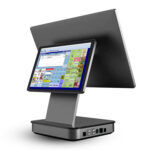
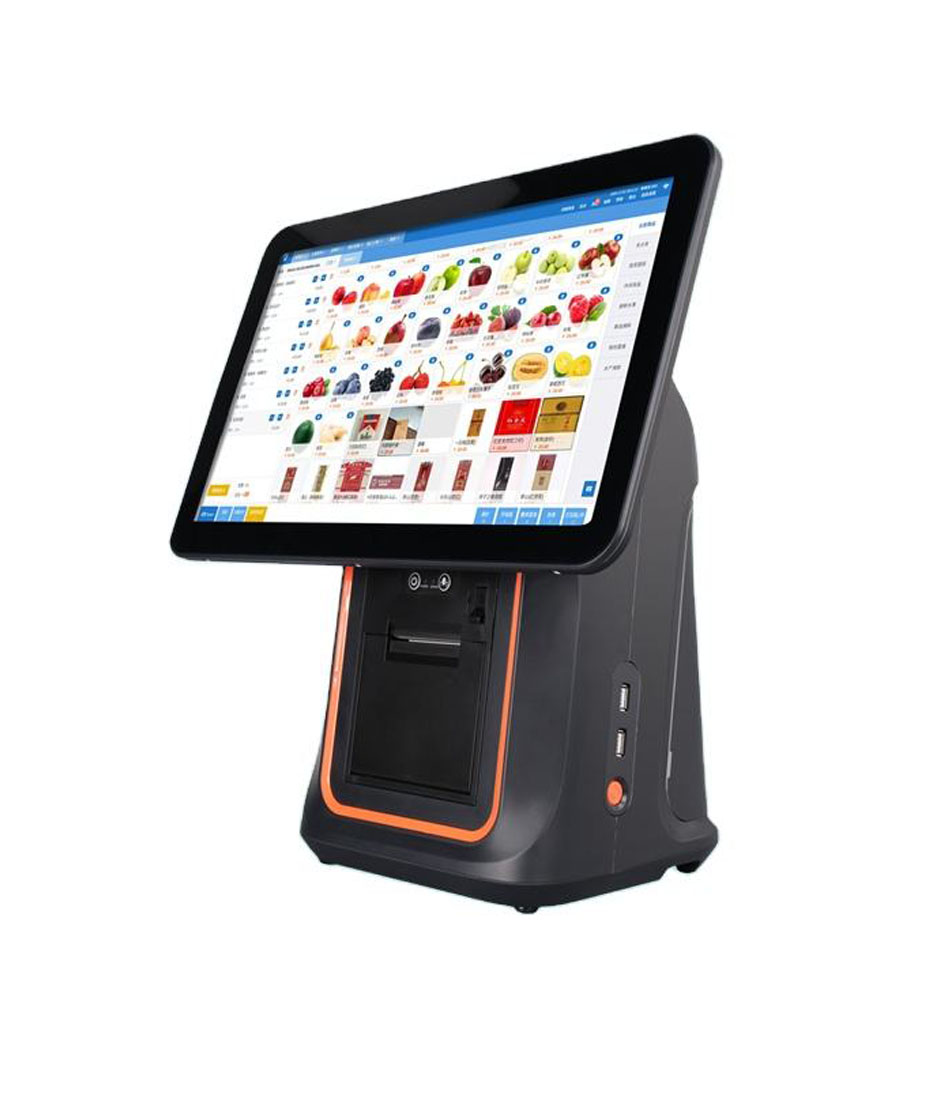
A touch screen POS terminal is sold on three numbers: size, resolution and brightness. Those are the three a catalogue can print. The three that decide whether the till works are usually not printed at all, because they are not a single figure — the aspect ratio, which fixes how much of the order fits on screen; the touch stack, which decides whether a glove or a wet hand registers; and where the backlight sits, which decides how the panel ages.
We build these terminals in Shenzhen, in runs from a single unit, so the second list is the one we argue about with customers. Everything below is what those arguments come down to.
Three numbers on the sheet
Every entry on a specification sheet is true and none of them is a decision. The table is the translation, and it is worth reading before the next quotation arrives.
| On the sheet | What it actually decides | The question to ask |
|---|---|---|
| 15.6 inch | How many lines of the order fit after the status bar and the function row | 1366 × 768 or 1920 × 1080, and 16:9 or 5:4 |
| 250 nits | Whether the screen survives a window at two in the afternoon | Measured at the glass, and matte or glossy |
| Capacitive | Whether a glove, a wet hand or a puddle registers as a touch | G+G or G+F, and does a glove mode exist |
| Android 11 | Which application you can run; not a panel decision at all | Ask the software vendor, not the panel vendor |
Aspect ratio decides how many order lines you see
Take the two panels we actually build. The 15.6-inch is a 16:9 panel at 1366 × 768, with a display area of 345 by 194 mm. The 17-inch is 5:4 at 1280 × 1024, measuring 338 by 270 mm — larger on the diagonal and still 7 mm narrower, with 76 mm more height. Part of that is size, and part is shape: at the same diagonal a 5:4 panel holds about 14 percent more area than a 16:9 one.
Area is the wrong metric anyway. Height is. An application laid out at 1024 × 768 expects 768 pixels of vertical space; on a 1280 × 1024 panel it gets 256 more, which is where four extra lines of a fifteen-line order live. On a 1366 × 768 widescreen it gets exactly 768 and then loses some to the status bar the operating system draws. The cart starts scrolling during the queue, and the cashier scrolls with it.
So the aspect ratio is not a taste. If the software was designed at 1024 × 768 and nobody is going to re-lay it out, a 5:4 panel is the cheaper decision even at a smaller diagonal — which is why a 17-inch 5:4 monitor still sells into sites that already own a PC. If the software is responsive, 16:9 is fine and the terminal gets shorter, which matters when the counter has a shelf above it.
Resolution is not sharpness at 700 mm
Pixel density at arm’s length is arithmetic, not opinion. A 15.6-inch panel at 1366 × 768 works out to 100 pixels per inch and a 0.25 mm pixel. The same panel at 1920 × 1080 is 141 pixels per inch and 0.18 mm. An 11.6-inch at 1366 × 768 is 135 pixels per inch, within five percent of the big panel at 1080p, which is why the small terminal does not need the upgrade.
At a 700 mm viewing distance the eye resolves about 0.2 mm, so 0.25 mm is at the edge and visible if you lean in to check a price. That is the honest case for 1080p on a 15.6-inch: not sharper text at the counter, but legible small text when a manager reads the order back. The price is a panel that draws more power, needs more backlight for the same nits, and runs hotter inside the same shell.
One layer decides gloves
A projective capacitive panel is a cover glass, an adhesive layer, a sensor and the LCD behind them. The sensor can be a second sheet of glass or a printed film, and that single choice is what most quotations are actually hiding when they both say “capacitive”.
| Stack | What it is | What it costs you |
|---|---|---|
| G+G | Cover glass on a sensor glass | Half a millimetre thicker and a few tens of grams heavier; best clarity; what we use on the 155A |
| G+F | Cover glass on a printed film sensor | Thinner and cheaper; lower light transmission, so more backlight for the same nits |
| G+F+F | Two film layers | Cheapest; the weakest in daylight; avoid on a terminal that faces a window |
The touch itself is a measurement of a few picofarads. A finger changes the field at the surface; five millimetres of leather and air do not. That is the whole reason a glove fails, and no firmware setting changes the physics — a glove mode raises the threshold until a gloved finger counts, and the cost is that a splash of water now counts too.
7H is a pencil, not a stone
The hardness figure on a panel datasheet comes from a pencil test: graded leads are dragged at a fixed load and the hardest one that leaves no mark is the rating. It says something about keys and fingernails. It says nothing about sand, which is quartz at 7 on the Mohs scale against glass at about 5.5 — a grain under a finger will mark a 7H surface without trying.
What scratches a counter terminal in practice is a ring, a coin, the edge of a stainless bench and a scanner dropped face down. None of those are pencil problems. The useful question is whether the cover glass is a replaceable part and what it costs, because a shop that sees grit will replace it.
Water reads as a finger
Capacitive sensing works because water is conductive, which is exactly why a spill is a fault. A film of water couples the sensor to nothing in particular and the cursor drifts; a puddle over one icon fires it repeatedly. Firmware that rejects a wet patch is rejecting the same signal it uses for a finger, so the setting trades one failure for the other.
This is where a resistive panel still earns its place: it needs pressure, so water does nothing and a gloved thumb works. It also needs about 100 grams of it, has no multitouch, and the membrane wears where the same button is pressed ten thousand times. In a wet bar or a kitchen pass that trade is sometimes right; on a fast retail counter it is not.
250 nits is an indoor number
Retail interiors sit around 300 to 500 lux. A doorway in daylight measures ten thousand to a hundred thousand. A 250-nit panel that looks bright under the shop’s downlights is unreadable two metres from the door, and the cashier responds by turning their body to shade it — which is the pose that makes a two-second task take four.
Our 156A and POS116A are specified at 250 nits and the 1701 monitor at 300. Those are honest indoor figures, and they are the right ones for a counter away from glass. If the till faces a window, either specify 700 nits and up, or plan the counter so the panel is side-on to the light. A matte finish buys more than a brightness upgrade in most rooms: it trades a few percent of clarity for removing the mirror, and the mirror is what makes a screen look blank.
The backlight is the part that ages
Brightness comes from an LED strip behind the panel, and the rating on it is quoted at a drive current the terminal does not use at full brightness. Push the backlight to 100 percent and the junction runs hotter; the usual rule is that every ten degrees halves the remaining life, which is how a 30,000-hour backlight becomes a 15,000-hour one in a terminal set to maximum all day.
That also explains a behaviour that reads as a fault: a terminal that dims itself in summer is protecting the backlight, not failing. Where the heat goes matters more than the number — the 156A’s aluminium body lets that heat leave through the chassis instead of sitting in a sealed plastic box.
The digitizer has an interface too
Touch is a USB device on most of these terminals, and there are two ways it can present itself. In HID mode it enumerates as a pointing device and works on Windows, Linux and Android with no driver. In vendor or serial mode it needs a driver on Windows and a device-tree entry on Android.
The symptom of getting this wrong is specific and worth memorising: the panel lights up, the image is perfect, and nothing responds. That is not a broken panel, it is a digitizer that did not enumerate. It matters twice — at commissioning, and again two years later when someone replaces the touch glass with a part whose controller is a different model and finds that the old driver no longer binds.
Two panels, not one
A terminal with a customer display has two panel decisions, and they are not the same decision. The second screen faces the customer, so it never needs touch, and it is read from a metre away at an angle. The 156AD variant takes a 10.1-inch 1280 × 800 non-touch second display; the POS116A offers a 4.3-inch 800 × 480 panel or a two-line VFD instead.
Non-touch is correct rather than a saving. A touch panel facing the customer is a panel customers will touch, and every touch is a support call. The second display shows the total and the tip prompt, and both are read-only.
Four models, four panel decisions
The same panel argument lands differently depending on what else is in the box, which is why our range is not one terminal at four prices.
| Model | Panel | What the panel decides |
|---|---|---|
| DCA-156A | 15.6 in, 1366 × 768, 250 nits, 16:9, all-aluminium body | A wired counter that runs hot; heat leaves through the chassis |
| DCA-155A | 15.6 in G+G capacitive on RK3566 or RK3568 | The same glass at a lower price, in a plastic body on an aluminium base |
| DCA-POS116A | 11.6 in, 1366 × 768, 250 nits, 80 mm printer inside | A counter 292 mm wide; 135 pixels per inch without paying for 1080p |
| DCA-1701 | 17 in, 1280 × 1024, 5:4, 300 cd/m², monitor only | Software written for 1024 × 768, driven by a PC the site already owns |
What fails first
Three parts fail in that order: the backlight dims, the touch controller dies after an electrostatic discharge through the glass, and the edge of the panel delaminates in a humid kitchen. None of them announce themselves. The first looks like a screen that is “not as bright as it was”, the second like a dead touch area in one corner, the third like a white line along the edge.
The specification that predicts them is the operating temperature, and it is worth comparing rather than assuming. The 156A is rated 0 to 40 °C, the POS116A 0 to 50 °C — the smaller unit with the printer inside is rated for the hotter room. A pass above a fryer in August sits above 40, so the number on the sheet is the one to check against the position, not the word “industrial”.
What to specify, by position
| Position | Panel | Why |
|---|---|---|
| Counter, away from glass | 15.6 in, 250 nits, G+G | Indoor light, and the order is the whole job |
| Counter facing a window or door | 700 nits, or move the till | A doorway measures 10,000 lux and up |
| Kitchen pass | 11.6 to 15.6 in, sealed front, 0 to 50 °C | Heat, steam, wet hands, gloves |
| Self-service kiosk | 21.5 in and up, 700 nits | Standing distance plus daylight |
| Back office | A monitor, not a terminal | Nobody touches it, and a PC is already there |
The rule behind the table: decide the position first, then the panel, then the processor. Most quotations run in the opposite order, which is how a site ends up with a fast terminal whose screen cannot be read at four in the afternoon.
Questions we get before an order
Is capacitive better than resistive on a POS terminal?
For fingers, yes: lighter touch, multitouch, no membrane to wear. For gloves and wet hands, no. The material question is not which technology is newer but whether the site has gloves or water as a normal condition, and that is a question about the room rather than the terminal.
Why does the screen work with a finger and not a glove?
Because a glove is five millimetres of leather and air, and the sensor measures a change of a few picofarads at the surface. A glove mode raises the threshold until a gloved finger registers, at the cost of counting splashes. A dedicated scan key that works through a glove solves more of this than any screen setting.
Do I need 1920 × 1080 on a 15.6-inch terminal?
Only if the software uses the pixels. At 700 mm the difference between 0.25 mm and 0.18 mm is visible when you lean in and invisible when you do not. The upgrade costs brightness and heat in the same shell, so buy it for small text that has to be read, not for a number on a comparison table.
Can the touch panel be replaced on its own?
Yes, and it is three parts rather than one: the cover glass, the digitizer and the LCD. The part that has to match is the digitizer’s controller, because the driver binds to it. Ask for the part number before the first unit ships rather than after the first screen is scratched.
Where to go next
The shape of the terminal — countertop, mini PC, laptop, all-in-one — is a separate argument and it is in the four shapes compared. If the site wants a tablet instead, the trade is in the tablet route, and the wider taxonomy is in the types of POS system.
The four panels above are on their product pages with their real figures: DCA-156A, DCA-155A, DCA-POS116A and DCA-1701. The rest of the range, including the all-in-one units with a printer inside, is in POS terminals.
We build these in Shenzhen and small batches are normal work here: if the counter you are fitting needs one terminal, that is still an order we quote. Send the site, the viewing distance and whether the panel faces glass through the contact form, and the answer comes back as a model and a part number rather than a brochure.
Specifying the hardware? The hardware side is covered in The five lines on a POS bill — which of them are hardware and which are not.