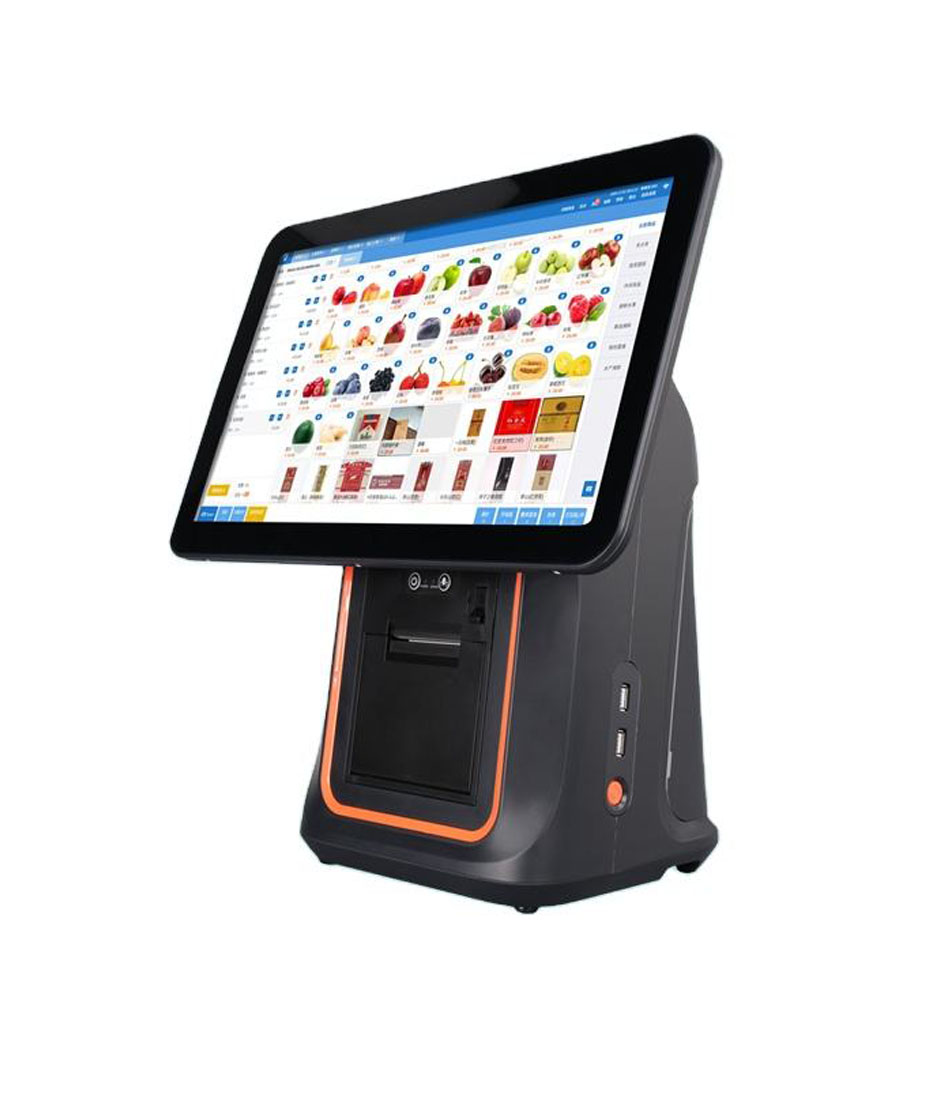
A tablet is the cheapest component in a tablet POS system, and the least likely to determine whether the installation works. The decisions that do determine it are the stand, the power path, the enclosure and how you scan — four items that are usually bought last, cheapest, and without a specification.
This is written for the shop that has already decided on a tablet, or is close to it. The argument for and against is covered in the terminal-versus-tablet comparison. What follows is what goes wrong after the decision, in the order it goes wrong.
The stand is a wear item, not a bracket
There are four ways to hold a tablet on a counter, and each one fails in a different place.
| Stand type | Where it fails | What to specify |
|---|---|---|
| Weighted base, tablet sits upright | The connector takes the load every time the screen is tilted; the port wears oval | A right-angle cable and a strain-relief loop |
| Fixed bracket, screws to the counter | No adjustment, so the screen ends up at the wrong angle and staff tilt the tablet in the bracket | Check the angle before drilling |
| Flip stand for customer display | Hinge wears, then the screen droops; cashier loses the screen when it is flipped | A second small display instead of flipping |
| Sealed kiosk enclosure | Traps heat from the tablet and the charger; no path for air | A vented enclosure, or no enclosure near a heat source |
| VESA 75 / 100 arm | Nothing structural — this is the only type that puts the screen at sightline height | Confirm the tablet has VESA holes; many have none |
The connector is the part that fails first in practice. A tablet in a fixed bracket has its cable hanging from the bottom port, and every tilt and every brush past the counter loads that port. After a year the cable is fine and the socket is loose, which is a device replacement rather than a cable replacement. A right-angle connector and one loop of slack around a strain-relief point costs almost nothing and postpones that by years.
Always-on charging is the battery killer
A tablet on a stand is plugged in for twelve hours a day, at 100% charge, in a room that is warmer than a living room. That is close to the worst condition for a lithium-ion cell, and consumer tablets do not manage it, because the design assumption is that the device gets unplugged every evening.
Two things go wrong, on different timescales. Runtime fades first — after a year the tablet that ran four hours runs one, which nobody notices because it is always plugged in. Then, in a minority of units, the cell swells: the back panel bulges, the screen lifts at one edge, and the touch panel starts registering phantom taps near the bulge.
Where it actually bites
The runtime loss only matters during a power cut, and that is exactly when it matters most. A counter that cannot take payment for twenty minutes loses the queue, and in some jurisdictions a venue with no way to record sales has to stop serving. Ask whether the stand limits charge, whether the tablet can cap charging at 80%, or whether you are accepting a two-year replacement cycle.
A sealed enclosure near a heat source stops being a screen
Tablets throttle, and throttling on a touch device does not announce itself. The first symptom is not a warning or a clock-speed readout, it is that taps take a moment to register and the on-screen keyboard drops characters.
The pass in a restaurant sits at 35 to 45 °C. A tablet in a sealed plastic enclosure with a charging cable inside that enclosure has no path for that heat. The failure pattern is consistent: fine for the first two hours of service, progressively sluggish after that, normal again the next morning.
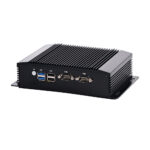
The fix is not a better tablet. It is either a vented enclosure, a mount that leaves the back exposed, or — if the position is genuinely hot — a fanless aluminium-bodied terminal, which uses the chassis as the heatsink and has no intake to clog with flour.
The camera is not a scan engine
Tablet POS systems usually scan with the rear camera, and that is a different instrument from the engine in a handheld or a desktop scanner.
| Scanning task | Camera | Imaging engine |
|---|---|---|
| Flat, clean label at 20 cm | Works | Works |
| Curved or crumpled label | Often fails to focus | Works at any angle |
| Label behind a menu sleeve or glass | Reflections defeat it | Polarised optics handle it |
| 1D barcode across 4 cm | Needs distance and steadiness | Fixed focus, wide window |
| Loyalty code on a customer phone screen | Works well | Works with screen mode |
For a restaurant the practical split is: the camera is fine for loyalty codes and the occasional retail item, and it is the wrong tool for scanning every item in a retail queue. If scanning is a core task, add a USB scanner — which takes you back to the port and power budget problem.
Mounting geometry, in numbers
Where the screen sits decides how fast the cashier works, and it is worth measuring rather than eyeballing. The useful band for anything touched from a standing position is roughly 15 to 48 inches above the finished floor: below that staff bend, above that they reach. The screen centre wants to be near elbow height, which for most counters is 36 to 40 inches.
The customer-facing angle is the second constraint. A tablet flat on the counter cannot be read by the customer standing on the other side; a tablet on a 60-degree stand can. If the plan is for the customer to confirm the order, the stand angle is a requirement, not a preference.
What to put in the specification
| Line | Minimum | Why |
|---|---|---|
| Screen | 10 inch, 400 cd/m² or better | Readable under downlights and at an angle |
| Touch | Capacitive, 10-point | Fast taps with damp hands |
| Power | Charge limiting, or a removable battery | Always-on use ages a sealed cell |
| Network | 5 GHz Wi-Fi, or wired Ethernet via adapter | 2.4 GHz in a busy room is crowded |
| Mounting | VESA 75 mm holes | The only mount that fixes the sightline |
| Ports | USB-C with data and power delivery | One port has to do both |
| Enclosure | Vented, or open-backed mount | Heat has to leave the device |
Cable discipline is a maintenance task, not an installation detail
A USB-C connector is rated for roughly ten thousand mating cycles, which sounds generous until you work out that a counter device is not being mated ten thousand times — it is being loaded laterally, continuously, by its own cable weight. The socket fails from leverage, not from plugging.
Three habits postpone that failure for years, and all three cost less than a replacement cable:
- Route the cable to a fixed point below the counter and leave one loop of slack above it, so the loop takes the pull rather than the socket.
- Use a right-angle connector if the tablet sits upright, because a straight plug turns every cable movement into a lever on the port.
- Label the cable and tape it down. The most common cause of a dead tablet at 8 AM is that somebody unplugged it to charge a phone and did not push it back in fully.
The second-screen question, and why flipping is a bad answer
Restaurants often want the tablet to serve the customer as well: turn it around so the customer sees the total and the modifiers. A flip stand does that, and it costs the cashier the screen at the exact moment the cashier needs it.
The workable version is a second, small display on a short pole, showing the total and the modifier summary, while the tablet stays facing the cashier. What matters on that display is viewability at an angle, because the customer stands to the side of the counter rather than in front of it — a 10-inch IPS panel at 1280 x 800 with 430 cd/m² and an HDMI input is the specification that survives an OS update, because it enumerates as an ordinary second monitor with no driver.
Where the tablet should not go
- Within a metre of a fryer or a griddle — oil aerosol settles on the glass and the touch panel reads the film as a finger.
- In direct sun through a window: a 400 cd/m² panel is unreadable at 100,000 lux, and no brightness setting fixes direct sun.
- On a surface where it is picked up. A tablet that moves is a tablet that gets dropped, and the stand only helps if it is bolted down.
- Anywhere the customer can reach the home button. Kiosk mode or guided access has to be on from day one, not after the first incident.
When to stop and buy a terminal instead
Three or more of these being true is the signal that the tablet is the wrong shape for the job, regardless of price:
- A cash drawer opens from the POS more than a few times an hour.
- Kitchen tickets print from the same device that takes the order.
- The device runs more than ten hours a day, permanently powered.
- Three or more staff share it, including part-time staff who will not manage a battery.
- A scan engine is needed for most transactions, not just loyalty.
FAQ
Do I need a special POS tablet?
You need one that can stay plugged in without cooking its battery, which usually means a commercial unit with charge limiting or a removable pack. Consumer tablets work and they have a two-year replacement horizon.
Can a tablet POS print to a kitchen printer?
Yes, over Bluetooth, USB or LAN. The constraint is 58 mm line width at 32 characters, which wraps modifier-heavy tickets and makes the kitchen read twice as many lines.
How long does a tablet last on a counter?
Two to three years is the realistic range when it is permanently powered in a warm room. The screen usually outlives the battery, and the connector usually outlives both only if there is strain relief.
Where to go next
A tablet installation is judged by the stand and the power path, so specify those two first and the tablet second. If the list above keeps pointing at a terminal, these are the ones with the ports built in:
DCA-155A 15-inch Android terminal DCA-POS116A with built-in printer all Android terminals terminal vs tablet, port by port why commercial hardware lasts longer · types of POS systems, by shape · whether a touchscreen terminal fits a small shop · the dual-screen case, with the hardware behind it · tablet POS hardware, by port count
Specifying the hardware? The hardware side is covered in Cafe POS, station by station — how 48 characters on a ticket change the printer you need.