A dual-screen POS terminal is bought for one reason and it usually fails for a different one. The reason is that the customer should see what they are paying for. The failure is that the second screen turns out to be a mirror of the first, so it shows the staff interface — other tables, discounts, the day’s total — at an angle the customer cannot actually read.
Whether it mirrors or extends is decided by the POS application, not by the terminal. That single fact should be established before any hardware is discussed, because everything else in this article depends on the answer.
Mirror or extend: the question that decides the purchase
Every dual-output device has a default behaviour. On Windows the display is either duplicated or extended, and the setting is in the operating system. On Android the equivalent is the presentation API: the app has to render a separate layout onto the secondary display, and if it does not, the second screen shows the same framebuffer as the first.
Ask this in writing before you order
“Does your POS application render a distinct customer-facing layout on display two, or does it mirror display one?” If the answer is mirror, a dual-screen terminal buys you a second copy of the staff screen — which is worse than no second screen, because the customer now sees the discount buttons.
The test takes five minutes on a demo unit: put an item in the basket, then look at what the customer can see. If the rear panel shows the same layout as the front — with the category column, the discount keys and the staff tab — it is a mirror. If it shows an itemised list and a total, it is an extended layout, and the software is doing the work.
There is a workaround, and it is clumsy: run a separate lightweight application on the second display that reads the order from the POS database or an API. It works, it needs a second licence in some software, and it is one more thing that can crash independently at 7 PM. It is worth knowing that this exists before you conclude that dual-screen hardware is the problem.
Three jobs, three different screens
The phrase “customer-facing display” covers three jobs that want three different devices.
| Job | What the customer does | What the hardware has to be |
|---|---|---|
| Confirmation | Reads the order, the modifiers and the total before paying | Readable at 45 degrees from the side; IPS panel, 400 cd/m² or better |
| Tip and payment | Chooses a tip, confirms the amount, taps a card | Faces the customer squarely; a touch screen, and a separate card reader for the card |
| Advertising loop | Watches a menu or a promotion while waiting | A different device — a menu board, not the payment display |
The third row is the one that gets folded into the second and should not be. Playing video on the payment display delays the confirmation, and the confirmation is the only thing on that screen that saves money. A separate menu board above the counter costs less than the software work to make one screen do both.
A rear-mounted panel is not a pole display
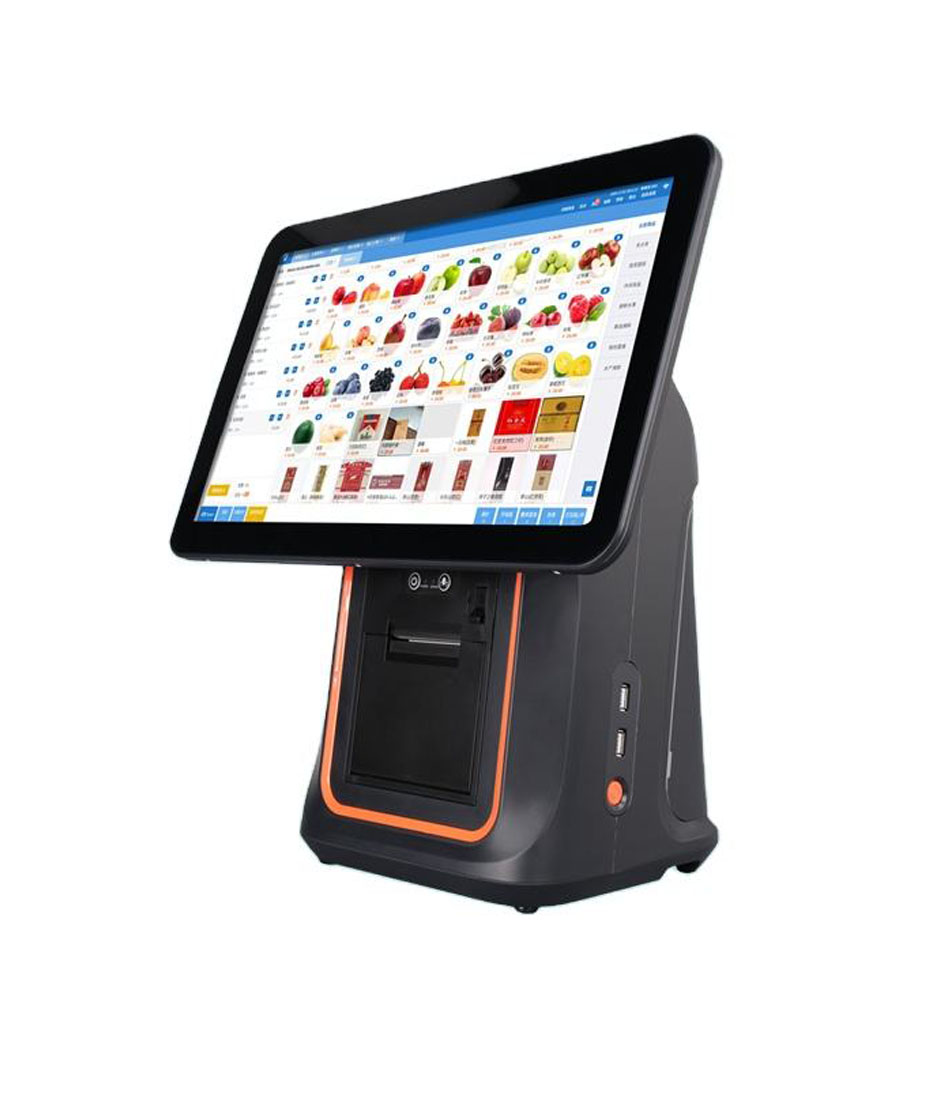
Terminals sold as dual-screen usually mean a second LCD built into the rear of the head unit. The DCA-Q3S is one example: an 11.3-inch non-touch panel on the back of the terminal, showing the item list, the running total, payment QR codes and promotions, while the cashier works the front.
| Type | How it connects | What it can do | What it cannot do |
|---|---|---|---|
| Rear panel on the head unit | Internal, one power cable | Show the order and the total | Be touched; be repositioned; be seen over a tall counter |
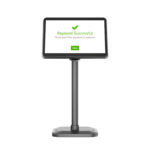
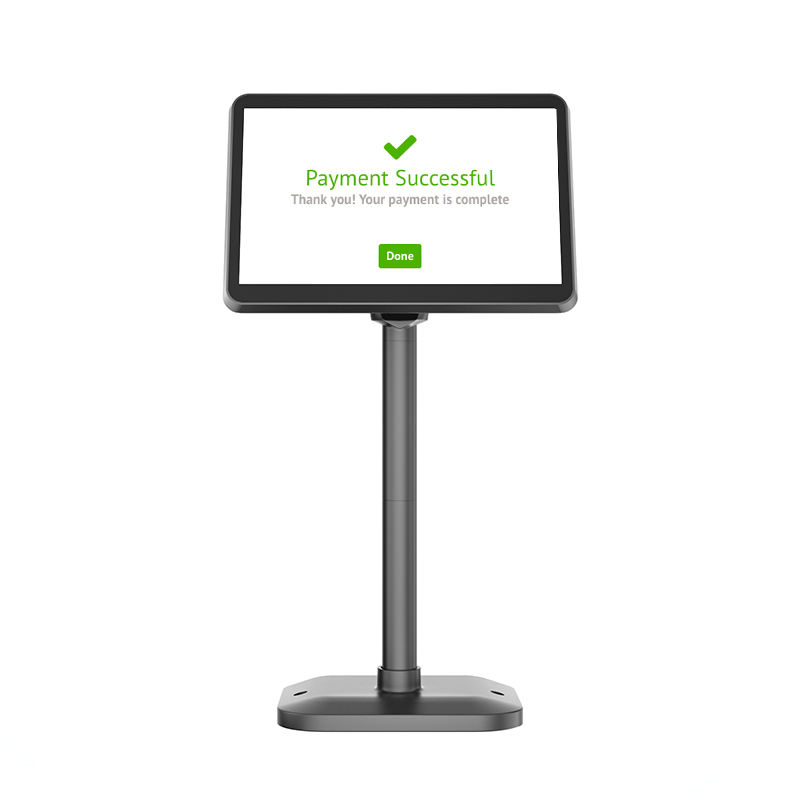
| Pole display on a short arm | HDMI or VGA from the terminal | Show the total; move to the customer side | Render a distinct layout unless the app extends to it |
| VFD two-line display | USB virtual COM | Show an amount in 20 x 2 characters | Show a modifier list |
| Tablet on a stand | Wi-Fi, its own app | Anything | Stay in sync without integration work |
Two physical constraints decide which of those is usable. The first is height: a rear panel sits at the height of the terminal head, and a customer standing at the counter has their eye at roughly 1.55 to 1.7 metres. If the terminal stands on a cash drawer, the panel is at about 1.1 metres and the customer looks down at it — which is fine for a total and awkward for a modifier list. The second is angle: a fixed vertical panel is read from above, so an IPS panel with a wide viewing angle matters more than resolution.
Tip prompts need a screen the customer can reach
Tip selection is the reason many restaurants want a customer-facing screen, and it exposes the limit of the rear-panel design immediately: the customer can see it and cannot touch it. On a non-touch rear panel the tip has to be entered by the cashier, which defeats the purpose — the customer is asked to name a percentage out loud, in a queue, which is the least likely way to produce a generous tip.
If tipping matters to your revenue, the configuration is a touch display facing the customer plus a separate card reader. That is three devices at the payment point instead of one, and it needs counter space — which is the real cost of the feature, not the screen.
Wiring, power and the second output
A rear panel needs no extra cable, which is why it is popular. A pole display needs a video output, and this is where Android terminals run into trouble: most have no HDMI out, because the platform is designed around a single integrated panel. So the combination “Android terminal plus pole display” usually means the pole display is driven by something else — a mini PC, or a Windows terminal.
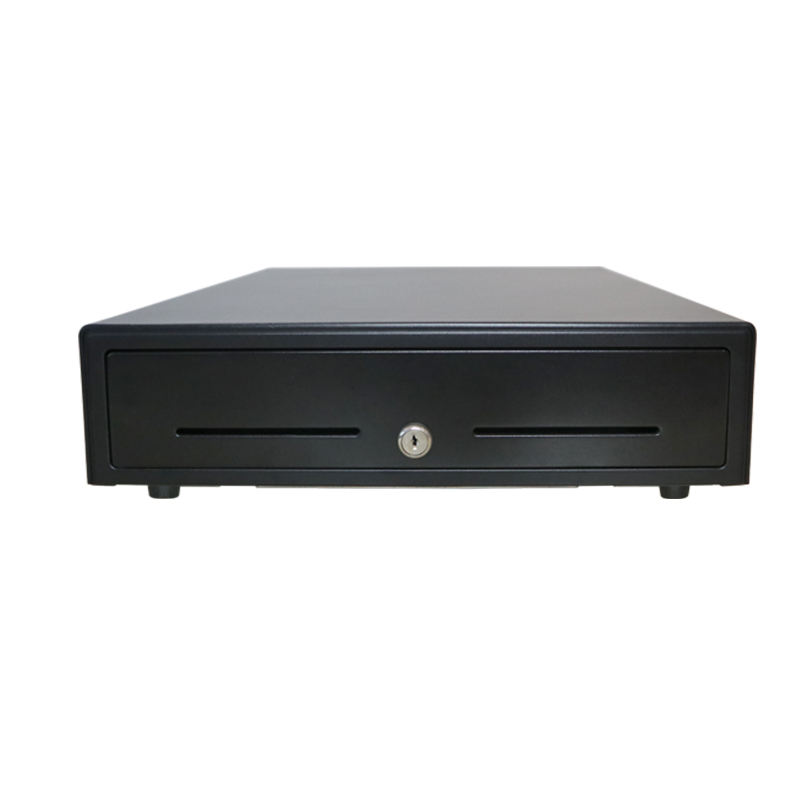
Count the power adapters before you commit to a layout. A terminal, an 80 mm printer and a pole display is three adapters and three sockets behind the counter. A dual-screen all-in-one with a built-in printer is one. Behind a counter with a drawer and a cabinet, that difference decides whether the installation looks finished.
The customer stands at the corner, not in the centre
A rear panel is designed as if the customer stood directly in front of the terminal. In a real queue they stand off to one side, at 30 to 60 degrees from the screen normal, and often half a metre back so the next person can pass.
That geometry has two consequences. The first is that the horizontal viewing angle matters more than the resolution: a panel quoted at 178 degrees is quoting the angle at which contrast falls to a low ratio, not the angle at which text stays comfortable. At 60 degrees off-axis the measured contrast is typically about a third of the on-axis figure, and a dim panel loses the modifier list entirely. The second is that a rear panel fixed vertically points at the ceiling from the customer’s side. A 10 to 15 degree upward tilt is worth more than 100 cd/m² of extra brightness.
If the counter is more than 700 mm deep, a screen on the head unit is on the wrong side of it. That is the case where a short pole display, mounted on the customer’s edge, is the only arrangement that gets read at all.
When the second screen becomes a maintenance item
The main screen is touched with a fingertip. The customer-facing screen is touched with rings, keys held in the same hand, a wet umbrella, and the edge of a phone. On a touch panel that is the difference between a two-year surface and a six-month one.
- Specify chemically strengthened glass rather than an anti-glare film — a film lifts at the corner within months and then traps cleaning fluid.
- Avoid a touch panel on the customer side unless the customer has to select something. A non-touch panel has no digitiser to fail and no calibration to drift.
- Plan the cleaning routine: an alcohol-free screen cleaner and a microfibre cloth. Solvent cleaners cloud a polycarbonate overlay in weeks.
- Check that the panel is recessed or flush. A proud glass edge on the customer side of a counter gets chipped by a tray within a month.
Where the second screen earns its cost
- Quick service with modifiers. The customer confirms 70% sugar or oat milk before paying, which removes the most common remake.
- Payment QR codes. A screen facing the customer is far better than a printed sticker for a dynamic QR that changes per transaction.
- Tips on a touch display. The only configuration where the customer selects the amount themselves.
- Order confirmation in a busy queue. The customer reads the total while the cashier starts the next order, which shortens the handover.
It does not earn its cost when the second screen shows advertising, when the app mirrors, or when the customer’s eye line is above the panel. Those three are the majority of installations that end up switched off.
Specification lines that matter
| Line | Target | Why |
|---|---|---|
| Panel type | IPS, 178 degrees | The customer stands to the side, not in front |
| Brightness | 400 cd/m² or more | Downlights and window glare |
| Touch | Only if the customer selects something | Non-touch is cheaper and more durable |
| Size | 10 to 11.3 inch | A total fits in 7 inch; a modifier list does not |
| Connection | Internal, or HDMI | A USB-only display needs a driver and dies on update |
| Mounting | Fixed or short pole | A long arm gets knocked in a busy queue |
FAQ
Does a dual-screen terminal need two graphics outputs?
Not if the second panel is built into the head unit — that is one internal connection. A separate pole display needs its own video output, which most Android terminals do not have.
Can the customer enter a tip on the second screen?
Only on a touch panel that faces them. A non-touch rear panel shows the amount and the cashier has to enter the tip, which is slower and produces smaller tips.
Is a customer display worth it for a small restaurant?
It pays for itself where remakes are common — modifier-heavy drinks and food. In a set-menu restaurant with few modifiers, the second screen mostly shows a total that the customer has already been told.
Where to go next
The dual-screen decision is a software question with a hardware answer. If your POS application extends to a second display, these are the terminals that carry one:
DCA-Q3S, 11.3-inch rear customer display DCA-Q3A 15.6-inch Android terminal POS-CD10H 10.1-inch pole display all Android terminals countertop terminals and counter geometry · what a customer display actually shows · what breaks on a tablet stand
Specifying the hardware? The hardware side is covered in Cafe POS, station by station — how 48 characters on a ticket change the printer you need.