A POS system is the set of hardware and software at a counter that turns a customer’s selection into a recorded sale: it identifies the item, prices it, takes the payment, hands over a receipt, and stores the transaction. In a shop that is a terminal, a receipt printer, a cash drawer, a barcode scanner and usually a customer display, wired together and running one application.
That definition sounds like a description of the box on the counter. It is actually a description of five hand-offs. The sale passes from scanner to terminal to payment to printer to drawer to ledger, and each hand-off is a physical connection with its own way of failing. Almost every complaint filed as “the POS is broken” is one of those five links, not the software.
The words people use for different things
Three terms get used interchangeably in procurement documents, and the difference decides what you are actually buying.
- POS system — the whole station: terminal, printer, drawer, scanner, application, and the record of sales behind it. If one part is missing, it is not a system.
- POS terminal — the screen unit alone. It is one part of the system, and on its own it can take a payment and print nothing.
- POS software — the application. It is where the catalogue, the tax rules and the reporting live, and it is the only part that can be updated without a screwdriver.
A hardware supplier sells the first and third of those as a package and the middle one as a product. When a quotation lists only a terminal and calls it a POS system, the printer and the drawer are still coming — either in the same order or as a second purchase after the counter is built.
The five parts, and what decides whether each one is any good
The table below is the whole station. The fourth column is the honest one: what actually fails in service, drawn from the returns we see on the hardware side.
| Part | What it does in the sale | What decides quality | How it fails in year two |
|---|---|---|---|
| Terminal | Runs the app, holds the catalogue, drives every port | Panel brightness and mm per pixel, RAM, Android or Windows version | Missed taps from a slow touch controller; a panel that washes out under a downlight |
| Receipt printer | Prints the receipt and fires the drawer | Print width, dots per line, head life, cutter type | Grey or half-blank receipts; a cutter that jams on a 0.08 mm paper |
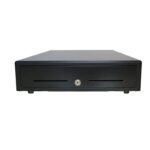
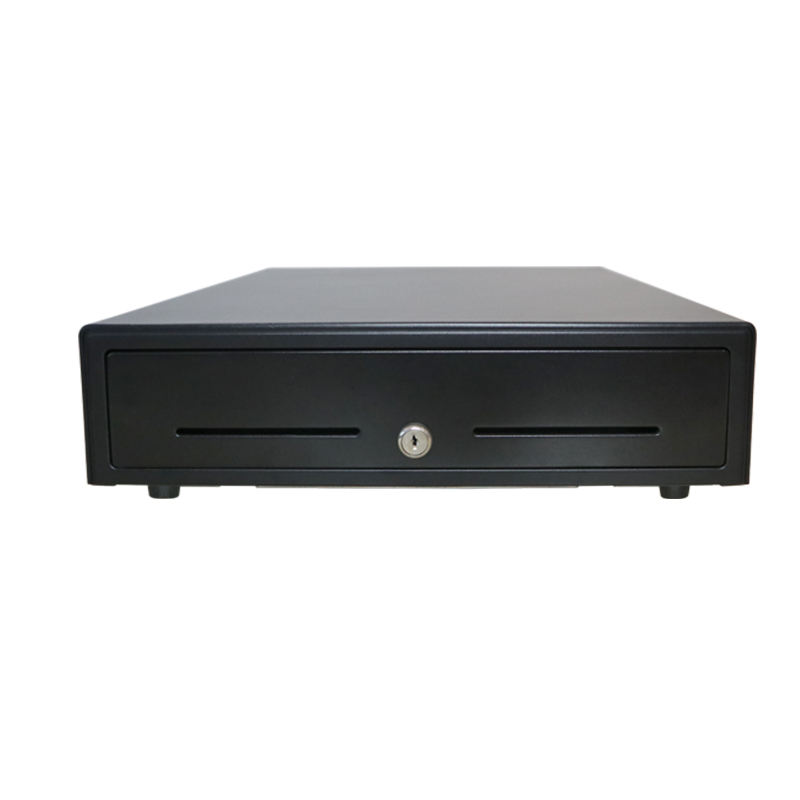
| Cash drawer | Holds the cash, opens on command | Gauge of the steel, the solenoid, the RJ11 wiring | A drawer that clicks and stays shut, because the kick pulse never arrives |
| Barcode scanner | Reads the item into the sale | Minimum element size, sensor type, depth of field | Reads nine items and misses the tenth, with no error message |
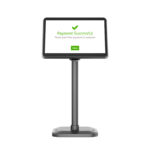
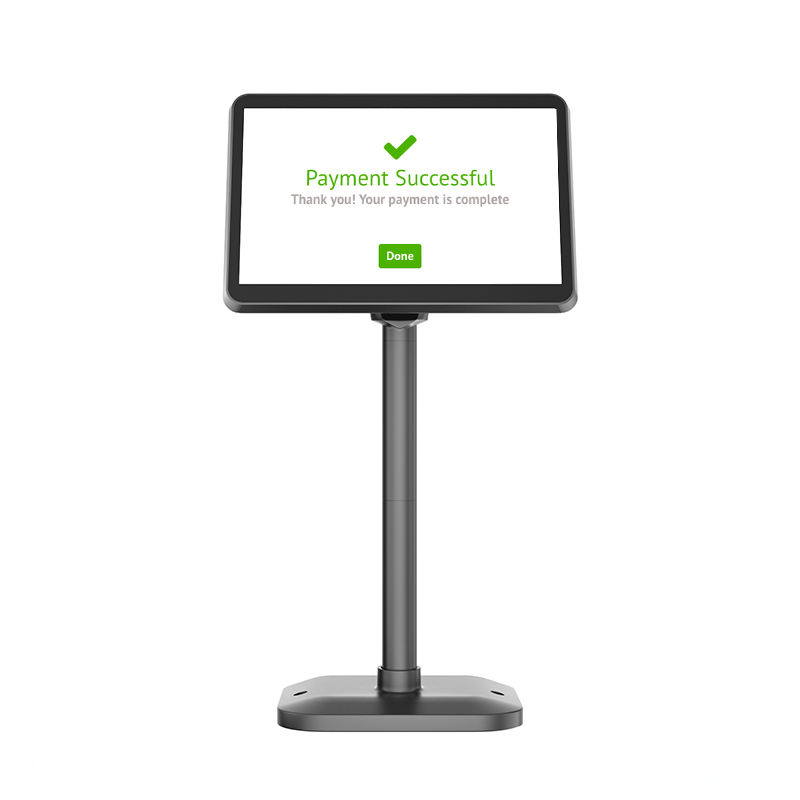
| Customer display | Shows the total to the customer | VFD or LCD, viewing angle, cable length | A display that is unreadable at 40° off-axis, or a VFD that dims |
One sale, five hand-offs
Walking a single transaction through the station is the fastest way to see which part is responsible for which symptom.
- Scan. The scanner decodes the barcode and types the digits into the application as if a keyboard had sent them. If the scanner is in the wrong mode, it types nothing and the app looks broken.
- Price lookup. The application matches the item code against the catalogue. A local catalogue answers in milliseconds; a cloud lookup over a slow link is where the “the till pauses” story starts, and the fix is a local cache, not a faster terminal.
- Payment. The card or QR payment runs through a payment provider, and its timeout is the five-second freeze that cashiers describe as the machine hanging. The terminal is waiting; it has not crashed.
- Print. The application sends an ESC/POS byte stream to the printer, which heats 576 elements across 72 mm of paper. Nothing happens on paper until that stream arrives complete.
- File. The sale is written locally, then queued for sync. If the sync runs inline instead of in the background, the counter stops when the Wi-Fi does.
Two of those five links are not what most people expect. The drawer is not fired by the terminal: the terminal sends the command to the printer, and the printer pulses the drawer through its own RJ11 port and its own power rail. And the sale is not saved by the cloud: it is saved on the terminal first, which is why a shop can keep trading through an internet outage and reconcile later.
The drawer that never opens
A cash drawer opens on a pulse from the printer through an RJ11 cable: 24 V on many 80 mm models, 12 V on others. Connect a 12 V drawer to a 24 V printer, or plug the drawer into the terminal instead of the printer, and the solenoid gets a pulse it cannot use. The drawer clicks, the till stays shut, and the fault gets logged as a software bug.
The details are worth their own article: the 12 V and 24 V kick-out signals are the reason a working drawer suddenly stops working after a printer swap.
Six lines on the quotation that decide year three
Most of a POS specification is reassurance. Six lines carry the weight, and each can be checked against a number instead of an adjective.
| Line | Why it decides something | The number to hold |
|---|---|---|
| Panel brightness | Readability under downlights and beside windows | 250 cd/m² for a dim room; 350 and above for a lit counter |
| Millimetres per pixel | Physical size of a button, which is what a thumb needs | Panel width ÷ horizontal pixels; 18 mm per button is the working floor |
| Print width and dots | Characters per receipt line, and how small a font can go | 72 mm and 576 dots on 80 mm paper; 48 mm and 384 dots on 58 mm |
| Head life | How long before receipts go faint | 100 km of paper on a counter printer |
| Drawer trigger | Whether the till opens at all | Kick voltage matched to the drawer, fired from the printer |
| Minimum element | Whether a small or worn label still scans | 4 mil (0.1 mm) with 25% print contrast |
Two of these are arithmetic, not opinion. Millimetres per pixel is panel width divided by horizontal resolution: on a 15.6-inch 1366-wide panel a button drawn 96 pixels wide is about 24 mm across, and the same 96 pixels on an 11.6-inch panel is 18 mm. Dots per line is print width multiplied by 8, because 203 dpi is 8 dots per millimetre — which is why an 80 mm printer that advertises 576 dots is describing a 72 mm print area, not an 80 mm one.
What the software is actually responsible for
The application gets blamed for hardware faults and the hardware gets blamed for application faults. The split is usually clean once you know which side owns the symptom.
- Owned by the application: price lookup, tax rules, discounts, the receipt layout, the sync queue, user permissions.
- Owned by the hardware: whether a tap registers, whether the pulse reaches the drawer, whether the print is dark enough, whether the scanner reads a crumpled label.
- Owned by the integration, which is where projects stall: making the app fire the right drawer port, print in the right code page, and keep a catalogue on the terminal instead of in the cloud.
This is why the terminal’s port list matters more than its processor. A unit with one RJ11 and two RJ12 ports can drive a drawer and two serial peripherals without a hub; a unit with four USB ports and no RJ11 needs an adapter, and an adapter is another connector that can be unplugged by a cleaner.
The shapes a POS system takes
The five parts do not have to live in five boxes. The three common arrangements trade counter space against serviceability, and none of them is wrong.
| Arrangement | What is on the counter | What it costs you |
|---|---|---|
| Separate components | Terminal, printer and drawer as three units | Three power cables and three places to fail — but any one part can be swapped in minutes |
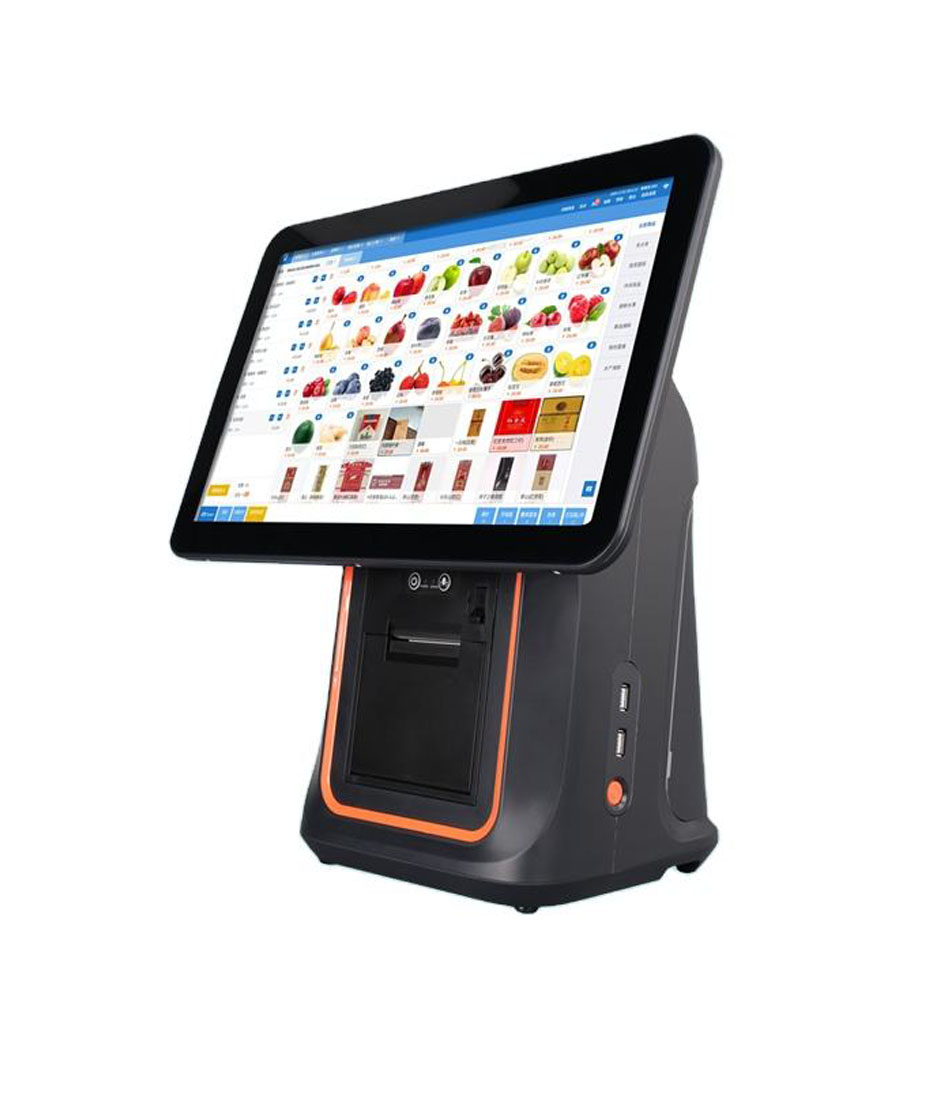
| Terminal with a built-in printer | One chassis with the printer inside, drawer still separate | One cable, one footprint; a printer jam takes the whole till away |
| Handheld plus a dock | A handheld terminal, a charging dock, a printer at the counter | Works for floor staff and stocktake; the small screen is the limit at a busy till |
The integrated arrangement is the one most counter operators end up with, and it has its own arithmetic: the printer module is the deepest component in the chassis, and it is also the component with the shortest service interval. What an all-in-one POS system really integrates covers where that module sits and what it does to the box.
FAQ
Is a POS system the same as a cash register?
No. A cash register records an amount and opens a drawer; it does not know what was sold. A POS system keeps an item-level record, which is what makes stock counts, margin reporting and reordering possible. A register with a barcode scanner bolted on is still a register if it only totals prices.
Do I need a computer as well as a terminal?
No. A modern terminal is a computer with a screen, ports and an operating system. What you may need is a back-office machine for reporting, and a local network so the terminals share a catalogue — but the counter does not depend on a separate PC being switched on.
Can a tablet be the POS system?
It can be the terminal, which is one of the five parts. A tablet has no RJ11 drawer port, no serial port and no wired Ethernet, so the printer and drawer arrive as separate devices over Bluetooth or USB, and each of those is another link that can drop. It works; it is a different reliability profile.
How many terminals does one counter need?
One per till point, plus one for the person who does not stand at a till — the floor staff taking an order at a table, or the stockroom doing a count. Two terminals sharing one printer is a common mistake: the second one prints into a queue and the two receipts interleave.
What is the difference between POS hardware and POS software?
Hardware is the five physical parts and their ports. Software is the application that prices, records and reports. A hardware supplier can build the first and integrate with the second; nobody can sell you the second without knowing which ports the first has.
Where to go next
The five parts are only worth specifying together — a terminal that cannot fire a drawer, or a printer whose paper width does not match the app’s receipt layout, is a return waiting to happen.
the full hardware catalogue Android POS terminals receipt printers cash drawers barcode scanners what a kiosk is